SharePoint permissions report options and what each one tells you
Table of contents
5 key takeaways:
- There’s no master SharePoint permissions report – each native option answers a different question and hides different risks.
- The most dangerous principals in your tenant are often the most compressed in reports – think Everyone except external users and large groups.
- Point-in-time CSVs help you survive an audit, but without history you can’t explain how a bad permission appeared.
- The real skill is framing the right question – tenant-wide blast radius, site-level exposure, or change history – then picking the right report combo.
- Once you know what native reports miss, tools like Syskit Point provide the natural next step.
There’s a moment when every SharePoint admin hits the same problem – where is the one permissions report that shows everything? Simple answer – it doesn’t exist.
Instead, SharePoint gives you fragments rather than a single source of truth. The three primary report types are DAG snapshots, site-level CSVs, and PowerShell exports, with each having limitations. As a result, a SharePoint permissions report is a diagnostic view, built from these puzzle pieces, and revealing which users, groups, and guests can reach specific sites, files, and folders.
This article will guide you through the various SharePoint permissions report options, and demonstrate the advantages of a mindset shift – stop hunting for one perfect report and start assembling the right mix for your audit or security question.
We’ll also detail a fourth reporting type in the shape of external platforms, and how tools like Syskit Point centralize visibility across the entire tenant, transforming fragmented data into an audit-ready permissions matrix.
Data Access Governance (DAG) reports: The tenant-wide snapshot
Data Access Governance (DAG) reports give you a tenant-wide health check for SharePoint sharing and potential ‘at-risk’ sites. It can count external users, and locations with unusually many unique permission sets, which helps you prioritize where to investigate first.
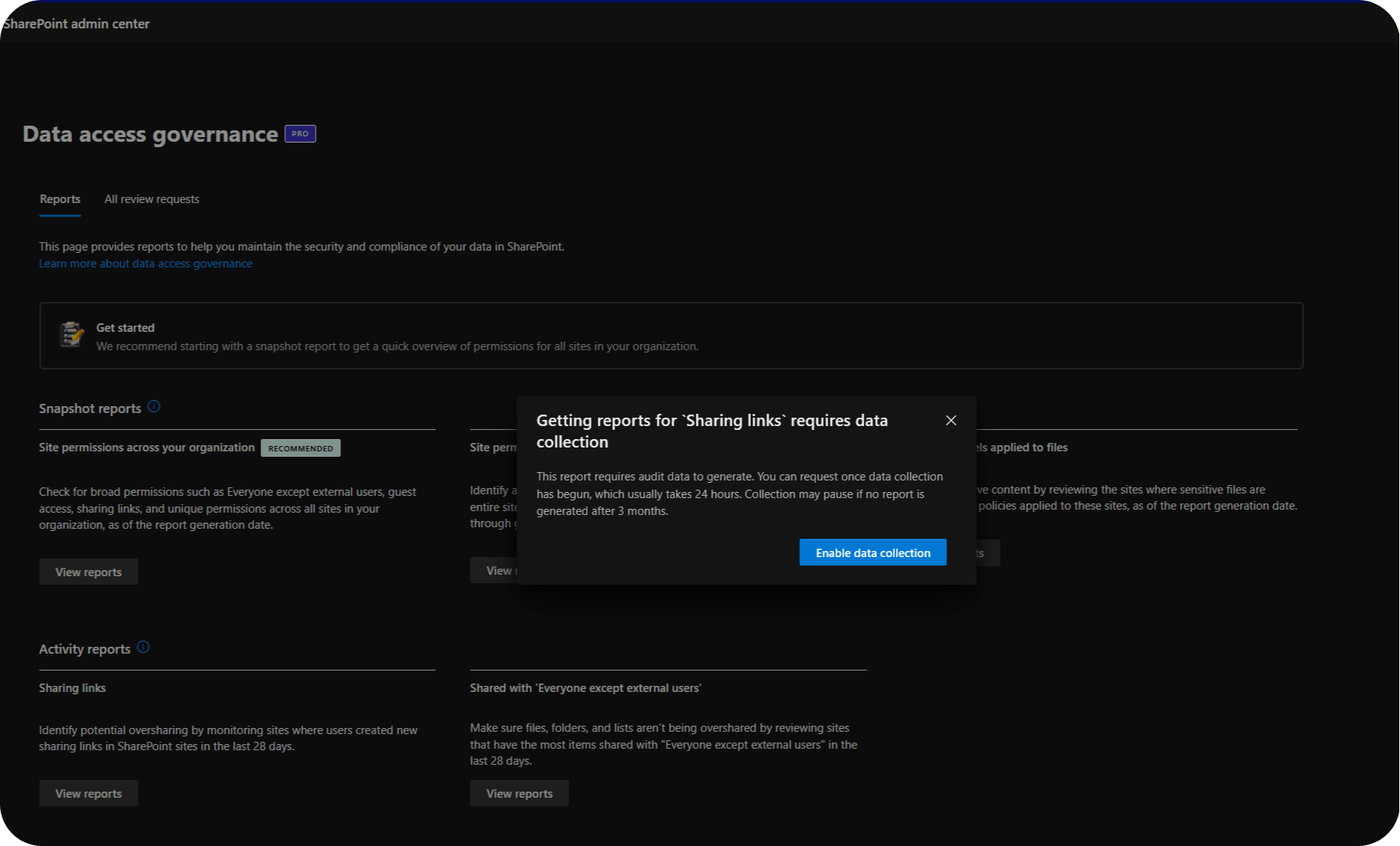
However, there’s no detailed permissions spreadsheet you can hand to an auditor. DAG reports live in the Microsoft 365 admin center under Reports > Data access governance > View reports, where you can quickly spot overshared/‘at‑risk’ sites.
The headline metric in these reports is ‘total permissioned users’. This expands Microsoft 365 and security groups into a count of unique users who have access to a given site or item, so you get a realistic sense of blast radius instead of a misleading ‘1 group’ label. However, the number does not increase for Anyone links or Everyone except external users until those identities actually access the content, which means quiet exposure does not immediately show up in the count.
DAG also runs on its own schedule. The first run can take up to five days, and subsequent runs reflect data that is up to 48 hours old, so it’s not a real‑time safety net. On top of that, you need Microsoft 365 Copilot or SharePoint Advanced Management licenses, and even then you still don’t see the individual user names inside each group – only the rolled‑up total. This makes DAG a strong early‑warning radar, but not the final report you bring to a security review on its own.
Site-level sharing reports: The local CSV deep-dive
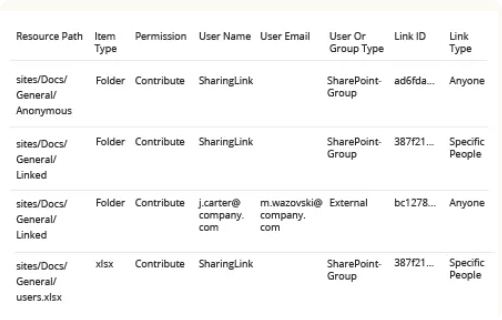
A SharePoint sharing report is a site-specific CSV export that details resource paths, permission levels, and specific user names or sharing links, giving you a practical snapshot of file and folder exposure for that site. Site-level sharing reports are the ‘zoomed‑in’ view for a single SharePoint site. They’re one of the few tools site owners can run without waiting on a global admin.
To generate one, go to the site, open the gear menu, choose Site usage, then select Run sharing report.
SharePoint then emails you a CSV that lists each shared item and who can access it. You’ll see columns for resource path, item type, user or link, and permission level, but you don’t get expanded group membership.
If a SharePoint group has 200 members, the CSV shows the group name once and leaves you to resolve its membership elsewhere. The same thing happens with Everyone except external users. It appears as a single entry, which hides the true scale of access and can make exposure look smaller than it is. Anonymous Anyone links are also excluded in the CSV, so public‑style sharing can remain invisible in this export.
Site-level sharing reports have to be run site by site. If you have 1,000 sites, you have 1,000 separate CSVs, with no native way to stitch them into a tenant-wide picture.
PowerShell reports: The build-your-own view
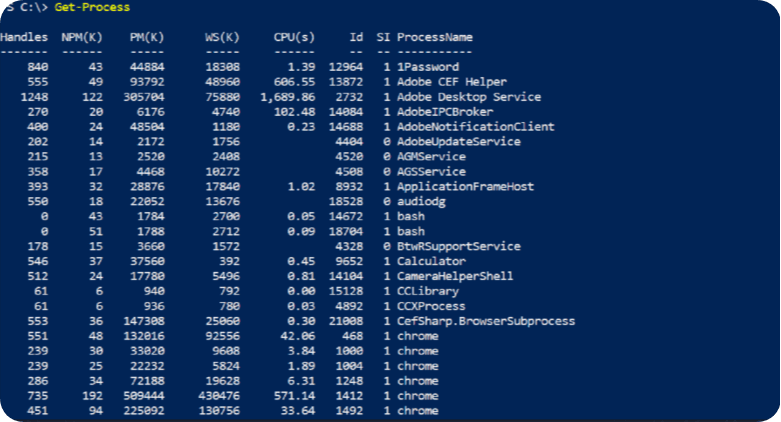
For broader or more automated coverage, admins often turn to PowerShell. PowerShell scripts can query permissions for sites, lists, libraries, and individual items and then export to CSV. However, they require scripting skills, ongoing maintenance, and throttling awareness, which limits who can own them day-to-day.
Native Microsoft options remain fragmented. They help for targeted checks but do not give you a unified SharePoint management permissions matrix a non-technical stakeholder can read.
Analyzing the gaps: What native reports miss
Native SharePoint reports do a decent job of telling you who has access right now, but they quietly skip some of the most uncomfortable details.
One of the biggest problems is Everyone except external users. This single principle effectively opens content to the entire organization, but in sharing reports and permission views it appears as one tidy entry, disguising the true blast radius if that library contains sensitive data.
“Inheritance is another troublesome area. Folders and items with unique permissions often sit several levels deep, flagged only by a small icon or a subtle ‘This folder has unique permissions’ note. In large structures, these exceptions are easy to miss, especially when you are skimming CSVs and UI pages during an audit rush.”
–Danijel Čižek, Product Manager Team Lead at Syskit
A need for historical records poses a further challenge. Native reports show a point‑in‑time snapshot. They don’t answer questions like ‘Who broke inheritance on this folder last Thursday?’ or ‘When was this guest added?’. You also can’t tell which guests are stale. Native reports show that a guest has access, but not whether they still use it or when they last signed in.
Without a change log for SharePoint permissions, you can confirm current exposure but struggle to reconstruct how you got there. This makes root‑cause analysis and recurring risk reviews much harder.
Closing the security gap with Syskit Point
Native tools can help you survive a SharePoint audit, but Syskit Point helps you control the process. You gain a centralized permissions matrix across Microsoft 365, so you’re no longer juggling DAG snapshots, site‑by‑site CSVs, and hand‑rolled PowerShell exports. Syskit Point is up and running in minutes for Saas and usually up to an hour for self-hosted – it does not depend on SAM or Copilot licensing. You gain a live permissions matrix without waiting days for admin‑center jobs.
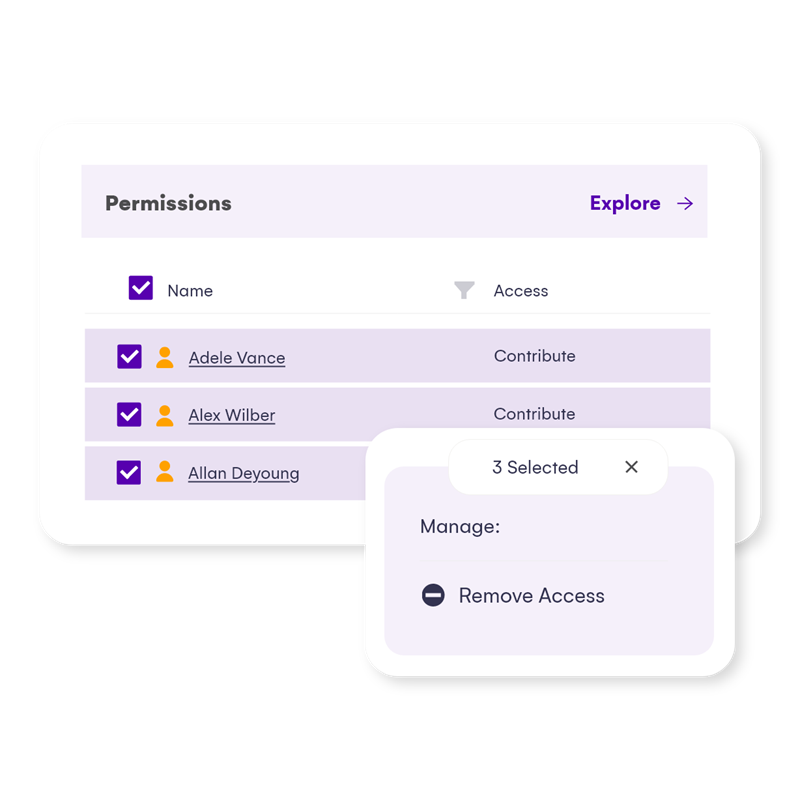
Instead of clicking through each site, you start from a tenant‑wide risk overview that highlights hotspots like anonymous links, private workspaces shared broadly, and sites with unusually open access.
From there, you can drill into focused permissions matrix reports at the site or workspace level, where it makes sense to go down to file and folder details, rather than trying to flatten your entire tenant into a single, unwieldy spreadsheet. This includes external users, plus filters and pivots that match how auditors actually ask questions.
For audits and investigations, history matters as much as the current snapshot. Syskit Point tracks permission changes over time and keeps audit logs long term – with unlimited retention in the Enterprise edition. You can see when access changed and who approved it, not just the current state.
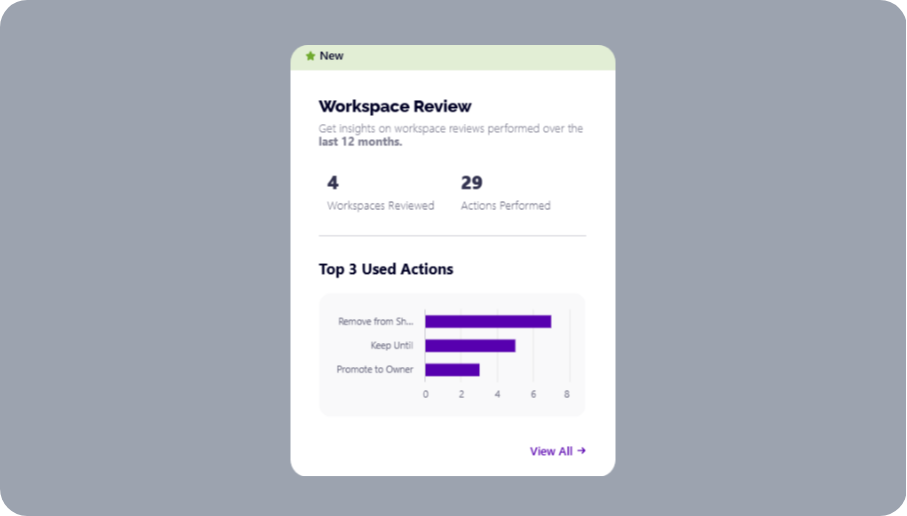
What’s more, you can turn recurring headaches into a process by configuring automated workspace reviews. Site and workspace owners receive scheduled attestation tasks and must confirm, adjust, or revoke access, which keeps permissions accurate without IT chasing every team.
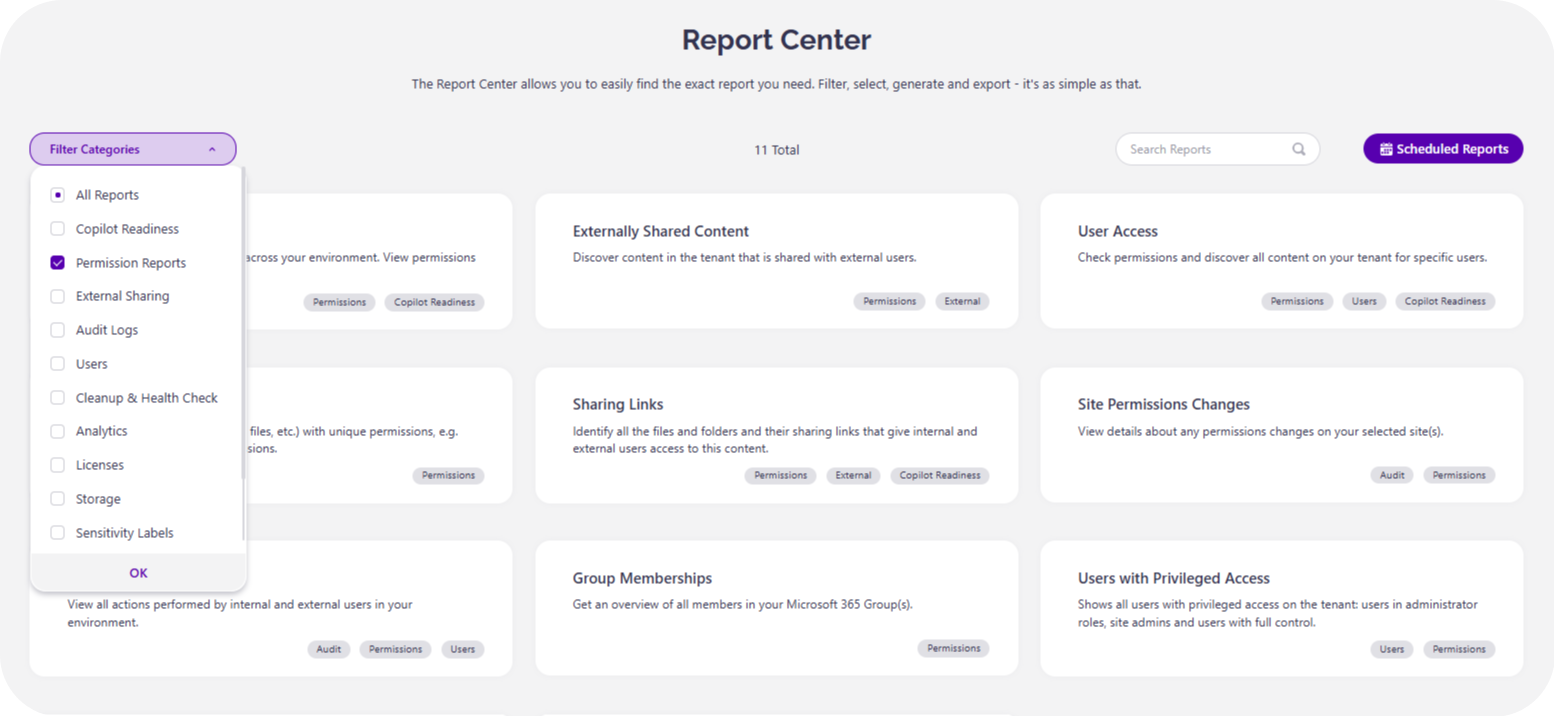
Syskit Point reporting is also actionable. From within a permissions report, you can remove stale users, clean up guest accounts, restore inheritance on a folder, or clean up unused workspaces in a few clicks. There’s no time wasted in hunting for the right site, and no separate PowerShell session. That shift from ‘report and export’ to ‘report and fix’ is what turns your permissions reporting from a reactive one to an ongoing security practice.
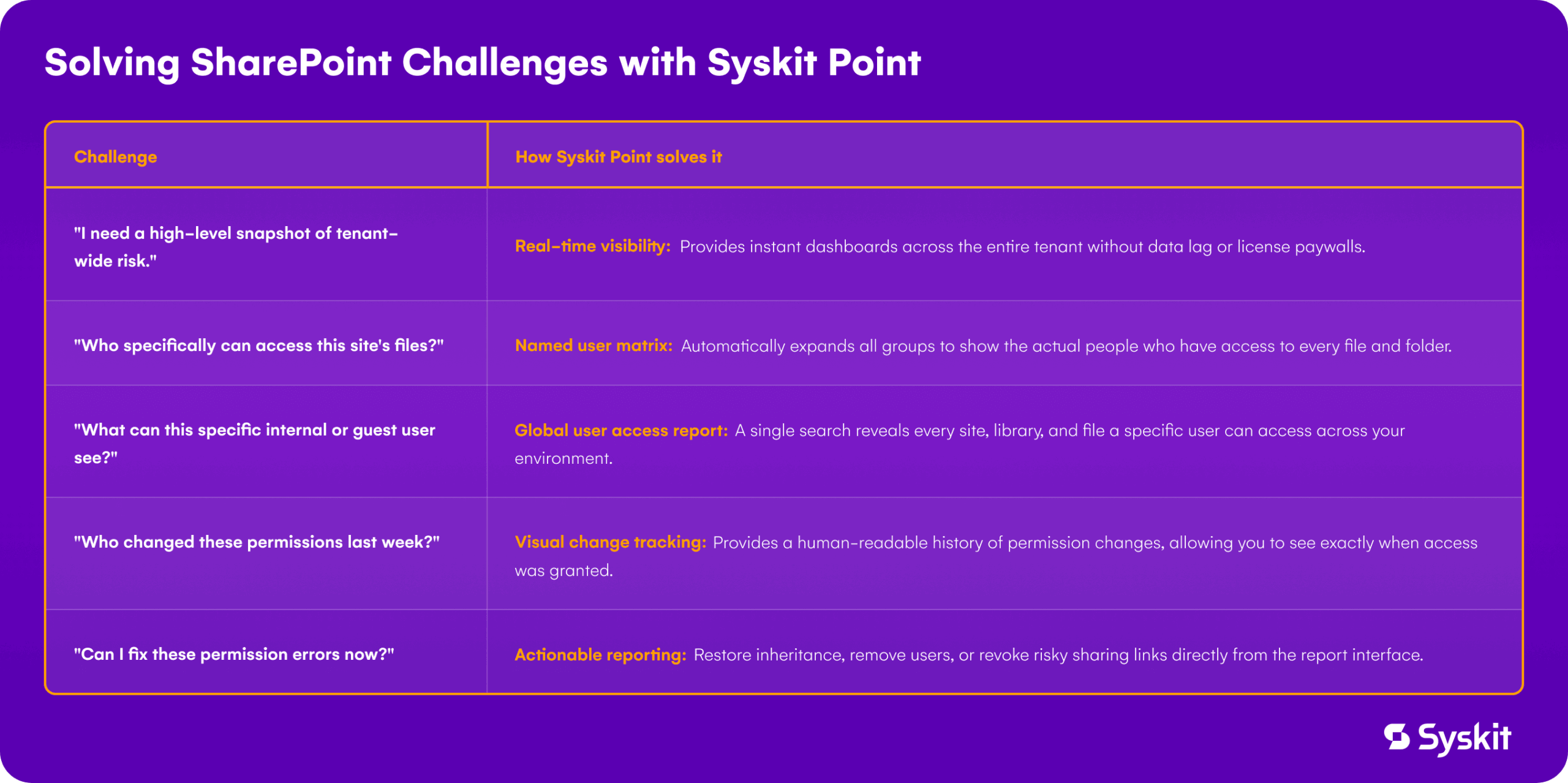
From fragmented data to governance confidence
SharePoint gives you several flavors of permissions data – DAG snapshots, site‑level CSVs, and PowerShell exports – but none of them add up to a live, tenant‑wide matrix you can trust on its own.
For enterprise admins, that means every audit or incident response starts with the same, time-consuming process – pulling point‑in‑time reports, stitching them together in Excel, and hoping permission drift has not quietly undone last quarter’s cleanup. It’s not the sustainable, scalable governance model that ambitious businesses need.
Syskit Point fills the gap by centralizing visibility across Microsoft 365 into one permissions matrix, with history, context, and automation. Instead of chasing challenges, you see exposure, fix it directly from the report, and prove it with an audit trail. Try Syskit Point today and turn fragmented data into true governance.