Stop running out of space with this SharePoint cleanup workflow
Table of contents
TL;DR: SharePoint cleanup is the process of removing redundant files, version history, and inactive sites to reclaim space and improve performance. Reclaiming space leads to faster search indexing and a better user experience by reducing clutter in the environment. Syskit Point transforms cleanup into a repeatable, owner-driven process across multiple sites.
Every SharePoint admin eventually hits the same wall – the ‘Out of Storage’ alert that won’t go away. You empty the recycle bin, yet the quota bar barely moves.
The problem is that storage hides in the shadows. It lingers in document versions, the second-stage recycle bin, and the Preservation Hold Library. These ‘invisible’ consumers turn storage management into a constant battle for control.
Thankfully, SharePoint cleanup doesn’t have to be purely reactive. We’ll detail three methods to help you stop running out of space – manual cleanup, PowerShell automation, and extensions like Syskit Point, which shift cleanup culture from a reactive one to proactive governance.
Understanding SharePoint cleanup fundamentals
Cleanup reduces the organization’s risk surface by removing irrelevant, outdated, or sensitive data that’s no longer required for business operations. It’ll help you reduce bills, reclaim space, and improve overall performance.
By purging outdated or sensitive data, you also shrink your organization’s risk surface – limiting what can be leaked or accessed during a security incident. Plus, with less ‘noise’ in the system, search relevancy improves for everyone.
It’s important to remember the storage hierarchy – SharePoint and Teams pull from the same underlying tenant storage pool, so a bloated Team site directly impacts your SharePoint quota. And look out for a potential snag when performing cleanup.
If a retention policy or eDiscovery hold is active, ‘deleted’ content simply moves into the Preservation Hold Library instead of disappearing. This library still counts against your quota, often hiding the very storage that you’re trying to set free.
Identifying the targets: Where is your storage hiding?
Before you start deleting, you need to find the bloat and the clutter – and they don’t always come from the same place.
Inactive sites are still worth cleaning up, but mainly from a hygiene perspective rather than pure storage savings. Small sites with low storage usage (e.g. under 25MB) contribute more to noise than to quota issues, making it harder to focus on the workspaces that are actually consuming large amounts of space. Over time, this noise obscures genuinely problematic sites, such as large collaboration spaces that became inactive but still host years of content and file versions.
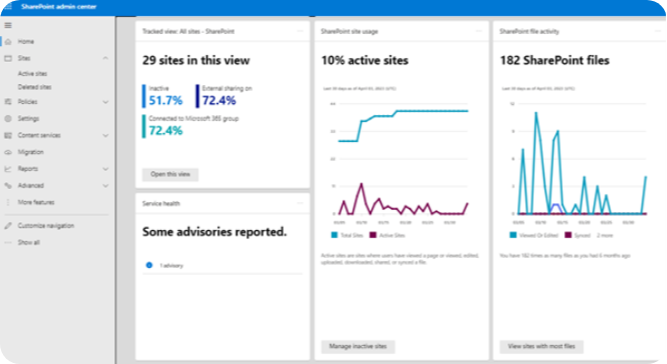
You can find inactive sites in the SharePoint Admin Center under Reports > Usage, though you’ll need to cross-reference multiple spreadsheets to see the full picture. Cleaning up or archiving these low-value, inactive sites helps reduce clutter so you can prioritize the real storage culprits – typically large sites with extensive version history and long-lived content.
Version bloat is a major factor. SharePoint defaults to keeping 500 versions per file, meaning a 10MB document can easily occupy 5GB of quota. You should also hunt for orphaned workspaces – sites without active owners.
While manual report-pulling is a tedious game of Excel gymnastics, tools like Syskit Point simplifies this by providing storage metrics that quantify exact potential savings. Inactive or orphaned workspaces are automatically flagged, showing you precisely what to target.
Method 1: Manual cleanup methods
Site deletion is a primary way to reclaim large blocks of storage by removing entire workspaces and their underlying data. This process is effective but requires careful verification of site ownership and data relevance before execution.
Start by identifying inactive content through Admin Center reports. Once you’ve confirmed that libraries and files are safe to remove, you can proceed with deletion without further manual pruning at the item level, especially if you plan to delete the entire site.
When you do need to reclaim space at the content level, delete old files in document libraries and adjust version history limits so that only relevant versions are retained. After deleting, make sure you clear both stages of the recycle bin to actually free up storage.
Important note: Emptying the first-stage recycle bin typically moves items to the second-stage recycle bin, where they continue to consume storage until permanently deleted (up to 93 days from the original deletion), unless removed earlier by an administrator. Admins can permanently delete items directly from the second-stage recycle bin, bypassing the waiting period and immediately reclaiming space.
To complete the recycle bin process:
- Step 1: Navigate to Site Contents > Recycle Bin, select all items, and delete them.
- Step 2: Click the ‘Second-stage recycle bin’ link at the bottom of the page to purge items permanently.
Until this second step is finished, your tenant storage metrics will not reflect the reclaimed space. Removing every redundant layer is the fastest way to reduce your current storage footprint and stay within your tenant limits.
SharePoint storage reclamation table
|
Action Taken
|
Does it free space?
|
Visibility
|
|---|---|---|
|
Delete from Library
|
No (moves to 1st stage) |
User-visible |
|
Empty 1st Stage Bin
|
No (moves to 2nd stage) |
Admin-only |
|
Empty 2nd Stage Bin
|
Yes (if no policy exists) |
Permanent |
|
Trim File Versions
|
Yes (immediately) |
Permanent |
|
Active Retention Hold
|
No (redirects to PHL) |
Hidden from users |
Version control: Reclaiming your space
Document versions are often the largest silent consumer of storage. Because SharePoint saves a new copy for every edit, a 10MB file with 100 versions can consume a whopping 1GB of storage.
To manage this manually, navigate to Library Settings > Versioning Settings to set retention limits, such as keeping only the last 10 versions.
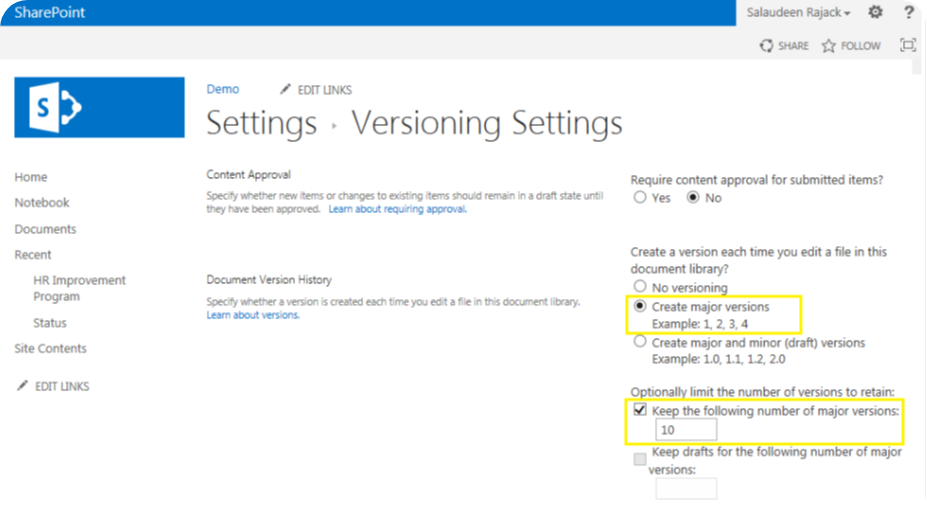
Trimming these histories can reclaim a massive percentage of library storage. However, keep in mind that reclaimed space from version trimming or site deletions is not instantaneous – it can take 24-48 hours for changes to reflect in your dashboards. While Microsoft’s ‘intelligent versioning’ helps manage this over time, manual truncation is usually necessary when you are facing an immediate storage crisis.
“If you need to free up space fast, start with the ‘Recordings’ folder. Teams’ meeting recordings are high-resolution video files that consume gigabytes of storage almost instantly. Deleting outdated recordings is often the single most effective quick win for an admin in a storage crisis!”
– Danijel Čižek, Product Manager Team Lead at Syskit
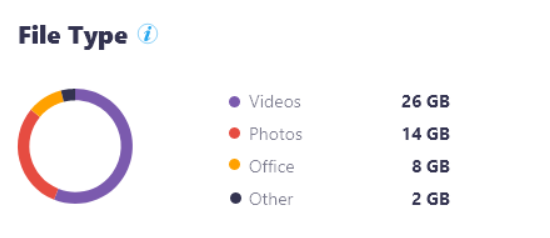
Centralized management platforms like Syskit Point make this even easier by providing a single view of your file types and their storage:
Method 2: PowerShell automation
Use cmdlets like these to automate mass purges using PowerShell:
Connect-PnPOnline: To establish the connection to the tenant.Clear-PnPRecycleBinItem -All -Force: To automatically and permanently remove items from both the first and second-stage recycle bins in one go, or use-SecondStageOnlyif you specifically want to target only the second-stage recycle bin.Set-PnPList -EnableVersioning $false(or limiting counts): To stop creating new versions on a list or library (existing versions remain). Combine this with settings likeEnableAutoExpirationVersionTrim,ExpireVersionsAfterDays,MajorVersionsto cap stored versions and automatically clear older ones.
For recurring maintenance, using Power Automate use Power Automate to trigger these scripts on a schedule. This ensures your recycle bins don’t stay full and versioning stays within reasonable limits without manual intervention.
However, PowerShell hits a scaling wall when it comes to business logic and ongoing maintenance. Scripts can trim versions or delete sites in bulk, but they only do exactly what you tell them to. They can’t independently decide which libraries, versions, or sites are truly redundant or safe to remove.
This means an admin still has to design, update, and monitor the scripts to reflect business rules, compliance requirements, and exceptions over time. In practice, that adds a lot of overhead and risk, especially if you’re not deeply comfortable with scripting.
Safeguards like retention policies can help prevent accidental deletion, but they also add another layer of configuration to keep in sync with your scripts. This can quickly erode the time-saving benefits you were hoping to gain.
Method 3: Sustainable governance with Syskit Point
Manual cleanup works for a single site, but it fails at scale. Imagine repeating those clicks for lots of sites while cross-referencing spreadsheets to avoid deleting VIP data. The process is reactive and simply unsustainable.
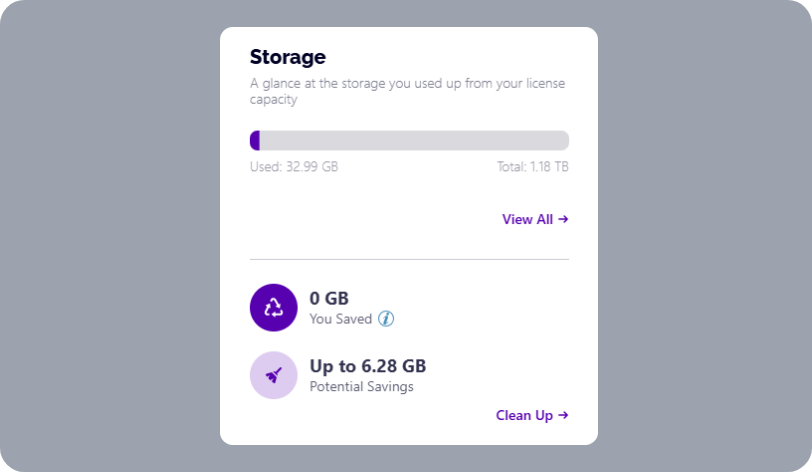
Syskit Point provides a centralized storage matrix, offering a unified view of consumption across SharePoint. It addresses the same challenges as manual cleanup and scripting by combining automated detection with owner-driven actions, so you can move beyond ad-hoc fixes and into sustainable governance.
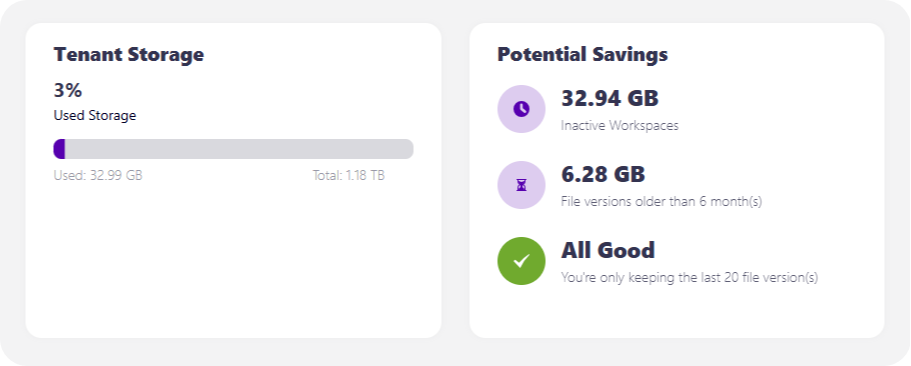
Syskit Point first helps you tackle orphaned and inactive workspaces through automated, policy-based reviews that run on a schedule. Inactive or ownerless workspaces are automatically flagged, and review tasks are routed to Site Owners or escalated to designated approvers when no active owner exists, ensuring that no site falls through the cracks.
The platform also automates tasks that prompt Site Owners to ‘Renew, Archive, or Delete’ their own content. By putting the decision in the hands of those who know the data best, you remove any guesswork from the situation. Compared to scripts that blindly execute what they are given, Syskit Point lets you codify business rules into policies and then surfaces decisions to the right people, without requiring deep PowerShell expertise or constant script maintenance.
When it comes to version cleanup, Syskit Point supports both one-time remediation and ongoing control. Admins can identify libraries with excessive version bloat, trigger bulk trimming to reclaim space immediately, and then enforce version limits. New versions stay within reasonable bounds without relying on individual users to configure their own libraries. Site Owners still gain better insight into where large files and long version histories are accumulating, and can take additional trimming actions where needed.
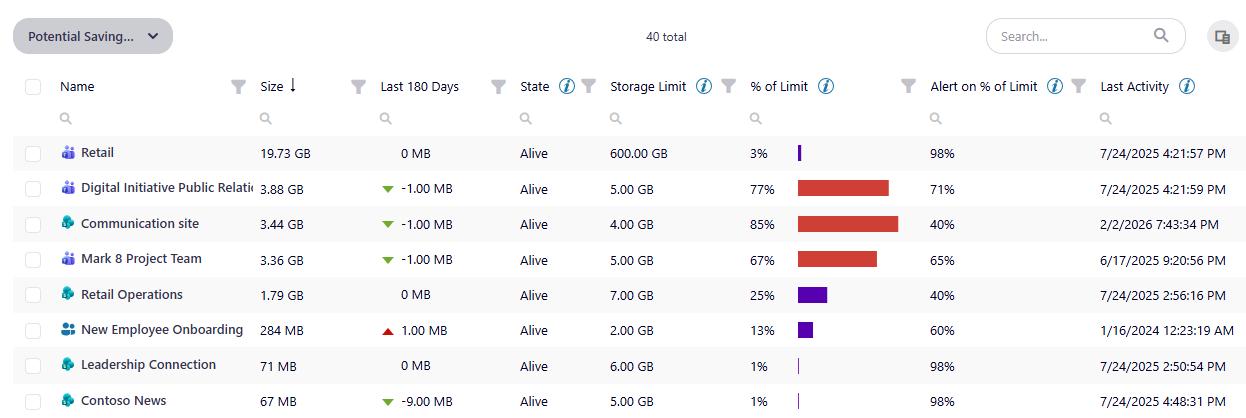
The platform’s automated cleanup workflows calculate potential storage savings before you act, making the ROI of your governance efforts visible to stakeholders. It effectively upgrades your storage strategy from manual clicks and fragile scripts to policy-driven automation with built-in reporting.
Furthermore, Syskit Point helps you identify prime candidates for Microsoft 365 Archive. This allows you to move inactive sites to a lower-cost, tiered storage solution for long-term preservation. You reclaim your active quota while ensuring the data remains available if needed, striking the perfect balance between cost optimization and data retention.
Before archiving, admins can also trim version history to minimize each site’s footprint, which is critical because archived storage still incurs cost. And with upcoming file-level archiving capabilities, you’ll be able to move only the heaviest, least-used content while keeping the rest of the site active, giving you even more flexibility to fine-tune both performance and spend.
Taken together, this creates a clear progression of maturity – manual cleanup for one-off fixes, scripting for repeatable but fragile automation, and Syskit Point for scalable, policy-based governance.
From reactive purging to sustainable storage governance
Manual cleanup provides temporary relief, but long-term stability requires shifting from reactive purges to proactive governance. While native tools like version trimming address immediate symptoms, they fail to bridge the visibility gap of what’s safe to delete across thousands of sites. Without centralized visibility and owner accountability, storage creep and a loss of control is inevitable.
The secret to lasting health is a cultural one. Success depends on moving from a model where IT guesses what to delete to an owner-driven culture where stakeholders are accountable for their own data lifecycles. Syskit Point bridges this gap by automating the detection of storage bloat and delegating cleanup tasks directly to site owners.
By moving from a reactive culture to one fixed on overall governance, you can transform your manual maintenance into a sustainable, automated lifecycle.