SharePoint storage management best practices
Common mistakes to avoid with storage management
Before defining best practices, it is worth understanding where storage governance most often breaks down. In many Microsoft 365 environments, storage issues are not the result of a single misstep but of small decisions left unaddressed over time such as:
- Leaving versioning unlimited.
- Waiting until sites hit read-only status before acting.
- Keeping every old project site forever.
- Expecting manual cleanup to scale in large tenants.
Real-world examples
The impact of these gaps is not theoretical. Here are a few scenarios that illustrate why being reactive with storage can be costly and disruptive.
- A law firm hit its tenant quota mid-case. Multiple sites went read-only, disrupting litigation work until emergency cleanup of discovery data restored access.
- A manufacturing company reduced storage by 35% after trimming excessive versions in finance libraries.
- A global marketing team accumulated terabytes of obsolete campaign videos. Automated cleanup saved tens of thousands in storage costs and restored performance.
SharePoint storage best practices
Storage governance and optimization works best when it is proactive and repeatable. The practices below focus on preventing storage sprawl, improving visibility, and ensuring issues are addressed early, before they impact users or operations.
1. Quota management
Assigning quotas at the site level creates visibility and accountability. Site owners receive warnings as they approach limits and can act before disruption occurs.
Quotas should be used as early warning mechanisms, not as hard brakes. When limits are exceeded, sites become read-only, which can halt critical work if administrators are unavailable. Clear escalation paths must exist so breaches can be resolved quickly.
2. Versioning control
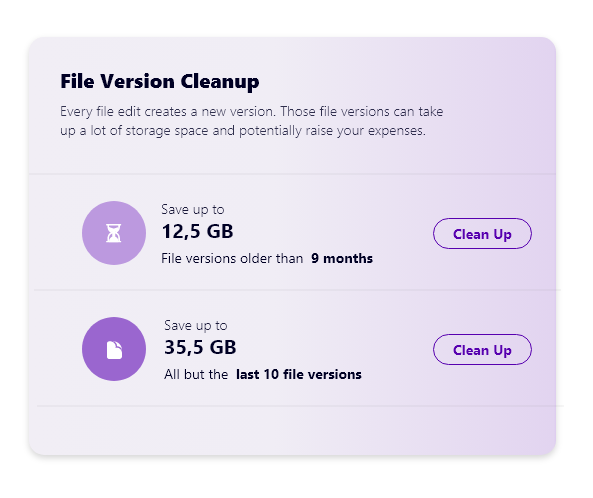
For many years, SharePoint defaulted to unlimited versioning. Each version consumes storage equal to the full file size. Large PowerPoint presentations, Excel workbooks, or video files edited repeatedly can quickly consume hundreds of gigabytes.
For example, a 100 MB PPT edited ten times consumes over 1 GB of storage. Multiplied across thousands of files, the impact is substantial.
Organizations should define sensible version limits, such as:
- 50–100 versions for standard documents.
- Lower limits for large media and PPT files.
This preserves useful history while preventing unnecessary storage growth.
3. Continuous monitoring
SharePoint environments are dynamic. A site with minimal usage today can grow rapidly if its purpose changes or new workflows are introduced.
Administrators should regularly monitor tenant-wide trends, including:
- The largest files.
- The fastest-growing sites.
- Sudden usage spikes.
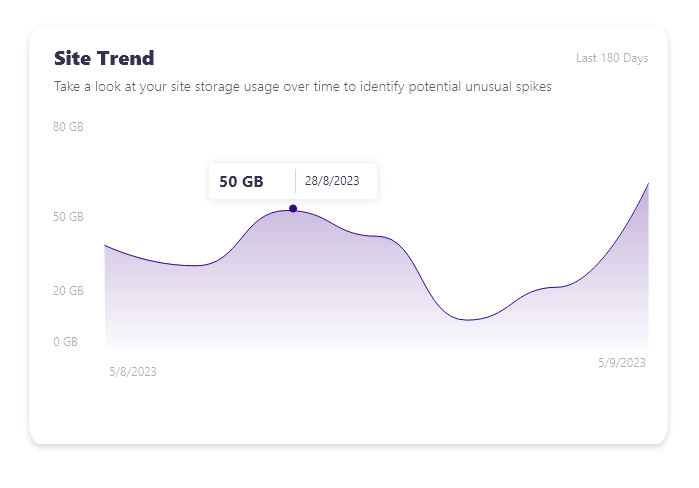
Monthly reporting should be standard practice. Without monitoring, storage issues are typically discovered only after disruption has already occurred.
4. Stale content cleanup
Employees leave, projects end, and departments reorganize. However, their sites and files often remain untouched for years.
Stale content may seem insignificant and harmless, but it:
- Clutters collaboration spaces.
- Degrades search relevance.
- Misleads AI-driven insights.
- Increases exposure to sensitive data risks.
A common best practice is to identify content that has not been accessed for 12–24 months and either archive it into read-only libraries or delete it when defensible. Archiving signals that content is preserved but no longer active, keeping primary storage focused on current work.
5. Automated analysis
Manual cleanup does not scale in large tenants. SharePoint’s structure makes it difficult to understand where storage is actually being consumed.
Administrators need answers to questions such as:
- What are the largest files in the tenant?
- Which file types consume the most storage?
- Which sites are inactive or abandoned?
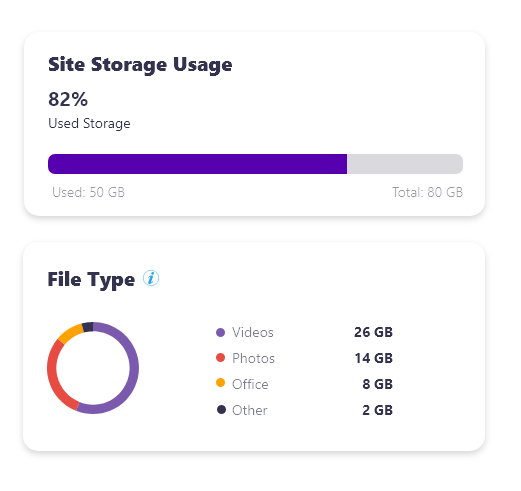
You can get comprehensive tenant-wide analysis and reporting effortlessly with 3rd party tools like Syskit Point. Trying to do the same using the SharePoint and OneDrive admin centers or custom PowerShell scripts means hours of tedious manual work and a higher risk of missing critical insights.