SharePoint PowerShell essentials every admin should know
TL;DR: SharePoint PowerShell is a set of command-line tools used to automate administration, reporting, and bulk management tasks within Microsoft 365. Control comes from understanding the different scopes of Microsoft and PnP. Syskit Point enables admins to manage their tenant code-free, from a centralized dashboard.
If you’ve ever tried to script a SharePoint report, you’ll know that things can quickly get a little complex. One ‘expert’ guide might point you towards the classic module, another guide jumps straight into PnP, and modern MFA requirements may prevent traditional methods of copy/pasting scripts from working.
On top of that, copying scripts from the web introduces real security risks – especially when those scripts request access via Microsoft Graph or other APIs, potentially granting more permissions than intended.
The reality is that SharePoint PowerShell is two different toolsets with different scopes, authentication models, and platform support – and that split is where many scripts run into difficulty. But there is a solution!
Once you understand which module to use and how to authenticate things properly, you can build reliable automation and take back control of your PowerShell scripts. We’ll detail all you need to know below, as well as demonstrating how a centralized platform like Syskit Point can automate governance and reporting without you having to maintain code.
What is SharePoint Online PowerShell?
SharePoint Online PowerShell is Microsoft’s official module designed for tenant-level settings and site collection management. It focuses on high‑impact tasks, like managing organization‑wide sharing policies, creating and removing site collections, configuring Hub sites, and tuning settings that affect every workspace in your environment.
You’ll recognize its cmdlets by the ‘SPO’ prefix, such as Get‑SPOSite for listing and managing site collections, or Set‑SPOTenant for adjusting global configuration.
Unlike the classic SharePoint Server – which uses a server‑side snap‑in – SharePoint Online PowerShell is completely client‑side. You install it on an admin workstation and connect remotely to your Microsoft 365 tenant over the internet. While the module was originally built for Windows PowerShell, it can now be used from PowerShell 7 across Windows, macOS, and Linux – although some functionality still relies on compatibility with Windows PowerShell.
SharePoint Online Management Shell vs. PnP PowerShell
The SharePoint Online Management Shell and PnP PowerShell solve different problems, even though both work with SharePoint Online:
The Management Shell is Microsoft’s official module focused on tenant‑level administration – think managing sharing policies, creating and deleting site collections, and configuring global settings across your environment. Its cmdlets use the SPO prefix, such as Get‑SPOSite and Set‑SPOTenant, and it’s covered by Microsoft’s standard support boundaries and SLAs.
PnP PowerShell is a community‑driven module created under the Microsoft 365 Patterns and Practices (PnP) initiative.
It uses the PnP prefix (e.g. Get‑PnPList, Connect‑PnPOnline) and targets day‑to‑day, “hands‑on” tasks across multiple Microsoft 365 services, including SharePoint, Teams, and Planner. It’s cross‑platform and very feature‑rich, but support is community‑based via GitHub rather than formal Microsoft Support SLAs.
How the different modules compare
|
Feature |
Microsoft (SPO) Module |
PnP PowerShell |
|---|---|---|
|
Primary ScopeTenant settings & Site Collections
|
Tenant settings & Site Collections |
Site content, IA, Teams, & Entra ID |
|
Cmdlet Prefix
|
|
|
|
Platform Support
|
Windows PowerShell (Primary) |
Cross-platform (PS 7, Mac, Linux) |
|
Management Focus
|
“The container” (Tenant/Org level) |
“The content” (Lists, Pages, Files) |
|
Support Model
|
Official Microsoft SLA |
Community (GitHub / MS PnP) |
|
Command Surface
|
~250+ specialized |
700+ cross-service |
How to install and load SharePoint PowerShell modules
“You don’t need special servers to run SharePoint PowerShell. You can write and run everything from a local workstation using VS Code (recommended) or the PowerShell ISE, as long as you have the right modules, execution policy, and admin rights in Microsoft 365.”
– Danijel Čižek, Product Manager Team Lead at Syskit
First of all, install the SharePoint Online Management Shell module. In an elevated PowerShell session, run:
Install-Module -Name Microsoft.Online.SharePoint.PowerShellIf you don’t have local admin rights, scope the install to your user profile instead:
Install-Module -Name Microsoft.Online.SharePoint.PowerShell -Scope CurrentUserNext up, install PnP PowerShell for your user account:
Install-Module -Name PnP.PowerShell -Scope CurrentUserPnP is published on the PowerShell Gallery and supports modern, cross‑platform PowerShell, so this works on Windows, macOS, and Linux.
Before running scripts, set your execution policy so they can run from your profile:
Set-ExecutionPolicy -ExecutionPolicy RemoteSigned -Scope CurrentUserThis allows locally created scripts to run while still requiring signatures for downloaded scripts.
Finally, make sure you’re using a Microsoft 365 account with at least SharePoint Admin, or Global Admin rights. Without these, many management cmdlets and PnP operations will fail.
Connecting to SharePoint Online with modern authentication
In an MFA-enabled tenant, the safest way to connect is to rely on modern auth endpoints instead of username/password prompts. For the official SharePoint Online Management Shell, use:
Connect-SPOService -Url https://yourtenant-admin.sharepoint.comThis opens a modern sign-in window that respects MFA, conditional access, and security defaults.
For PnP PowerShell, the recommended baseline is interactive authentication:
Connect-PnPOnline -Url https://yourtenant.sharepoint.com -ClientId <your-client-id>Behind the scenes this uses modern OAuth flows rather than legacy basic auth. Older examples that build a PSCredential object with a stored password often fail because MFA blocks non‑interactive password use and many tenants now disable basic auth entirely.
PnP’s long‑term pattern is to use a self‑registered Entra ID app and either interactive consent or certificate‑based auth; the historical shared multi‑tenant app is no longer available.
After any connection, quickly confirm it worked by running Get-SPOSite for the SPO module or Get-PnPWeb for PnP so you catch sign‑in or scope issues before running a longer script.
Common administrative tasks and script examples
Once you’re connected, most day‑to‑day admin work comes down to a few repeatable patterns.
To list all site collections using the official module, run:
Get-SPOSite -Limit AllThis returns every SharePoint Online site collection in the tenant; you can add filters and additional properties as needed. With PnP PowerShell, you can achieve a similar result using:
Get-PnPTenantSitewhich exposes extra switches such as -Detailed or -IncludeOneDriveSites for richer output.
Creating a new site collection with the SPO module looks like this:
New-SPOSite -Url "<Url>" -Owner "<Email>" -StorageQuota <MB> -Title "<String>" -Template "<String>"For bulk user assignments, a common pattern is importing a CSV with columns like SiteUrl, GroupName, and UserPrincipalName, then looping:
$users = Import-Csv .\members.csv
foreach ($row in $users) {
Connect-PnPOnline -Url $row.SiteUrl -Interactive
Add-PnPGroupMember -Identity $row.GroupName -LoginName $row.UserPrincipalName
}For large list updates, scripts typically combine Get-PnPListItem, Set-PnPListItem, and batching patterns to avoid throttling. Throttling is an important consideration when running bulk operations in SharePoint Online. Microsoft limits the rate of requests to protect service performance, which means large scripts can fail or slow down if they send too many calls in a short period. To avoid this, use batching where available, introduce delays between requests, and design scripts to retry operations when throttling occurs.
The ‘hidden’ data: Monitoring and auditing via the Unified Audit Log
Get‑SPOSite is great for inventory, but it stops at metadata – URL, template, storage, owners. It has no idea who downloaded a file yesterday or which page suddenly spiked in views.
SharePoint activity data lives in the Unified Audit Log, not the SharePoint module. This captures events across Microsoft 365, including SharePoint and OneDrive. To reach it, you need to use the Exchange Online PowerShell module and the Search-UnifiedAuditLog cmdlet, not the SharePoint modules. Keep in mind that audit log retention and data availability depend on your Microsoft 365 license and Microsoft Purview audit configuration.
The basic pattern is as follows:
- Install the Exchange Online module.
- Use
Search-UnifiedAuditLogto query SharePoint events. - Filter by
RecordType(SharePoint) andOperations(FileDownloaded, FileAccessed).
Because the audit log has limited retention on standard licenses, it helps to schedule these queries and export results regularly, so your compliance and usage reports don’t suddenly develop a six‑month blind spot.
Best practices for managing SharePoint permissions with scripts
For scripted permissions, treat PowerShell as your enforcement engine, not your exception generator.
“Use SharePoint groups wherever possible instead of assigning permissions directly to individual users. Groups give you one place to manage access when people join, move teams, or leave. Keep inheritance intact at the site and library level, and reserve unique permissions for genuine edge cases such as confidential project spaces.”
– Danijel Čižek, Product Manager Team Lead at Syskit
Try to avoid item‑level breaks in inheritance. These can multiply fast and turn every report into a forensic exercise. As your tenant grows, complex permission matrices are difficult to script, hard to maintain, and confusing to audit.
Standardize your patterns (e.g. ‘Owners/Members/Visitors’ groups per site), capture them in scripts, and run scheduled exports of group and sharing data so you can regularly review who has access to what without reverse‑engineering one‑off changes.
Centralizing SharePoint governance with Syskit Point
At some point, most SharePoint admins hit the scripting ceiling. PowerShell works well for one‑off fixes and last-minute requests, but once you rely on it for recurring governance checks, external sharing reviews, and lifecycle policies, you’re maintaining a codebase instead of your tenant.
Every new site template, permission pattern, or business rule means another script to update – and another risk of something being missed.
The real danger is often unseen. It’s the ‘Limited Access’ users left behind after a project, the one library with broken inheritance three folders down, or a sharing link someone set two years ago that nobody remembers. Those exceptions are hard to catch with ad‑hoc scripts.
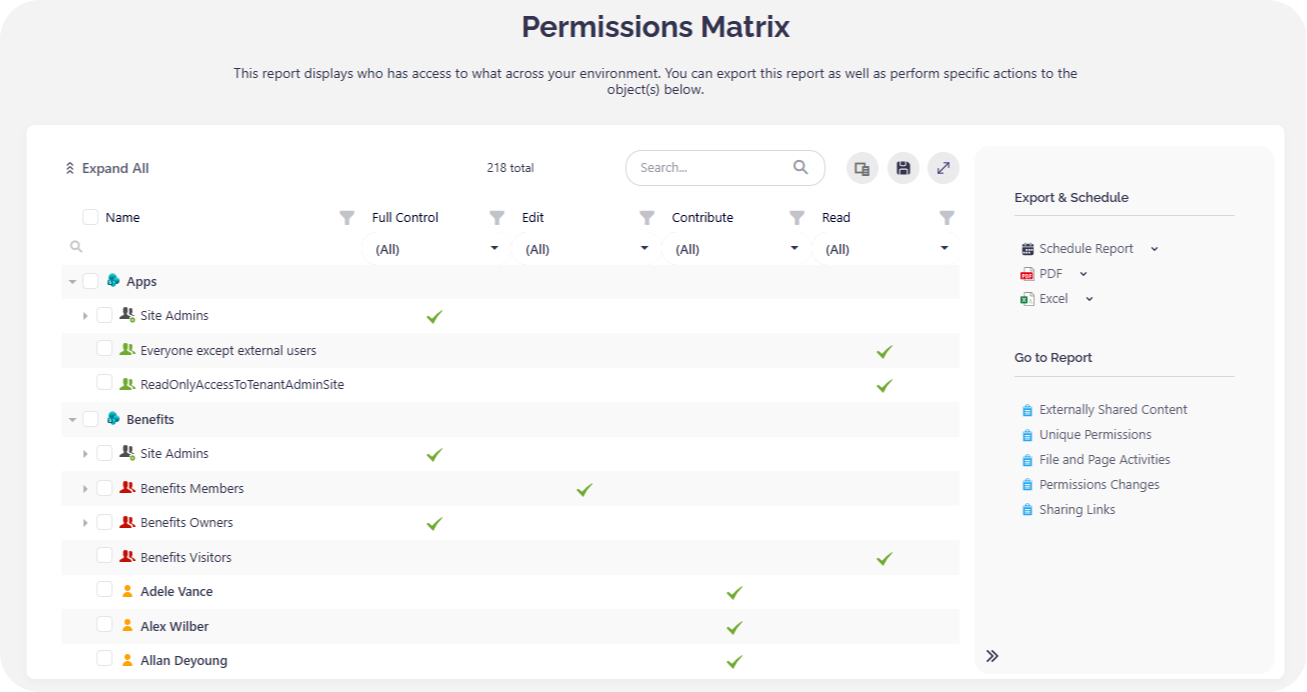
Syskit Point closes the gap between what you could script and what you realistically have time to maintain. Instead of hand‑rolling exports and joins in PowerShell, you get 30+ prebuilt reports that cover effective permissions, external sharing, inactive workspaces, and more – all in one centralized location.
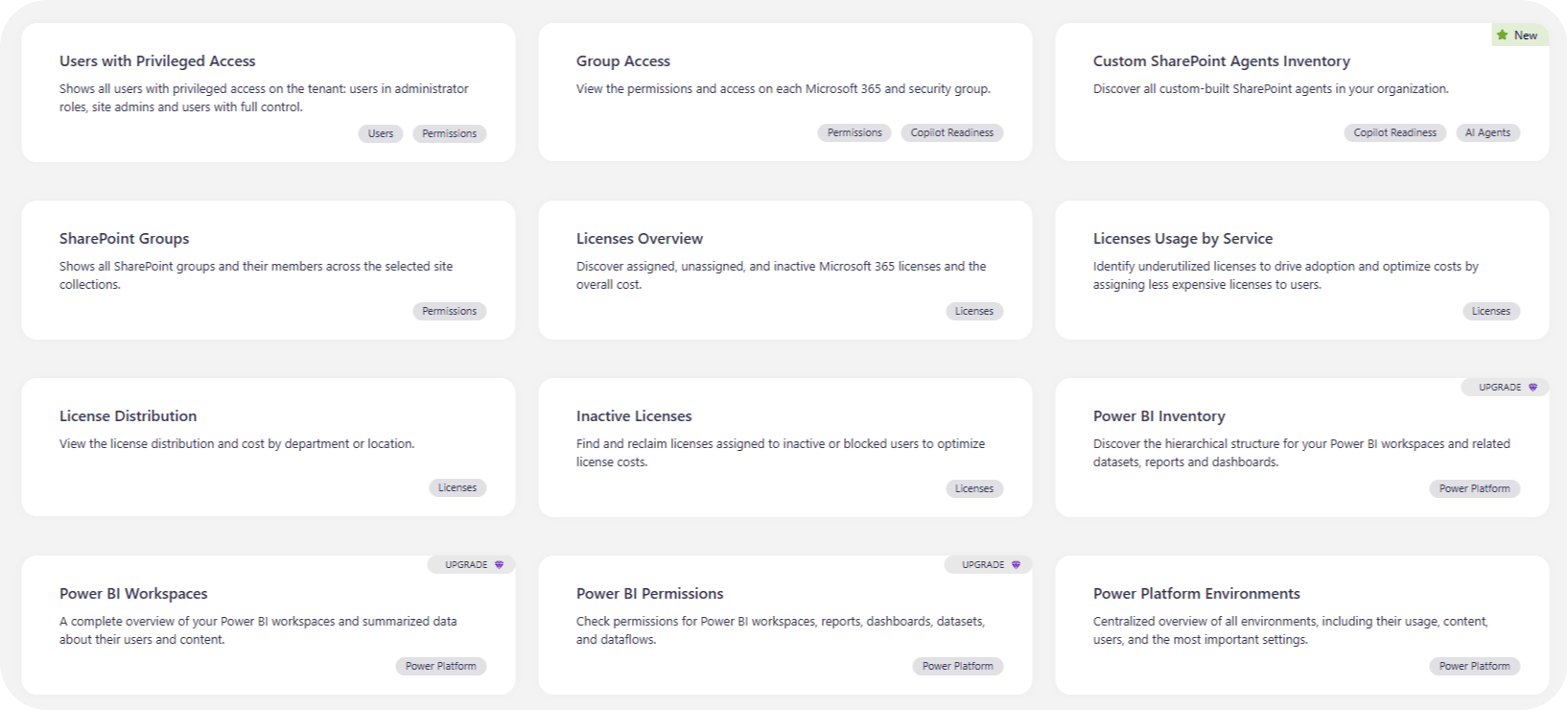
💡 This ‘single pane of glass’ view is the kind of thing that would take thousands of lines of code, weeks of tuning, and constant upkeep if you tried to build it yourself.
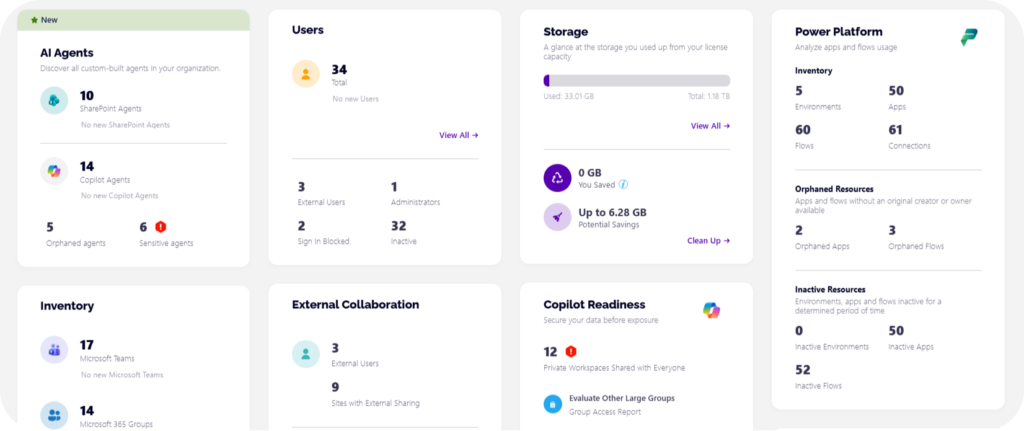
What’s more, onboarding is super fast, as it plugs directly into Microsoft 365. You connect your tenant, let it scan, and you’re looking at real data in minutes.
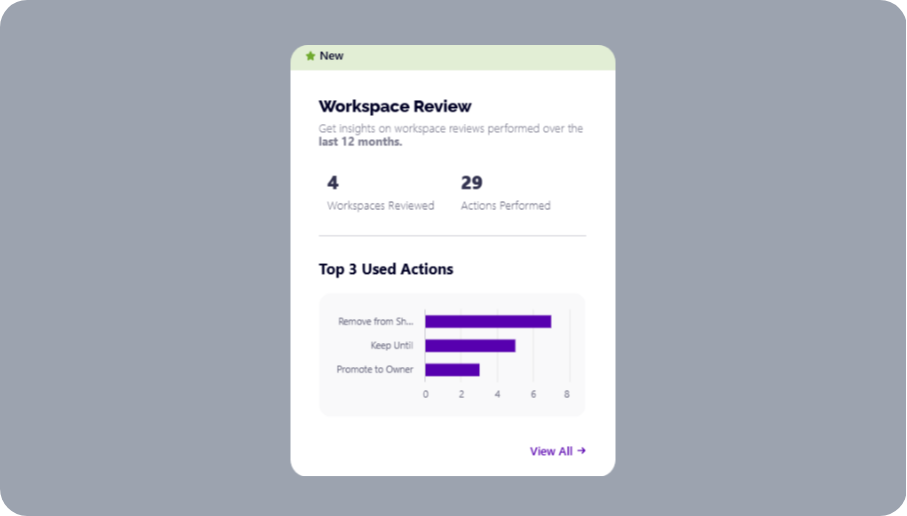
From there, you can schedule reports, trigger reviews, and hand clear dashboards to security and compliance teams without touching a single line of PowerShell.
From manual scripting to strategic governance
As we’ve seen, you can use the SPO module for tenant‑wide settings and site collections, lean on PnP PowerShell for day‑to‑day site content and permissions work, and tap into Exchange Online when you need real activity data from the Unified Audit Log.
That toolkit will get you far, but over time it’ll grow in complexity. As your tenant expands, maintaining code, scheduling multiple tasks, and chasing edge‑case permissions may be simply too much to control by traditional means.
To scale a large tenant, the best solution is to keep your scripting skills polished while offloading the repetitive governance, reporting, and access reviews to a dedicated governance platform like Syskit Point.