SharePoint Advanced Management Guide to Features and Setup
Table of contents
Key takeaways:
- Strong governance starts with clear visibility, but admin-only tools often become a bottleneck for large organizations.
- Real-world complexity – reveals the limitations of site SharePoint + OneDrive only, Teams, M365 Groups and Power Platform are left unmonitored.
- True risk reduction requires actionable details, not just reports.
- Automated lifecycle and access review are essential for organizations hoping to avoid IT overload and manual audits.
- For those looking to scale, Syskit Point fills the automation gaps (monitoring of all sites, not just the top 100, spans an unlimited period without a 28-day limitation) left by native SharePoint Advanced Management.
SharePoint Advanced Management (SAM) promises powerful governance for IT teams grappling with content sprawl and AI-era compliance. SAM’s admin controls offer targeted protections as part of your Microsoft 365 Copilot license from the beginning of 2025. Most of the capabilities are a part of the Copilot license, while some things are missing, like Enterprise application insights (part of the full license 3$/user/month) or AI Driven Semantic Site Matching, where licensing is about TBA.
However, even the added subscription fees don’t solve all of SAM’s limitations, making it tough to automate lifecycle, delegate reviews, or dig into file-level risks at scale. For SAM governance that genuinely scales, you’ll need a purpose-built, third-party solution.
Read on for an intimate portrait of SAM’s capabilities, and how best to close the collaboration and automation gaps that Microsoft leaves behind.
What SharePoint Advanced Management (SAM) actually does
SharePoint Advanced Management (SAM) is Microsoft’s purpose-built add-on for IT administrators tasked with securing, governing, and cleaning up SharePoint and OneDrive.
SAM is part of the Copilot license – think of it as the ‘power tooling’ inside the wider Copilot support Toolbox, reserved for admins who are dealing with content sprawl, guest access rights, and security risks. Meaning if you get only one M365 Copilot license, you will unlock SharePoint Advanced Management for the entire tenant!
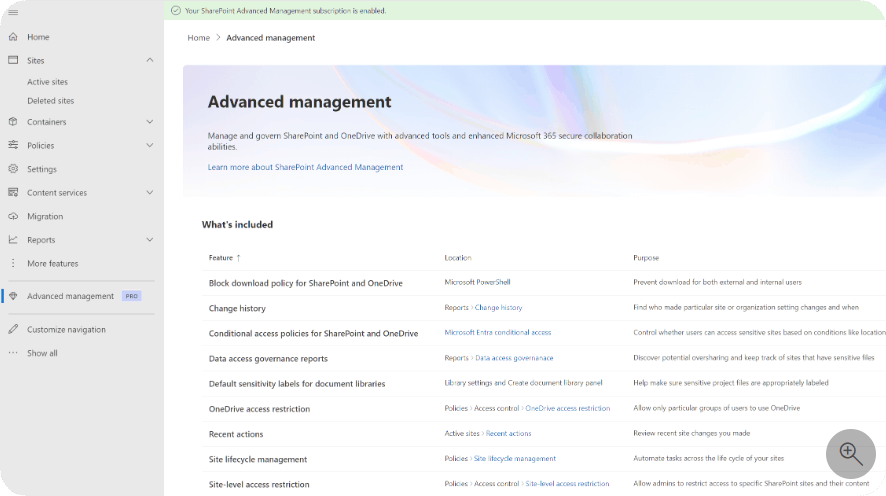
SAM’s main job in a Copilot world is M365 Copilot readiness. It provides controls that let admins manage the content lifecycle, prevent oversharing, and keep sensitive information locked down before unleashing Copilot’s AI powers across internal data.
This means you can block Copilot from summarizing or surfacing data around projects, HR documents, or anything else you’d rather keep out of the AI’s reach – while still allowing Teams and OneDrive to function for daily work.
SAM licensing and how to check your tenant
Microsoft has confirmed that ‘Microsoft 365 Copilot now includes built-in content governance controls powered by SAM’. However, as we’ve seen, not every feature is available out-of-the-box with just a Copilot license.
What you automatically get with SAM with Copilot
Your license automatically unlocks a core set of SAM features in your tenant. These include Restricted Content Detection (RCD), Restricted Access Control (RAC), block download policies, and numerous other reports listed below. You’ll also benefit from site lifecycle policies, Data Access Governance (DAG) insights, and change history reports.
Read the complete list of reports available in the SAM that comes with Copilot, or see the full SAM feature list table at the bottom of this article.
What you get with the SAM add-on
For the full advanced management suite, the standalone SAM add-on license costs $3 per user, per month, and gets you access to full reports. The add-on enhances capabilities with additional automation, lifecycle management, delegated reviews, and more in-depth reporting. These are great organizations that need advanced oversight beyond manual admin reviews. However, it does come at a cost, and every user in the organization must be licensed, with no exceptions.
How to check your SAM license
1. Go to the SharePoint admin center – you’ll need admin rights.
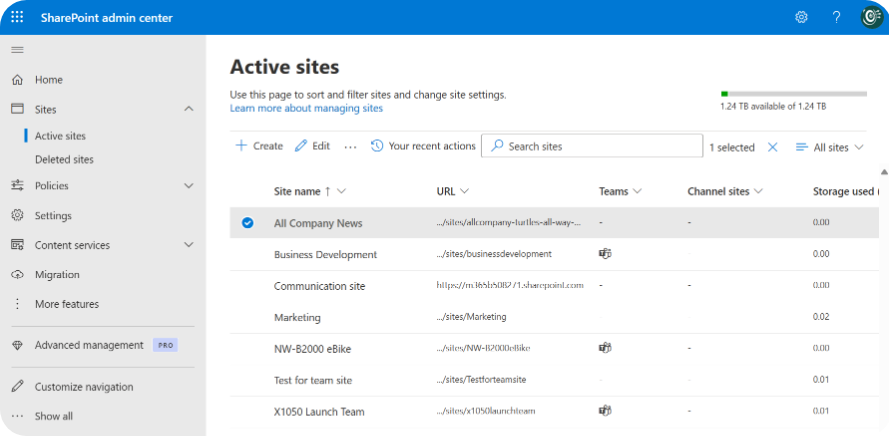
2. Look in the Policies and Reports sections – active SAM features appear here if your licenses are active and are tagged with PRO label.
3. If some features are missing despite having the correct licensing, give it time – Microsoft often uses phased rollouts, and new features can take a few weeks to appear after the license is applied.
For the full breakdown on licensing tiers and feature charts, check out Microsoft’s SharePoint documentation.
Three essential controls you can enable today
If you’re preparing for Copilot, activating the three key controls we discussed earlier can provide you with immediate protection against unwanted content exposure. Here’s a more detailed view:
- Restricted Content Discovery (RCD): Turn this on for sensitive sites in the SharePoint admin center. Select the site, go to Settings, and toggle Restrict content from Microsoft 365 Copilot.
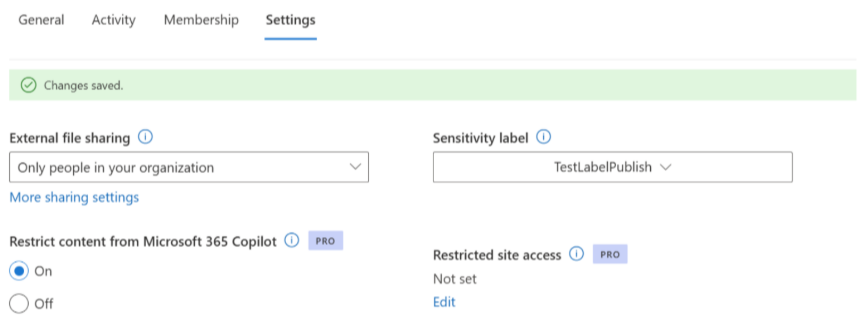
This hides the site from search features and Copilot, but users can still access it if they have permission. There’s no need for mass permission changes – your high-risk site simply vanishes from AI, staying visible to those who need it.
- Restricted Access Control (RAC): Apply RAC to make sure only specific Microsoft 365 security groups can access a site. In practice, this lets you enforce policies like Only executive leadership can access this HR portal, regardless of sharing links or other access. You can set this up via the admin center. This replaces the headache of tracing inherited permissions with a simple group assignment.
- Block Download Policy: Ideal for HR or finance portals, users can view/edit files in the browser, but can’t download, print, or sync them locally. In the admin center, under site sharing settings, enable browser-only access for chosen sites.
💡 Remember, each control must be set manually, site by site. This approach works for high-risk targets but poses auditing and scaling challenges if you have hundreds of sites, as SAM doesn’t automate mass policy enforcement.
Tackling content sprawl before Copilot sees it
SAM’s site lifecycle features deliver helpful tools for admins facing content sprawl. The Inactive Site Policy detects SharePoint sites with no activity for a chosen period (often 90 days). You can test this policy in simulation mode first, to preview which sites would be flagged without any risk of accidental deletion.
The Site Ownership Policy is equally important. This ensures every SharePoint site has a designated, active owner for clear accountability. If a site’s ownership lapses, admins (and owners) are notified to intervene.
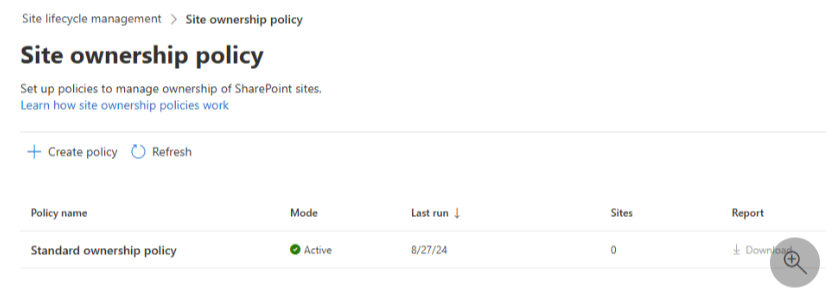
However, these lifecycle features largely rely on notifications to drive action. They’re meant for identification and reporting, not hands-free automation. Site owners get regular email reminders, but archiving or deleting sites frequently remains a manual job for IT. If you don’t act, old sites will continue to gather dust.
SAM’s lifecycle tools are a major step up from having none at all, but organizations hoping for complete set-it-and-forget-it automation will quickly see its limits. Third-party solutions can complement SAM’s current workflow, handling large-scale remediation and automating what SAM can only flag.
Why DAG reports flag sites, not files
Data Access Governance (DAG) reports are IT’s starting line for pinpointing oversharing risks. When you run a DAG report, it surfaces sites with a high number of permissioned users – flagging them as potentially risky for sensitive or outdated information exposure.
This can prompt Site Access Reviews, helping admins get in front of problems before Copilot indexes all of your sensitive documents.
However, DAG reports aggregate all item-level permissions into a single number per site. The ‘Total permissioned users’ metric includes everyone who can access content either at the site or individual file level, but it won’t hand you a clear, actionable list. So while a report can call out problems, IT will be left manually digging through every file to locate the actual risk. For busy teams, that’s a little like searching for a needle in a haystack.
Reports only look at recent activity (sometimes just the last 28 days), don’t cover OneDrive in the admin UI, and run once daily for up to 10,000 sites (export only, in UI there is a limit of top 100 sites). Large organizations often require more regular reporting. You also can’t trigger Site Access Reviews for OneDrive, so any clean-up requires manual intervention.
This is where Syskit Point provides a tailor-made solution. You get access to all sites, without any limitations, regardless of how big your company is. If you have 400,000 sites, you can create access review policies for 400k sites.
Build your audit trail with change history and admin actions
To satisfy compliance requirements and assure leadership that you genuinely have governance under control, SharePoint Advanced Management offers two practical audit tools.
- Site Change History lets you generate reports on any site property changes that were made in the last 180 days. You can export these logs as CSV files for compliance checks or to share with auditors.
This tool covers critical events like site renaming, ownership transfers, or permission tweaks. It’s especially useful during quarterly or annual audits, where showing documented changes can add clarity to your data. - Recent Admin Actions records actions made by administrators for the past 30 days. This tool acts as a self-audit trail, providing transparency and accountability for all admin-level activities.
Despite these benefits, the time-limited 180-day (site changes) and 30-day (admin actions) retention periods mean that your history will be wiped beyond those windows.
SAM’s reports are helpful for fast reviews or short-term audits, but fall short if you need long-term, tenant-wide activity tracking or permanent records for strict regulatory requirements.
For organizations in highly regulated industries, combining SAM with solutions that support longer audit log retention and more holistic tracking is the smartest move.
Where SAM stops and governance automation starts
SharePoint Advanced Management equips admins with essential switches for governance, but keep its limitations in mind – it’s admin-only, gives site-level visibility, and all remediation or access reviews need manual attention.
For organizations with hundreds or thousands of sites, these boundaries become unmanageable. As soon as you need to delegate access reviews to site owners, find the exact file causing trouble, or automate cleanup tasks, SAM’s model falls short.
It’s a powerful tool indeed, but running governance at scale today requires automation.
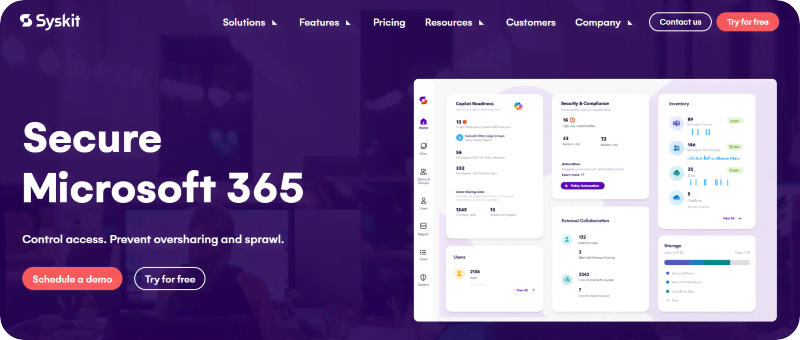
A solution like Syskit Point is a natural complement to SAM. Syskit Point lets you automate remediation, delegate access reviews to workspace owners, and generate file-level insights for precise, efficient risk reduction.
While Microsoft gives you the foundational admin toolkit, Syskit Point adds the pieces needed to scale governance without adding countless hours of overtime to your team’s schedule.
Syskit Point: The perfect complement to your SAM strategy
Syskit Point solves SAM limitations through the following features:
- Collaborative governance: Syskit Point empowers workspace owners to review, manage, and generate sharing reports for the sites they actually own. This spreads out governance duties and lightens the load on central IT. Responsibility is shared, and issues can be resolved closer to the source.
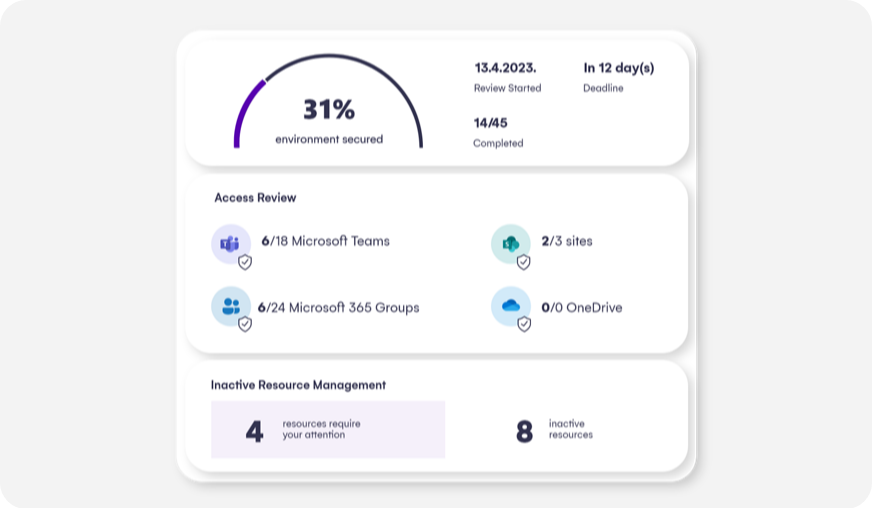
- Granular, actionable insights: Our users gain visibility all the way down to the individual file level – including OneDrive data, Teams and M365 Groups, which SAM’s reporting skips. Reports are on-demand and aren’t limited by the number of sites, letting you monitor and analyze hundreds of thousands of workspaces.
- Automates lifecycle and cleanup actions: Inactive sites can be flagged, archived, or deleted automatically. You can control these actions based on custom rules and metadata, ensuring your governance policy covers only the sites that have the most sensitive data. You don’t want to run access view on the entire organization.
- Brings everything together in a centralized dashboard: You get complete oversight across Teams, Groups, SharePoint, OneDrive, SharePoint/Copilot Agents, and even Power Platform, making security and compliance easier to manage for your whole organization. If you’ve ever wished for a ‘single pane of glass’ through which to see your entire M365 tenant, Syskit Point provides just that!
From manual controls to scalable governance
To manage sprawl efficiently, delegate access reviews, and gain file-level insight into risks, organizations need automation and collaboration. Syskit Point distributes governance responsibilities to workspace owners, provides detailed, real-time reports down to the file level, and automates lifecycle cleanup actions.
Consolidating Microsoft 365 management into one dashboard, Syskit Point is designed to perfectly complement SAM, filling the missing gaps and handling any number of sites.
See how your organization can move from manual effort to automated, collaborative governance by trying Syskit Point today.
Bonus: News in the SharePoint Advanced Management from Ignite 2025
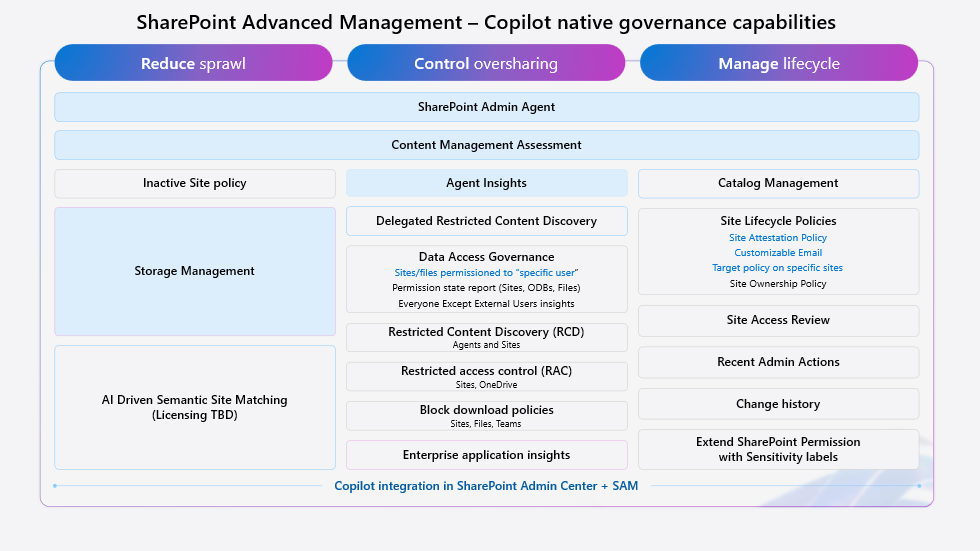
- Content management assessment – evaluate and improve content management within SharePoint and helps identify content risks, ensure compliance, and maintain data integrity.
- Permissions report for a given user – permission report for entire tenant (SharePoint sites and OneDrives only). Support up to 10 users, can take a few days to run, depending on the size of your tenant.
- Catalog management – Provides an overview of content distribution across regions, departments and users, using M365 metadata.
- Agent insights – Admins can run insights report to view how agents are interacting and accessing SharePoint sites and OneDrive accounts.
Some of these things are a part of the private preview and not available OOTB. Contact our Microsoft MVP, Frane Borozan, directly via his LinkedIn profile, and he will connect you with the SAM team at Microsoft to facilitate this process for you.
Reference: SharePoint Advanced Management features in Microsoft 365 Copilot license
|
Feature
|
Description
|
|---|---|
|
Advanced tenant rename
|
Applies to large tenants with up to 100,000 sites |
|
AI-Powered Insights
|
AI insights feature extracts patterns from the report and offers a list of potential actions over your data |
|
App insights for SharePoint
|
Various non-Microsoft applications registered to your Microsoft Entra admin center. |
|
Block download policy
|
Create and manage block download policies to block downloads for:
|
|
Catalog management
|
Organize SharePoint sites by grouping them into logical categories based on regions, departments, users and information barriers. |
|
Change history
|
Create change history reports to track changes made to:
|
|
Conditional access policies
|
Use authentication contexts to connect a Microsoft Entra Conditional Access policy to a SharePoint site. |
|
Content management assessment
|
The hub comprising comprehensive set of tools for assessing and improving your organization’s content management practices. |
|
Compare SharePoint site policies
|
Find sites with similar content but different security policies. |
|
Data Access Governance (DAG) reports
|
Help you govern access to SharePoint data.
|
|
Inactive SharePoint sites policy
|
Detect inactive SharePoint sites. |
|
Insights on agents accessing content
|
Gain insights on how the agents are accessing content across all SharePoint and OneDrive sites. |
|
Insights on SharePoint agents
|
Gain visibility into recently created SharePoint agents and agent activities. |
|
Recent admin actions
|
Review and monitor the last 30 changes, such as renaming a site, deleting a site, changing storage quota within the last 30 days. |
|
Restrict site creation by apps
|
Control which non-Microsoft applications can create SharePoint sites in your organization. |
|
Restricted Content Discovery (RCD)
|
Limit the ability of end users to search for files from specific SharePoint sites. |
|
Restricted Access Control (RAC)
|
Restrict access to:
|
|
Site Access Review
|
Delegate the process of reviewing access to site owners. |
|
Site Ownership Policy
|
Define who should be responsible for each site.
|