Copilot readiness assessment framework for Microsoft 365 security audit
Table of contents
Key takeaways:
- Microsoft 365 Copilot will surface what’s already visible in your permissions – hidden sprawl becomes public knowledge overnight.
- The value of Copilot hinges on how well your files are organized, classified, and secured.
- A strong pilot group is more than just a test – use it to intentionally seek out security blind spots before full deployment.
- Executive-ready reporting requires linking disparate sources, so plan for both the manual work and the ongoing review cycle.
- You can simplify everything with Syskit Point, centralizing oversight and automating your readiness journey from end to end.
Microsoft 365 Copilot is understandably popular, with more than 90% of the Fortune 500 using it. However, although Copilot is part of a broader AI revolution – geared towards increasing work speed and driving innovation – poor permission handling can lead to security issues.
In reality, Copilot does not break your permissions – it simply reveals what’s already exposed. Any past oversharing or neglected security settings can be broadcast in minutes, as Copilot accelerates the discovery of your existing data exposure and permission sprawl.
The key is to introduce a Copilot readiness assessment as a security audit of your existing M365 environment. This guide will provide you with a systematic way to check what’s really at risk before licenses go live, turning Copilot cons into a defensible plan that you can trust.
What is a Copilot readiness assessment?
A Copilot readiness assessment is a systematic review of your Microsoft 365 environment that checks permissions, licensing eligibility, and data governance before you deploy Copilot. This process ensures your organization won’t accidentally expose sensitive files or grant unintended access by using Copilot’s advanced discovery tools.
There are four pillars to every Copilot readiness assessment:
- Technical and licensing eligibility: Verify you have the correct Microsoft 365 licenses and update channels.
- Security and permission audit: Map out who can see what across Teams, SharePoint, OneDrive, and Groups. Pinpoint overshared links and excessive permissions that would surface through Copilot searches.
- Data governance and hygiene: Ensure files, folders, and collaborative spaces are classified and labeled with appropriate sensitivity labels. Reclassify anything not meant for wide internal use.
- User and pilot planning: Identify the users who’ll benefit most from Copilot and plan everything in detail. Define what success looks like, so leadership sees a controlled, smart rollout rather than another chaotic adoption.
Benefits include increased ROI, minimized risks, and greater user satisfaction. Done right, the assessment transforms the Copilot rollout from a vague security concern into a deliberate, defensible deployment.
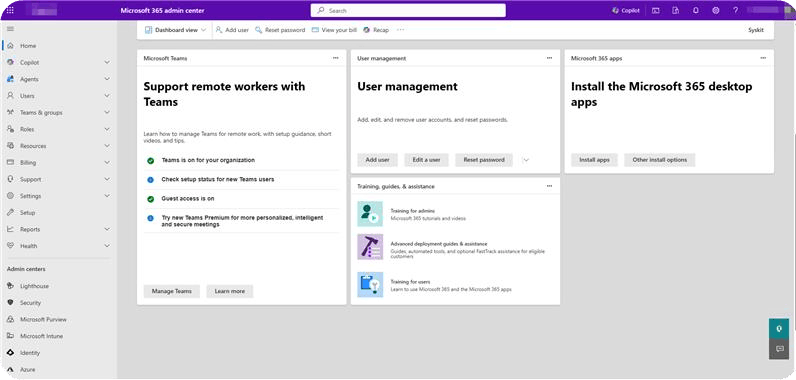
You can run a basic review using the native Microsoft 365 admin center, hire third-party consultants, or rely on specialized tools like Syskit Point’s Copilot Readiness Dashboard. This automates permission scans, governance checks, and pilot planning.
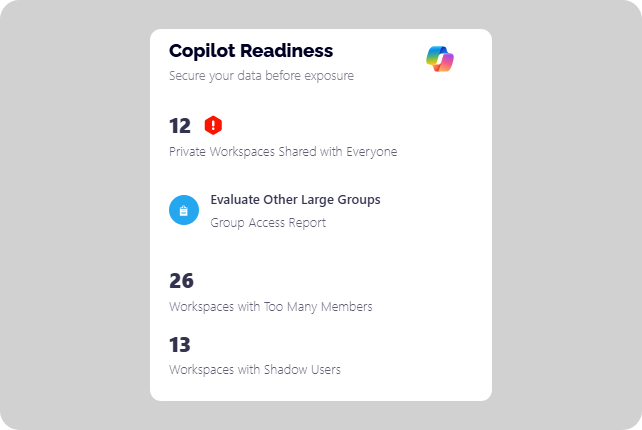
For large tenants with complex structures, a full permissions and activity assessment can take months of iterative review – especially when you also need to include Copilot in Microsoft 365.
Syskit Point reduces that time and effort by automating the governance process. It provides a centralized platform to monitor Copilot alongside all of your M365 permissions, giving you complete visibility and increased control in a fraction of the time.
Step 1: Verify technical and licensing prerequisites
Step one in your Copilot readiness assessment is verifying that your organization meets all technical and licensing prerequisites.
Every user who will access Copilot must have both a qualifying Microsoft 365 base license – such as M365 E3, M365 E5, or an eligible business/education plan – and a Microsoft 365 Copilot add-on license assigned. Without these, Copilot simply will not appear as an option for them.
On top of licensing, make sure technical configuration is correct. Copilot requires users to be on the supported update channels for Microsoft 365 Apps – either the Current Channel or Monthly Enterprise Channel.
These channels ensure users receive updates and critical feature releases in sync with Copilot’s evolving capabilities. Shifting large groups to new update channels can mean device restarts, end-user downtime, and coordination with distributed IT teams, so get this done as soon as possible!
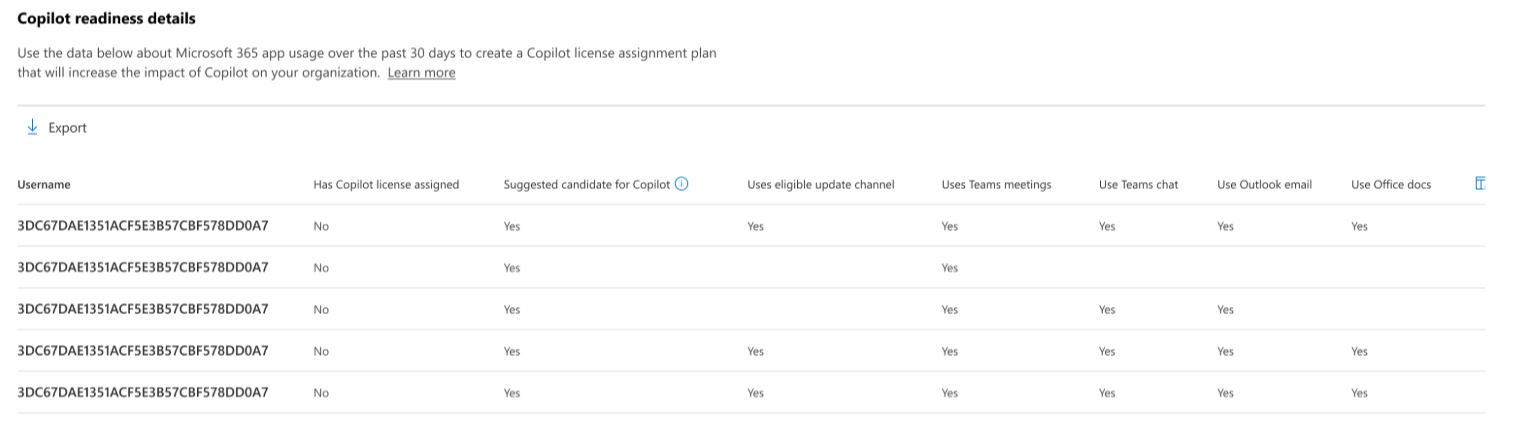
The Microsoft 365 admin center offers a Copilot readiness report – the starting point for all party-goers. Here, you can see which users already meet technical and licensing requirements, helping you prioritize deployment and reduce surprises.
Look for ‘Suggested candidates’. This highlights your top 25% most active users without Copilot licenses, as these individuals are often best positioned to deliver ROI and feedback early.
Step 2: Tackle overshared links and permissions (your biggest risk)
Oversharing remains the single greatest data risk when preparing for Copilot. What was hidden before can easily become discoverable with a simple prompt.
Take time out for a moment and imagine an old marketing budget spreadsheet, tucked away in SharePoint and left with an ‘Anyone with the link’ permission. While that link does not automatically grant new permissions, it often reflects a pattern of overly broad access.
If a user already has permission to that file, a prompt like ‘Find me the marketing budgets from the last five years’ can cause Copilot to surface content that was effectively invisible in day‑to‑day work. This can increase the likelihood of data being found and used by people who were never intended to have access.
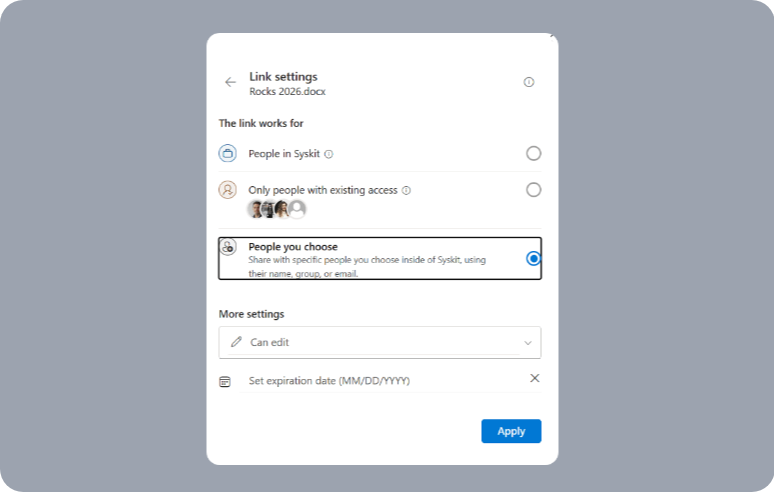
To confirm, there are three common types of Microsoft 365 sharing links:
- Anyone with the link.
- People in your organization.
- Specific people.
“Of these, ‘Anyone…’ is the most permissive and often the most dangerous in an enterprise context. Many tenants’ default settings are far too relaxed, granting org-wide or even anonymous access to sensitive content. These permissions pile up, especially in large, rapidly-growing cloud environments.”
– Danijel Cizek, Product Manager Team Lead at Syskit
Audit overshared links as a top priority, especially across SharePoint and OneDrive. Many teams attempt this manually – aggregating data with PowerShell scripts, reporting, and far too many spreadsheets – but it’s slow and easy to miss stale or nested permissions.
Tools like the SharePoint Admin Center, SharePoint Advanced Management, and dedicated solutions can help accelerate the search. You can check out our Sharepoint Copilot Best Practices and productivity hacks for wider info.
To further lock down sensitive information, Microsoft Purview Information Protection and sensitivity labels can be used to enforce access automatically. However, these solutions work best when your files have been consistently classified, making a data hygiene strategy essential for long-term Copilot safety.
💡 Find out more with our post on real-life scenarios and tips to prevent oversharing within your organization.
Step 3: Organize M365 data before Copilot sees it
Copilot’s power springs directly from your company’s data. If that data is scattered, outdated, or poorly managed, your users will question the benefits of Copilot, as well as their own sanity! Put simply, messy data leads to messy results.
Start with centralization. Urge teams to migrate relevant content from personal drives or external cloud services into SharePoint and OneDrive. Copilot can’t analyze what it can’t see, so the more standardized your Microsoft 365 adoption, the more valuable Copilot’s output.
Next up, tackle Redundant, Outdated, and Trivial (ROT) files. Use reports to identify what’s no longer needed and set rules for archiving or deleting content. Removing ROT increases security and focuses Copilot on current information that’s relevant.
Classification and labeling should follow. Rolling out a practical sensitivity label taxonomy – like Public, Internal, Confidential, or Highly Confidential – lets your security policies enforce access automatically, reducing risks without overcomplicating daily workflows.
Finally, audit the ownership and memberships of Teams and M365 Groups. Make sure every workspace has an active owner and access is only granted to those who actually need it. Regular workspace reviews prevent both accidental data exposure and wasted Copilot licenses.
Step 4: Design a pilot that tests for risk and value
A successful Copilot rollout starts with a carefully designed pilot program. Begin with a group of 20-50 users for medium-size business, or 50-200 if yours is a large enterprise, ideally drawn from the ‘Suggested candidates’ identified by your admin center readiness reports. Choose people from different roles and departments to broaden your insight and ensure Copilot is tested against real, day-to-day business workflows.
“Security is your top metric, so instruct your pilot users to stress-test permission boundaries. Have them run prompts like ‘Summarize the latest sales compensation plan’, or ‘What was decided in the leadership meeting I missed?’ Their job is to see if Copilot ever retrieves sensitive or restricted content that shouldn’t be exposed given your data controls.”
– Danijel Cizek, Product Manager Team Lead at Syskit
Set out your definitions of success before you begin. For security, this means zero confirmed exposures. On productivity, ask users to document scenarios where Copilot helped them complete tasks faster – a saved hour in finance, an automated summary in HR, or fewer emails chasing files in marketing all count.
Finally, gauge adoption. What percentage of your team really wants to keep using Copilot? A comfortable majority should be in favor, justifying a greater rollout.
Your simple Copilot readiness checklist
Here’s a Copilot readiness assessment checklist to keep your rollout safe, efficient, and productive:
1: Technical and licensing eligibility
- Confirm users have a required base license (such as M365 E3/E5).
- Check that users are on a supported update channel (Current Channel or Monthly Enterprise Channel).
- Assign Microsoft 365 Copilot add-on licenses.
2: Security and permission audit
- Audit for Anyone with the link and Public sharing links on SharePoint and OneDrive.
- Review permissions on critical SharePoint sites and high-risk Teams.
- Check for external user and guest access permissions and remove where not justified.
- Establish regular workspace reviews to re-certify guest access, ownership, and content permissions regularly.
3: Data governance and hygiene
- Identify and clean up redundant, outdated, or trivial data across Microsoft 365.
- Implement a clear sensitivity label policy (Public, Internal, Confidential, Highly Confidential).
- Review Microsoft 365 Group and Team ownership/membership to ensure active owners and accurate rosters.
4: User and pilot planning
- Choose a focused pilot group with varied roles/departments.
- Define practical use cases and success metrics for Copilot deployment.
- Prepare a feedback mechanism by tracking security, productivity, and adoption in a real-world setting.
👇 Want to put these four steps into action? Download your free copy of the Copilot readiness assessment checklist to guide your security audit and keep your deployment plan on track.
Download your free Copilot readiness assessment checklistBeyond the audit: Creating a centralized readiness report
If you’re exhausted from patching together PowerShell scripts, admin center dashboards, and countless spreadsheets just to build a Copilot-ready report, you’ll be delighted to hear that there is another way!
Many IT admins find themselves lost in fragmented systems and struggling to deliver the unified, executive-ready view that leadership demands. Syskit Point cuts out the complexity.
As demonstrated by global brands, Syskit Point’s Copilot Readiness Dashboard brings all your Microsoft 365 data, links, workspaces, and permissions into one place.
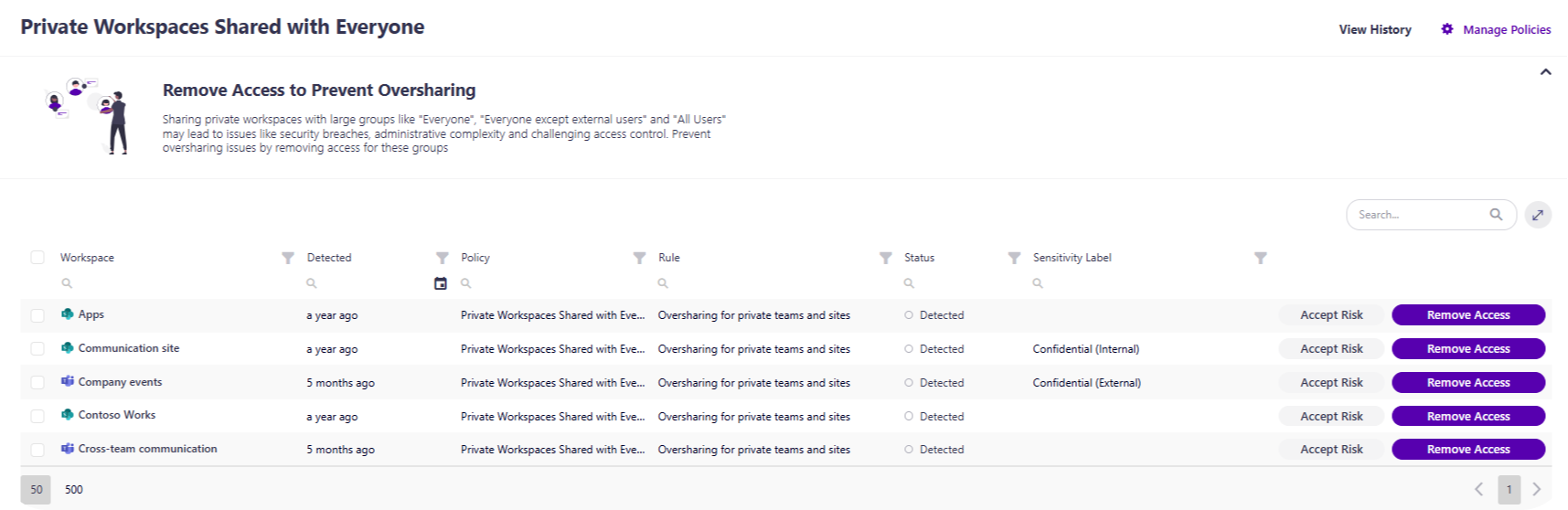
You can instantly spot overshared files, inactive groups, and risky permissions, then automate reviews and fixes before Copilot is ever deployed. There’s no more hunting for hidden exposure, as Syskit Point’s central dashboard delivers visibility and governance, letting you schedule access reviews, enforce data hygiene, and clean up permissions in minutes.
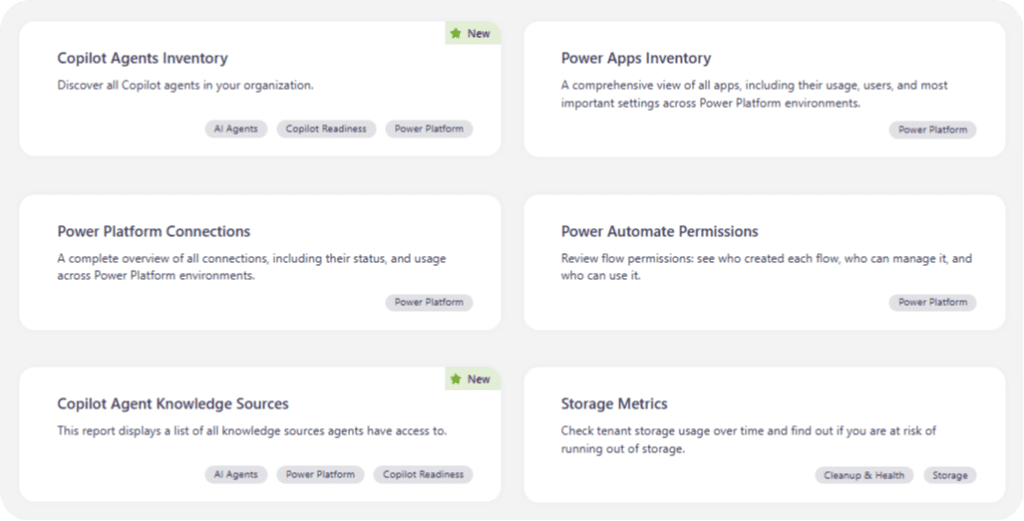
Detailed reporting is also covered. You can generate clean, comprehensive, and executive-ready summaries of your Copilot readiness with a single click. The dashboard itself doubles as your audit plan, keeping the most important actions in view so you can deploy Copilot with confidence.
To test your own readiness, be sure to adopt our checklist above, or for complete and total control, see how Syskit Point can handle Copilot for you.