Microsoft 365 file-level archive: What it means for your storage costs
Table of contents
File-Level Archive for Microsoft 365 enters public preview by the end of March, giving organizations the first native way to move stale SharePoint files to storage that costs 75% less.
In this blog, learn how to reshape the way you manage SharePoint storage by lowering costs, reducing data clutter, and keeping your active content accessible while archiving what you no longer need.
Why your SharePoint storage bill keeps climbing
Our internal research shows that around 65% of enterprise data has not been used in the last year; old drafts, abandoned projects, files no one has opened in years. You’re paying $0.20/GB/month to store it all.
Most mid-to-large organizations outgrow their base SharePoint storage within a few years. Every tenant gets just 1 TB plus 10 GB per license, and once that limit is reached, the entire environment goes read-only. The only fix: buy extra storage.
To name just a few contributing factors for why storage continues to grow without stopping:
- Version history bloat. SharePoint’s default keeps 500 versions of each file with no expiration. Co-authoring in the browser uses AutoSave (enabled by default) and creates a new version every few minutes per editing session. A 50 MB deck edited weekly generates gigabytes of versions per year. Multiply this across thousands of files. Microsoft introduced Intelligent Versioning in late 2024, but it only applies to newly created libraries. Existing libraries, where the bloat already lives, require manual PowerShell intervention per library, which most orgs haven’t done.
- Remote/hybrid work shift. Post-2020, collaboration moved almost entirely into M365. SharePoint and OneDrive became the primary file stores, replacing on-prem file shares and local drives. More users, more files, more edits, all landing in the same tenant storage pool.
- Microsoft Teams sprawl. Every Team provisions a SharePoint site behind the scenes. Every file shared in Teams is stored on that site and consumes tenant storage. Most Microsoft Teams are never reviewed or cleaned up, with files that persist indefinitely.
- Microsoft Copilot and AI-assisted content creation. This means more documents, drafts, and variations generated faster than ever.
Why can’t you just delete old data in M365
The real question is: Can you clean up the old data? In most cases, no. And there are a few reasons:
- Regulatory requirements (GDPR, industry-specific retention mandates, litigation holds) force organizations to keep content they no longer actively use. Compliance and legal holds prevent deletion. Data accumulates because deletion isn’t legally permissible, even when the content is clearly stale.
- Managing storage costs in M365 is difficult. No native cleanup or tiering existed until recently. Before M365 Archive (2024), there was zero mechanism to move cold content to cheaper storage within M365. The only options were pay full price ($0.20/GB/month), delete, or go third-party. Most orgs defaulted to paying and ignoring the problem.
Why wasn’t the site-level archive enough
Microsoft 365 Archive has been generally available since May 2024. It lets admins archive entire SharePoint sites to a cold storage tier at $0.05/GB/month — 75% cheaper than the standard $0.20/GB/month rate. Microsoft offers a native mechanism to move SharePoint content to cheaper storage without deleting it, and it is integrated directly into the SharePoint admin centre with no third-party tooling required.
It works in a way that archived sites become fully inaccessible to end users: no browsing, no search, no access. When content is needed again, the entire site must be reactivated, a process that could take hours depending on site size.
Soon, it became clear that granularity would be an issue. The all-or-nothing approach means that if you need one document from a 500 GB archived site, you need to reactivate all 500 GB.
Besides that, it came with other limitations, with a few of the biggest ones:
- Publishing sites, channel sites, and some legacy site template types aren’t supported.
- Sites associated with Teams that include private or shared channels are only partially supported.
- Hub sites had to be disconnected before archiving.
- Sites registered in Microsoft 365 Backup couldn’t be archived.
The biggest problem for most organizations was never entire dead sites; it was stale files inside living sites. And those tend to be the biggest sites on the entire tenant. When stale files are scattered across active sites, a site-level archive is too blunt an instrument.
Our research shows that only around 10% of our customers use the site-level archive.
Introducing Microsoft 365 file-level archive
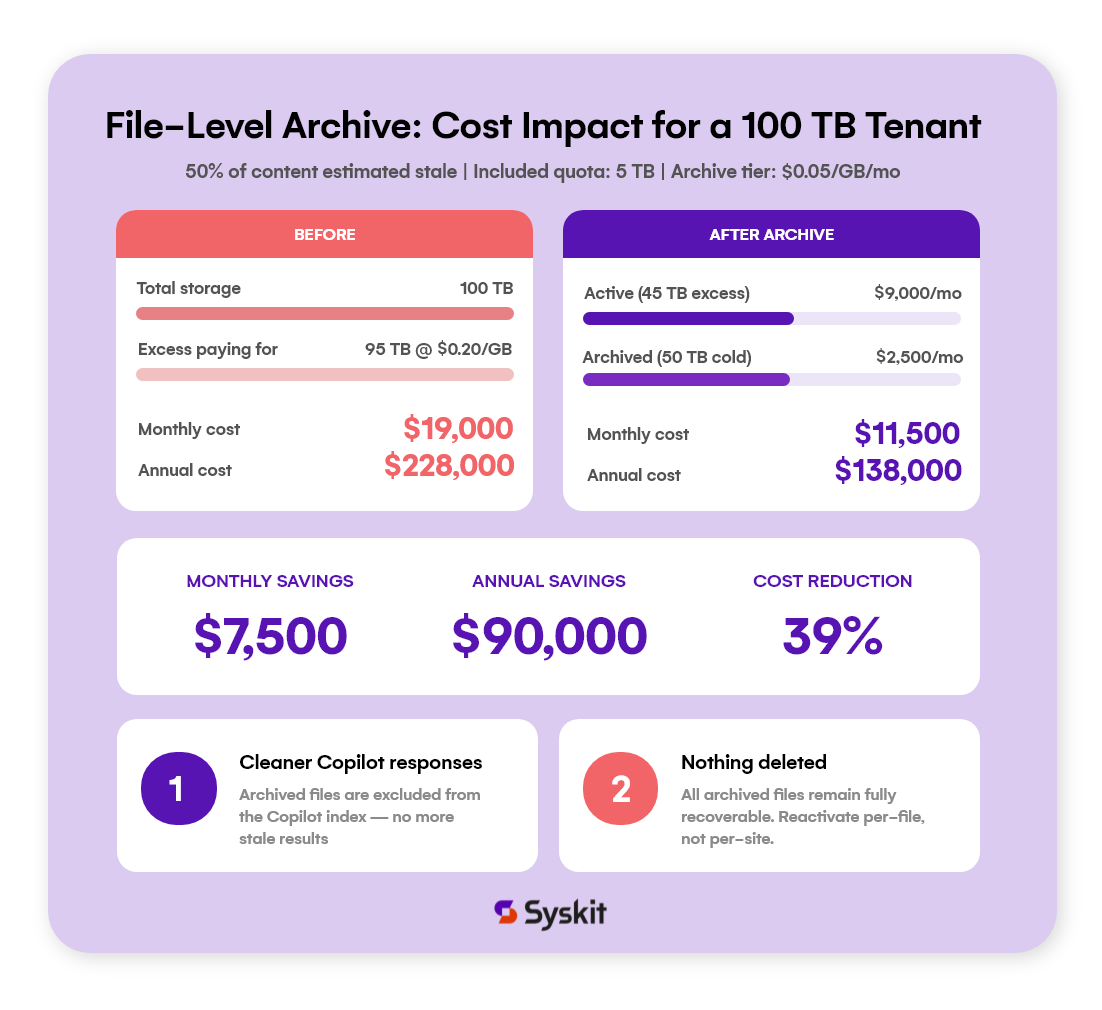
File-level archiving, entering public preview in March 2026 with general availability expected by July 2026, solves the fundamental problem with site-level archive: granularity. Instead of archiving an entire site, users can archive individual files within active sites — the file moves to cold storage while the site stays fully functional. Reactivation is per-file, so retrieving one document no longer means rehydrating hundreds of gigabytes.
Critically, archived files remain fully compliant. Retention policies, retention labels, sensitivity labels, and eDiscovery all continue to apply to archived content. eDiscovery can search and export directly from archived files. This means you can move stale content to cold storage without breaking legal holds or compliance requirements, the exact blocker that prevented cleanup in the first place.
File-level archive delivers a direct cost benefit: organizations paying for extra SharePoint storage at $0.20/GB/month can move stale files to cold storage at $0.05/GB/month — a 75% reduction on what is often 30–50% of their total content.
Why file-level archiving matters for Copilot rollouts
Copilot answers are only as good as the data it can reach. Right now, Microsoft Copilot indexes everything in SharePoint, including outdated drafts, obsolete reports, and files untouched for years. Archiving removes those files from the Copilot index without deleting them.
For organizations investing $30/user/month in Copilot licenses, cleaning up the data Copilot draws from is one of the highest-leverage ways to improve response quality. File-level archive makes this possible at the individual file level for the first time, no need to take entire sites offline just to stop Copilot from surfacing a 2019 budget draft.
Unfortunately, there will be some limitations, including:
- Several M365 apps, including Word Online, PowerPoint Online, Teams, OneDrive sync, and SharePoint mobile, don’t yet fully support archived content. Microsoft’s own documentation warns that these apps may “display incorrect error messages, fail to load correctly, or fail actions taken with archived content,” and the known limitation list is explicitly non-exhaustive.
In practice, this means users won’t see a clear “this file is archived” message; they’ll see a generic or misleading error with no obvious path to reactivation. Microsoft recommends using file-level archive “thoughtfully” during preview and ensuring users understand how to reactivate files themselves, which effectively shifts the communication burden onto IT. - Archived files still count against the site’s storage quota, so file-level archive reduces cost but not quota consumption.
- Reactivated files cannot be archived again for 30 days.
Microsoft also plans to introduce admin-defined policies for automatic file archiving (e.g. archive files untouched for X days) later in 2026.
How Syskit Point helps you use file-level archiving to save money
Microsoft gives you the archive mechanism. Syskit Point provides continuous governance intelligence you can use effectively.
Before archive
- Know what to archive
During public preview, the only native option is to archive file by file, folder by folder. Microsoft gives you no visibility into where your stale content actually lives. Syskit Point surfaces stale files across the entire tenant, not just by last modified date, but by last accessed.
That distinction matters: a file modified in 2021 but still read weekly is active content, not archive material. Syskit Point makes it easy to identify what’s genuinely cold and bulk archive it with confidence.
- Trim versions – compound savings
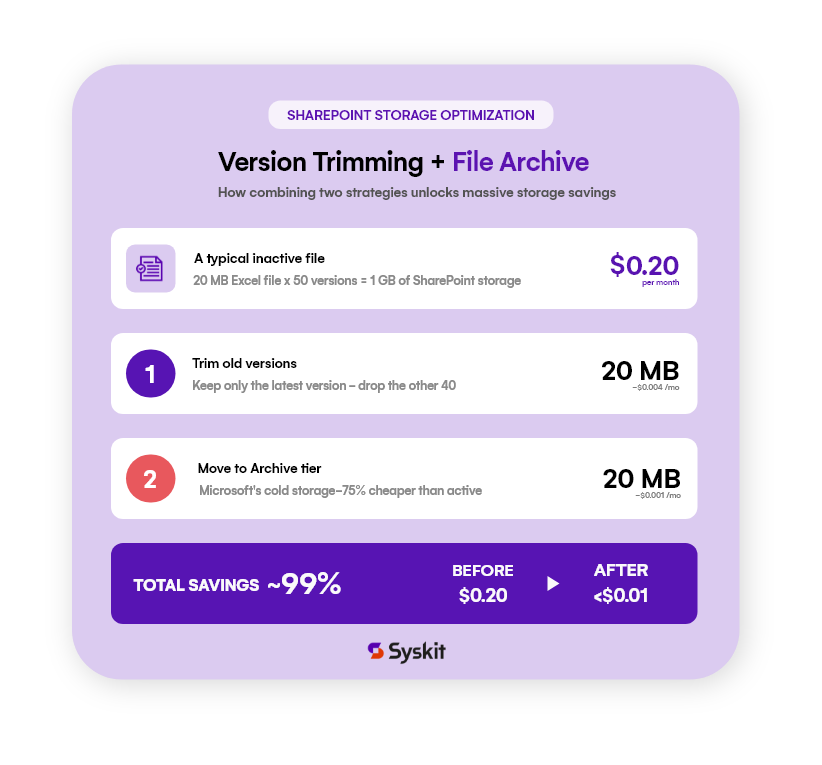
Microsoft archives all file versions as-is. Most files accumulate dozens or hundreds of versions over time, and each version is a full copy. Archiving without trimming means paying for cold storage for data you’ll never need. Syskit Point can trim versions before archiving, compounding the savings.
After archive
- Notify your site owners — avoid the support tickets
Archiving files without telling the people who use the site is how you generate IT tickets. Many M365 apps still show broken errors when users try to open archived files. Later this year, Syskit Point will let you define your own rules for stale content detection, notify site owners before archiving happens, and educate them on how to reactivate files. That communication layer is the difference between a smooth rollout and a flood of “my files are gone” tickets.
- What you can’t archive you can still clean up
File-level archive targets stale content — but version bloat hits active files just as hard, and those can’t be archived. As noted above, Microsoft’s Intelligent Versioning only applies to newly created libraries; existing libraries require manual PowerShell intervention per library.
Syskit Point has handled this since 2024 with automated versioning limits — by count, by age, or both — applied across libraries at scale, plus bulk version cleanup for instant space recovery. Our research shows that version cleanup alone can reduce total SharePoint storage by around 40%.
Archive handles stale files; versioning limits handle the active ones. Together, they cover the full storage problem.