Manage SharePoint library permissions with clarity and confidence
TL;DR
SharePoint library permissions are the security rules that determine which users can view, edit, or manage content within a specific document repository. Most access issues come from broken inheritance and one-off folder exceptions. A centralized tool like Syskit Point lets you see broken inheritance and Limited Access users across your tenant.
Every SharePoint admin knows the fear that comes with touching permissions – especially on a library that people use every day. One broken inheritance or poorly scoped group, and you can find yourself dealing with access tickets, nervous managers, and a creeping worry that you missed a forgotten sharing link or direct access grant.
SharePoint permissions feel confusing when you treat them as one-off settings on folders and files instead of a system of boundaries. Sites define the main security perimeter, libraries create a secondary fence, and everything else inherits those rules until you decide where that stops.
This guide will walk you through the steps and limitations of handling the native permissions setup, then detail how centralized governance with Syskit Point turns those boundaries into clear, auditable controls you can adjust with confidence.
Understanding how library permission inheritance works
SharePoint permissions inherit from parent objects until inheritance is stopped. Document libraries automatically receive permission settings from their parent site by default. Think of SharePoint library inheritance like a waterfall – set permissions at site, and they cascade down through every library until you stop the flow:
- Full Control allows complete site management, including configuration and deletion.
- Design allows users to view, add, update, delete, approve, and customize the layout of site pages, or create and customize lists and libraries.
- Edit allows users to add, change, and delete content and manage lists – with Edit access, a user can also delete the entire document library.
- Contribute allows users to view, add, update, and delete list items and documents, but cannot change the library structure or settings.
- Read allows viewing and downloading files without editing.
- View Only allows viewing supported Office files in the browser while usually blocking download and print in standard configurations.
For sanity and scale, assign these library permission levels to SharePoint groups instead of individual users. Groups keep your model predictable, support role-based access, and avoid the untraceable ‘but who added Sylvia?’ problem.
Remember that libraries are not isolated silos. They sit as branches on the site’s security tree and inherit their access configuration.
On modern Team sites, ensure the connected Microsoft 365 Group is the primary source of access to a library. Only when that relationship is understood and tidy does it make sense to break inheritance for a specific library that truly warrants unique access.
Breaking and restoring library inheritance
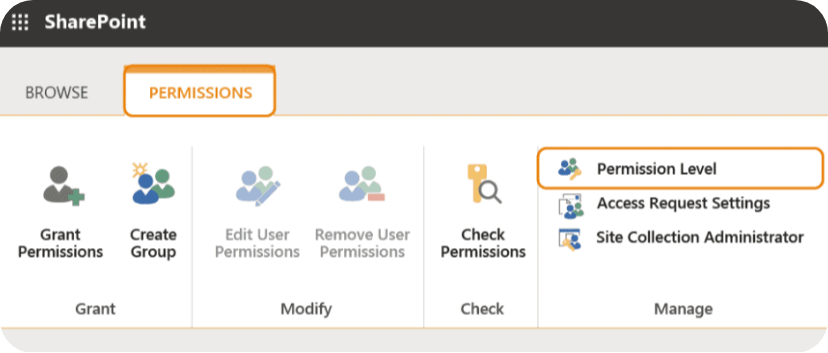
To stop a document library inheriting permissions from its parent site, follow these steps:
- Open the SharePoint site and go to the library you want to secure.
- Choose Permissions for this document library.
- Select Stop inheriting permissions.
- Remove any groups that provide site-wide access.
- Add specific groups with the required library permission levels and assign the right level (Full Control, Edit, Read, or View Only) to each.
“Be mindful of the 100,000-item threshold. Once a library, list, or folder exceeds this limit, you can no longer break or restore permission inheritance at that container level. While you can still manage access for individual items within that container, managing security at scale becomes much more complex and often requires structural changes to keep permissions governable.”
– Danijel Čižek, Product Manager Team Lead at Syskit
If a library contains files with custom access, SharePoint displays the, “Some items on this list may have unique permissions” notification. You’ll also receive a ‘Show these items’ link. That link lets you review which files or folders no longer follow the library’s inherited access.
Managing granular access for folders and items
To grant access to only one specific folder within a document library:
- Select the folder.
- Open the Manage access pane.
- Choose Advanced, then Stop inheriting permissions for that folder and assign the specific users or groups that should have access.
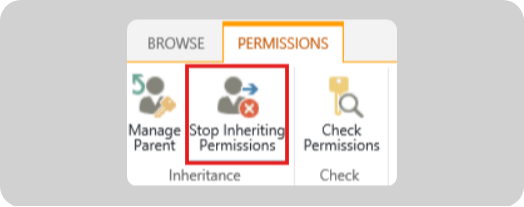
Keep broader site or library groups removed from that folder so they do not inherit rights there. This lets you satisfy a precise request (e.g. ‘Finance-only folder’) without redesigning the whole site.
However, every unique folder breaks the clean inheritance model. Over time, many folder-level exceptions slow permission checks, complicate reporting, and make access reviews painful. Auditors hate mystery unique permissions – wherever possible, keep things straightforward and simple.
There’s also a OneDrive sync risk. If users have Edit access on a uniquely-permissioned folder and sync the library to File Explorer, they can delete that folder from their local view, which deletes it for everyone. To reduce that risk, consider using a level that allows adding and editing items but not deleting folders, or a custom permission level tuned for these scenarios.
As a best practice, treat sites as your main security boundary and libraries as the secondary one. Use folder-level unique permissions only when you have a clear, documented reason and a plan to review or retire them later.
Permission management best practices and architecture
A clean permission model is about maintaining consistent discipline over time – the principle of least privilege should drive every library decision. Default to Read where users only need to consume content, and reserve Edit or higher for owners who truly create, change, or manage documents. This reduces accidental overwrites, version chaos, and accidental deletions from those not totally au fait with the system.
“Treat structure and security as separate concerns. Use metadata columns, views, and filters to organize content by project, department, sensitivity, or lifecycle instead of nesting folders five levels deep. Folders multiply unique permission exceptions, while metadata keeps security attached to the library boundary and makes content easier to search and report on.”
– Danijel Čižek, Product Manager Team Lead at Syskit
Copilot raises the stakes considerably. If your document libraries are full of inconsistent unique permissions, legacy groups, and temporary exceptions, Copilot will surface content based on that mess.
Cleaning up permission sprawl, aligning access with clear roles, and standardizing libraries before an AI rollout helps ensure that generated answers stay within appropriate boundaries and don’t expose sensitive files.
Centralizing library control with Syskit Point
Native tools make it necessary to check one library permission at a time. You can tighten access on one site, but you’ll still have no reliable way to answer the basic question – ‘who can see this across the tenant?’ Checking ‘Permissions for this document library’ one-by-one doesn’t scale when you’re responsible for hundreds of workspaces.
The tiny ‘Some items of this list may have unique permissions. Show these items’ link is helpful in a single library, but it hides a much bigger problem. Those unique folders, item-level breaks, and ‘Limited Access’ entries stay buried unless you open each library and drill down. There is no tenant-wide view, no inheritance map, and no quick way to spot where temporary exceptions became permanent risks.
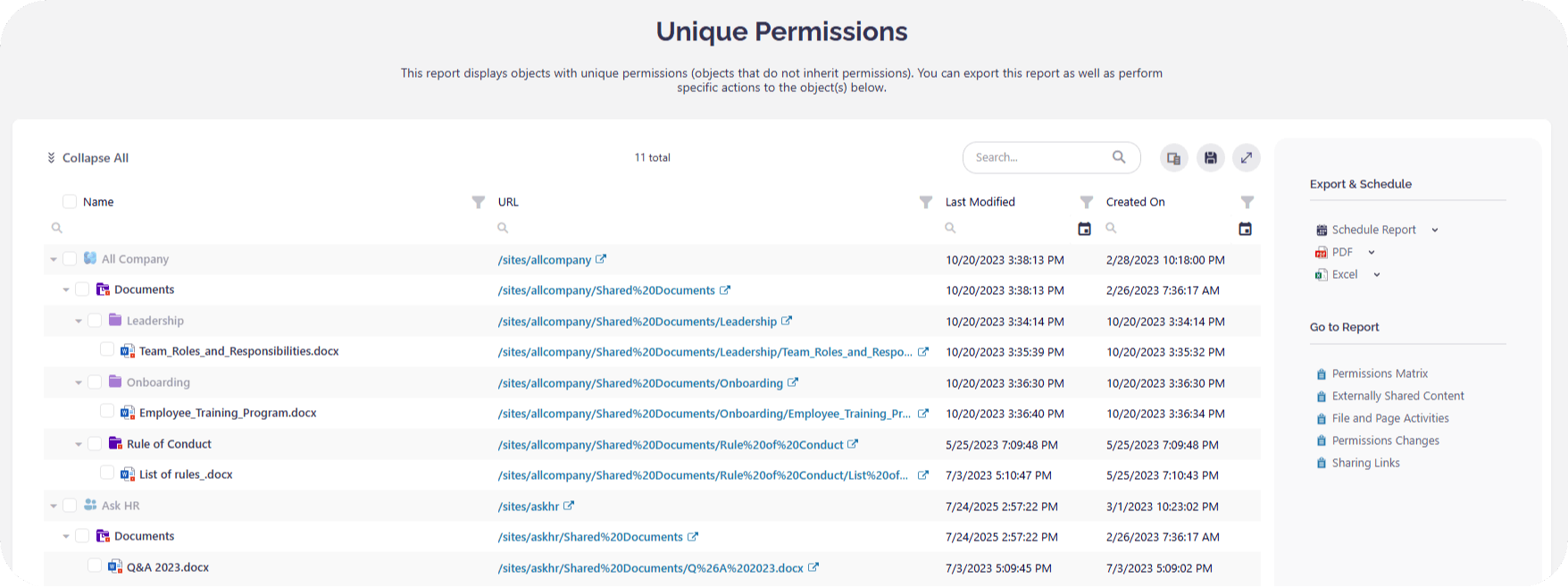
Syskit Point turns that guesswork into a single pane of glass for permission governance. Centralized reporting acts like a broken inheritance scanner, surfacing every library and folder with unique permissions, including Limited Access users, across your whole tenant in one place.
- Centralized matrix: See all libraries with unique (broken) inheritance across the entire tenant in one view.
- Named user expansion: Unlike native CSVs, Syskit expands M365 groups to show the actual people who have access to a library.
- Bulk remediation: Restore inheritance or remove stale guest access across multiple libraries simultaneously.
Reporting through Syskit Point reveals the actual named users with access, all findable with a click or two:
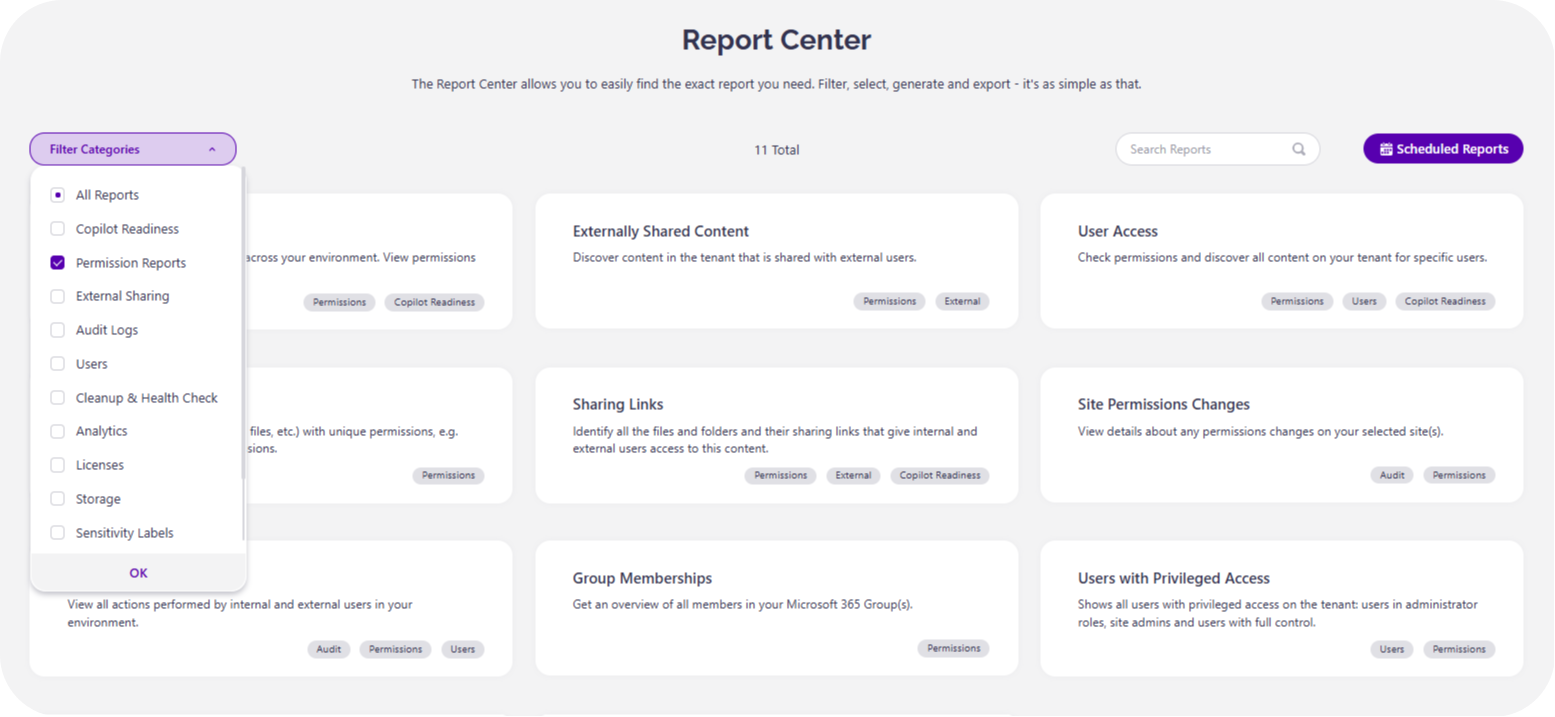
Syskit Point is also designed to go live in about 15 minutes. Overstretched admins can go from having no idea who has overall access to a clear, actionable permissions map.
Moving from chaos to governance confidence
SharePoint library permissions are less mysterious once you see that they’re comprised of boundaries, inheritance, and a few hard rules like the 100k-item limit. When you understand how access flows from sites into libraries, then into folders and files, permission changes are all the more logical.
The real shift is moving away from isolated libraries toward an automated, auditable governance model. Native tools let you fix one library at a time, but they won’t give you a clear picture of your tenant.
Syskit Point bridges the visibility gaps found in out-of-the-box management . It gives you tenant-wide visibility, broken inheritance detection, and bulk actions so you can secure hundreds of libraries at once and stay compliant and audit-ready.