SharePoint permissions complete guide for administrators
Table of contents
Key takeaways:
- Long‑term stability in SharePoint permissions comes from designing a simple, reusable pattern for access.
- Most access issues relate to skipping groups or breaking inheritance in one corner of a site structure.
- Treat Team and Communication sites differently – forcing a single pattern on both is a fast way to create sprawl and confusion.
- External sharing is never just a link – it’s potentially an identity and lifecycle problem for every guest you invite.
- Once your model works, the real challenge is scale, when you should consider platforms for centralized reporting and governance.
Unpredictable permission issues in SharePoint show up when access does not match what you thought you configured. A user suddenly edits a page they should not, someone else is blocked from a library they need, or most critically, sensitive data is accessible to someone who should never have seen it.
The challenge for users is that SharePoint hides how its layers interact. Tenant policies, site types, group membership, inheritance, and sharing links combine behind the scenes to create behavior that can cause chaos and seriously increase risk.
Organized admin management starts with understanding these layers individually, alongside how they work together. This guide will help you move from reactive troubleshooting to a stable, more predictable permission model.
We’ll also demonstrate how dedicated governance software like Syskit Point can turn that model into a living system, giving you clear visibility, automated reviews, and more consistent permissions as your environment grows.
What users can do (Levels) and who they are (Groups)
SharePoint permissions always combine two parts – what actions are allowed (Levels), and which people those actions apply to (Groups). A stable model starts by assigning groups to levels, instead of handing out individual permissions at random.
Understanding SharePoint permission levels
SharePoint uses seven default permission levels: Full Control (complete administration), Design (create and customize pages), Edit (manage lists), Contribute (add and edit content), Read (view only), Limited Access (item-specific access), and View Only (application pages only).
Here’s how each level works in practice:
|
Permission level |
Description (what it allows in practice) |
|---|---|
|
Full Control
|
Manage site settings, permissions, content, and structure across the site collection. |
|
Design
|
Create and edit pages, change layouts, and customize the site’s look and navigation. |
|
Edit
|
Create, edit, and delete lists and libraries, including their structure and content. |
|
Contribute
|
Add, edit, and delete items in existing lists and libraries, without changing their structure. |
|
Read
|
View pages, list items, and documents; download content without making changes. |
|
Limited Access
|
Enables access to a specific shared item without allowing access to the rest of the site. System-assigned only – this level cannot be edited, deleted, or manually assigned. |
|
View Only
|
View pages and documents in the browser, including web‑viewable formats only. |
The practical difference between Contribute and Edit catches many admins out. A user with Contribute permissions can upload and change files in a library that already exists. Whereas a user on the Edit level can change that library itself, including deleting it or altering columns, which is much harder to recover from.
“Best practice is to follow the principle of least privilege. Start most users on Read or Contribute, aligned with their role. Only grant Edit, Design, or Full Control to trusted owners who actively manage sites, and keep those assignments in groups so you can review and adjust access in one place.”
– Danijel Čižek, Product Manager Team Lead at Syskit
Organizing users with SharePoint groups
Groups are the backbone of SharePoint security. You assign users to groups, then assign permission levels to those groups. That single rule keeps access manageable, auditable, and far less error‑prone than scattering unique permissions across sites and libraries.
Removing one person from a group is easy. But finding and removing that person’s potentially lengthy list of one‑off permissions is where mistakes and data exposure usually start.
Classic SharePoint sites ship with three default groups that map directly to the core permission levels:
- Site Owners: Full Control for settings, structure, and permissions.
- Site Members: Contribute/Edit for day‑to‑day work on content.
- Site Visitors: Read‑only access for people who only need to view.
Modern SharePoint adds a new layer in the form of Microsoft 365 Groups. For most modern team sites, the Microsoft 365 Group is effectively your permission model. Owners of the Microsoft 365 Group become site Owners, while members become site Members.
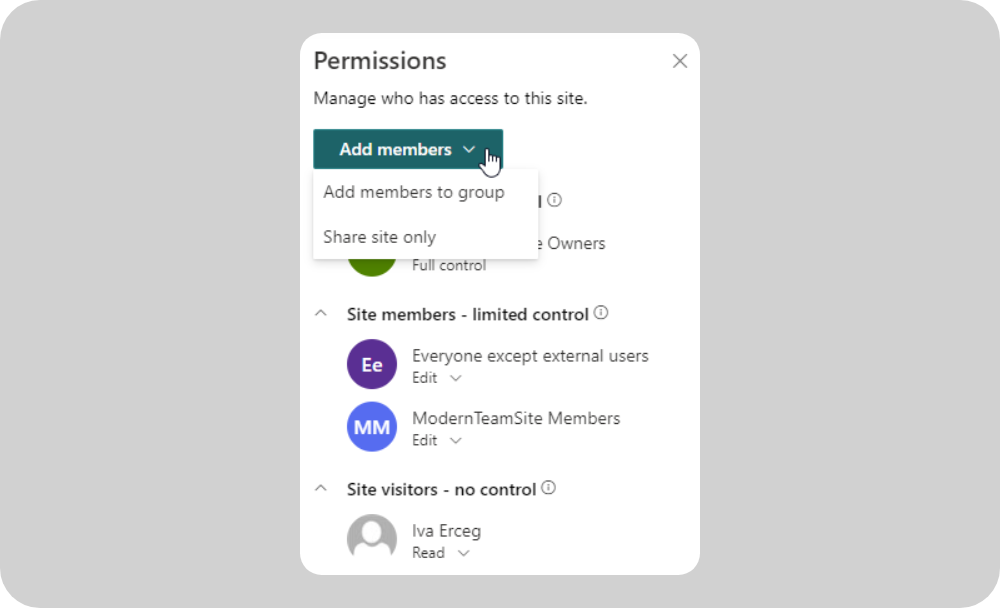
One membership change controls access across SharePoint, Teams, Outlook, and more, which is very useful for end users and onboarding.
The downside of this is sprawl. Native tools make it easy for anyone to create a new team, which silently creates a new Microsoft 365 Group and SharePoint site.
You can end up with hundreds or thousands of workspaces, each with its own group and permissions, but no central way to review who has access where, how long those workspaces should live, or whether their sharing settings still match your policies.
How permissions flow via inheritance
Inheritance is SharePoint’s default and most predictable permission model. Think of it as a waterfall; permissions set at the top-level site automatically flow down to subsites, libraries, folders, and files created underneath it. As long as inheritance remains intact, every new object simply inherits access from its parent.
For administrators, this is the lowest‑maintenance way to work. If you know who has access to the site, you also know who can reach its lists and documents, which keeps audits and incident reviews better organized. You only need to change access in a few places, instead of searching everywhere.
Breaking inheritance to handle exceptions is sometimes necessary, but it should be the exception, not the norm. For a detailed walkthrough of inheritance, plus how to manage unique permissions safely, see our dedicated guide to SharePoint permission inheritance.
How to manage permissions: Models, methods, and troubleshooting
Permissions management starts with choosing the right model for each site type.
Modern SharePoint gives you two main patterns – collaboration-heavy Team sites and broadcast-style Communication sites. They use different engines, so treating them the same is where a lot of confusion starts.
Team sites are for people who work together on the same content. For a modern team site, you manage permissions through the associated Microsoft 365 Group or the linked team in Microsoft Teams. Owners of the Microsoft 365 Group map to site Owners; members map to site Members with edit rights. Add or remove someone once, and their access updates across SharePoint, Teams, Planner, and Outlook.
Communication sites are for broadcasting information. A small group creates and updates pages; a much larger audience reads them. These sites are not connected to Microsoft 365 Groups. Instead, they rely on classic SharePoint groups: Owners, Members, and Visitors. That keeps editing rights firmly under control.
However, there is one critical exception – SharePoint sites that back private or shared channels in Microsoft Teams. Their permissions come from Teams channel membership, and the SharePoint permission UI is effectively read‑only. Instead of changing access directly in SharePoint, you manage who can reach those libraries in Teams.
Finally, hub sites are regular Team or Communication sites with extra navigation and search features on top. They do not introduce a new permission model. A hub site’s security still follows its base type, and associated sites keep their own permissions. Many organizations pair hub navigation with separate tools for central visibility and access reviews.
Method 1: Managing permissions with native Microsoft tools
The native SharePoint interface gives you straightforward, site‑by‑site control over managing permissions.
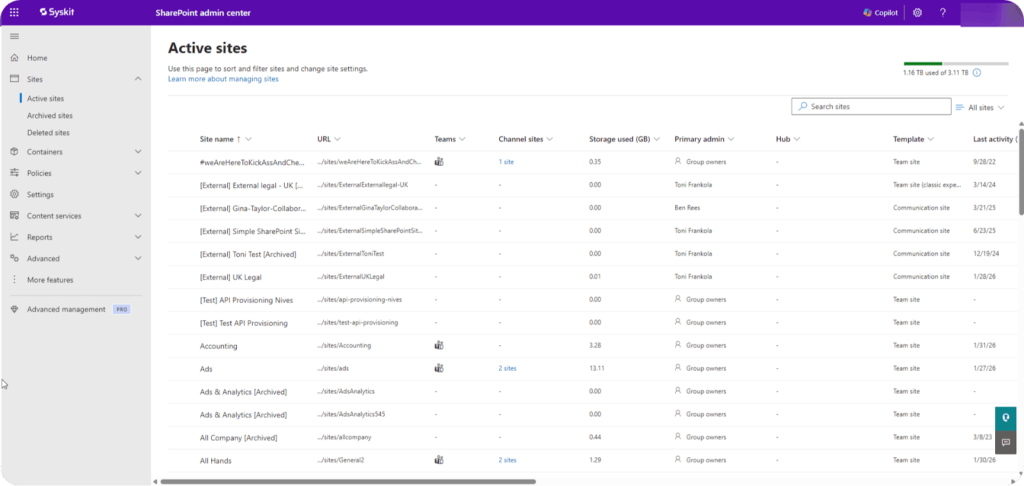
For a modern site, start in your admin center, select Settings, then choose Site permissions. You will see the main groups (Owners, Members, Visitors) and any connected Microsoft 365 Group.
From here, you can check who already has access, add new users or groups to the appropriate role, and remove people who no longer need access. This is the safest place for everyday changes because it keeps your model aligned with the standard groups rather than creating one‑off exceptions.
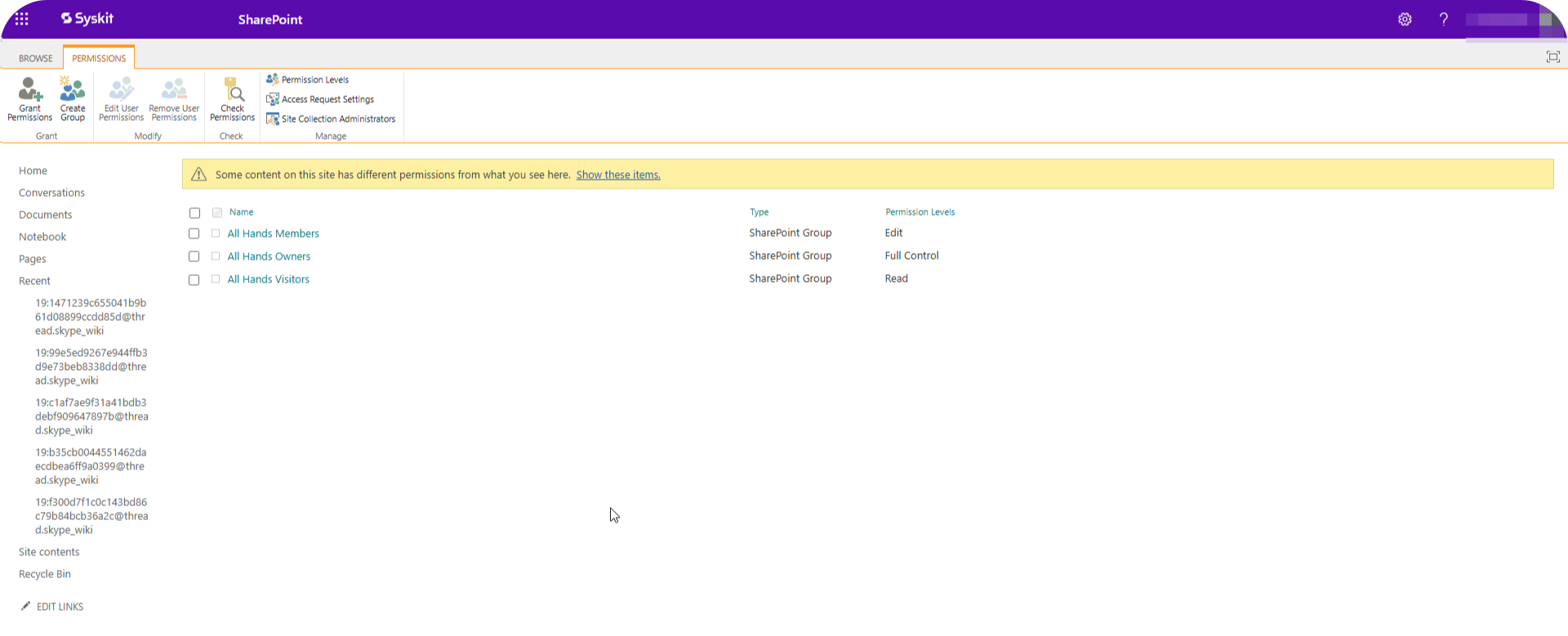
The Advanced permission settings link opens the classic permissions page, where you can manage unique permissions – you’ll find this covered in our SharePoint advanced management guide.
“For a single site, manual processes will do the job. But for larger organizations, clicking through countless sites to review Owners, Members, Visitors, sharing links, and inheritance is nearly impossible to audit at scale.”
– Danijel Čižek, Product Manager Team Lead at Syskit
The external layer: Managing sharing and guest access
External sharing is the outer shell of your permission model. It follows a strict hierarchy – tenant‑level sharing policies define what’s possible, site‑level settings narrow or relax that, and individual sharing links decide who actually gets access.
For most regulated environments, the safest default is to allow sharing but keep it targeted. When you need to share a folder with someone outside your organization, use the Share button, choose Specific people, and enter their email address. SharePoint sends a one‑time invitation and creates a guest account in your tenant using Microsoft Entra B2B. This is far safer than giving Anyone with the link access, which is like sharing a public URL.
The negative here is the potential for guest sprawl. Business users can invite partners all day long, but native tools give admins very limited, fragmented views of those guests and their access.
Over time, tenants can accumulate thousands of inactive guest accounts, stale sharing links, and access paths nobody remembers approving. That combination drives oversharing risks and makes it hard to answer basic questions such as ‘Which external users can see finance documents?’ or ‘Which guests still have access after their contract ended?’
Troubleshooting common access issues
Whether a user is blocked from a file they need, or sees confidential data they shouldn’t, a simple three‑step check resolves most cases:
- Check group membership: Confirm the user is in the right group for that site (Owners, Members, or Visitors, or the connected Microsoft 365 Group). If they are missing entirely, the fix is to add them to the correct group, not to grant a one‑off permission.
- Check inheritance on the item: Open the library’s or folder’s permission settings and see whether it still inherits from the site or has unique permissions. If inheritance was broken in the past, the user’s group might not exist on that object at all, even though it exists at the site level.
- Check sharing links: The item may have been shared with a different group or specific users, giving Limited Access to some people while excluding others. Cleaning up or re‑creating the link usually resolves the confusion.
Method 2: Centralized M365 access control with Syskit Point
Native tools work, but they expect you to think in terms of individual sites. The process breaks down as soon as you have hundreds of workspaces, guests everywhere, and a Copilot rollout on the horizon.
Syskit Point turns that mess into a single, tenant-wide view of access. Instead of opening 100 sites one by one, you can run permissions reports and see every user, group, and guest account across SharePoint, Teams, Groups, and OneDrive, down to libraries and files.
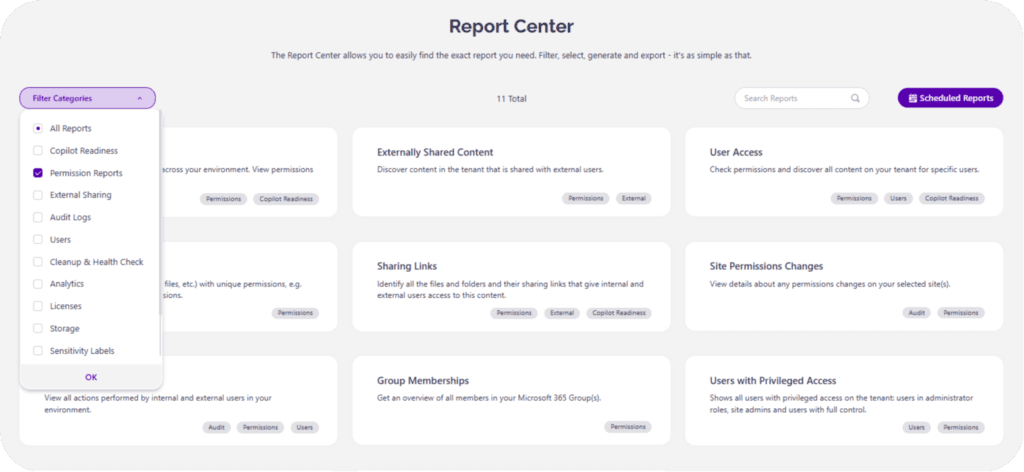
That answers the ‘Who has access to what?’ question in a format that your auditors and security team can actually use.
Because it understands sharing links and external users, Syskit Point can automatically flag risky Anyone links, exposed sensitive libraries, and any guest accounts that should be removed, removing the oversharing gap that native tools leave open.
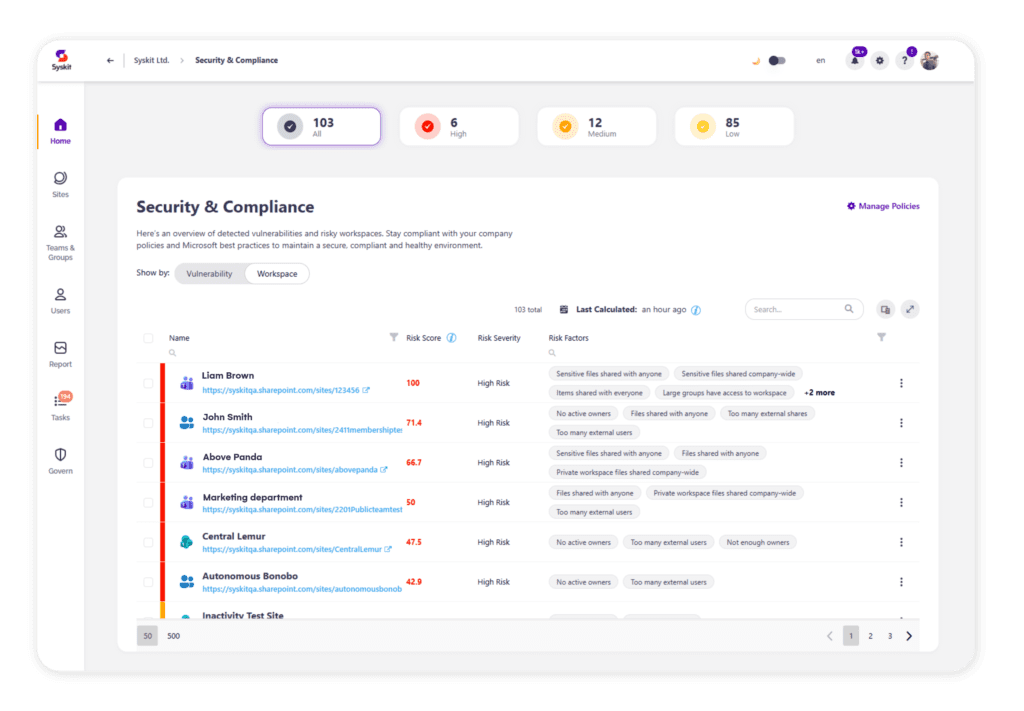
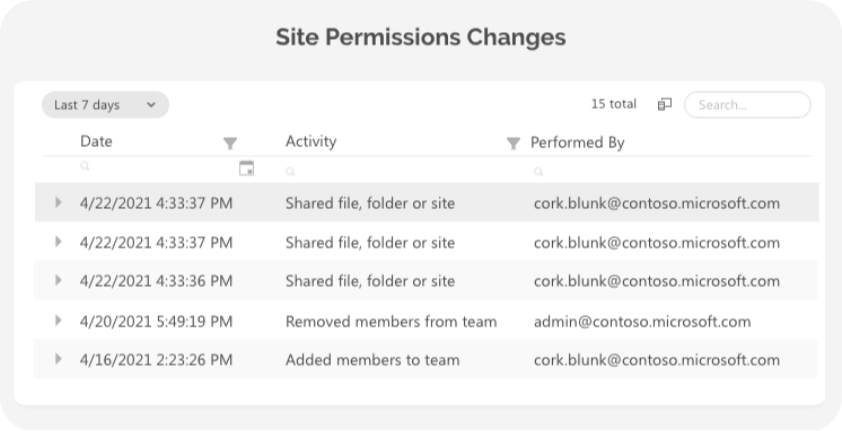
The platform also automates workspace reviews including permission attestations, so workspace owners can confirm who should stay, who should go, and which exceptions still make sense. Everything is tracked with detailed change and activity logs, so when something does go wrong, you can see who changed which permissions and when, then fix it from the same centralized dashboard.
Making your SharePoint permission model predictable
SharePoint permissions only become predictable when you treat them as a system of layers (levels, groups, inheritance, site types, and sharing) instead of individual fixes. We’ve seen how groups keep access auditable, inheritance keeps it consistent, and differentiated patterns for Team and Communication sites prevent sprawl and confusion. But it’s also clear that external sharing and guest accounts can expand your risk surface over time.
Even when this model works, scale becomes the real problem. Native tools cannot give you a reliable, tenant‑wide view of who has access to what, or keep it clean over time. Syskit Point delivers the solution with centralized permissions reporting with bulk cleanup, broken‑inheritance detection, and automated access reviews that keep SharePoint, Teams, Groups, and OneDrive aligned with your policies.
For organizations that want their permission model to stay stable as they grow, Syskit Point is the natural next step.