Microsoft 365 cost optimization: Reduce licensing, storage, and Copilot spend
Table of contents
Microsoft 365 has become the productivity backbone for most organizations. But it’s also easy for costs to grow quietly in the background—until finance starts asking uncomfortable questions.
The good news is that meaningful Microsoft 365 cost optimization doesn’t require cutting features or slowing users down. In most environments, the biggest savings come from using what you already pay for more efficiently.
This article focuses on three areas where organizations consistently overspend:
- Microsoft 365 licenses
- SharePoint storage
- Copilot and pay-as-you-go AI services
Together, these three areas represent the fastest path to measurable, sustainable savings.
Cutting Microsoft 365 licensing costs
Licensing is usually the largest line item in a Microsoft 365 budget—and also the easiest place to find waste.
Microsoft 365 is a SaaS platform. There are no servers to deploy and no infrastructure to size. You simply buy licenses, assign them to users, and they’re ready to work. The challenge lies in how many license options exist and how differently people actually use them.
Organizations can choose from Microsoft 365 plans, Office 365 plans, add-ons, standalone licenses, and now AI-specific SKUs. Everything is billed per user, per month, often with annual commitments. With so many choices, many organizations default to “safe” decisions—assigning larger licenses broadly rather than aligning licenses to real needs.
The cost of unassigned licenses
One of the most common problems is paying for licenses that aren’t even assigned.
In the Microsoft 365 Admin Center, you can see:
- Which licenses you own
- How many are purchased
- How many are assigned
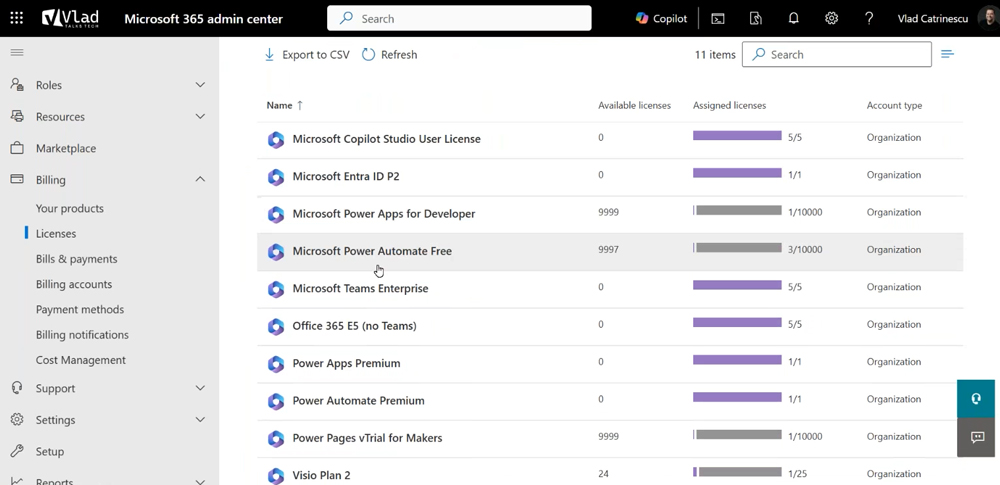
It’s surprisingly common to find dozens or even hundreds of unused licenses. Copilot licenses are a frequent example. At roughly $30 per user per month, even a small number of unassigned licenses can translate into thousands of dollars wasted each year—on services that no one can access.
Licensing is the easiest win in Microsoft 365 cost optimization: if a license isn’t assigned, it’s guaranteed waste.
Over-licensing users “just in case”
The next issue is over-licensing users based on assumptions rather than usage. Many organizations assign Microsoft 365 E5 licenses to users who only need:
- Basic collaboration
- Occasional SharePoint access
- Identity and authentication
Field workers, frontline staff, part-time employees, and even some knowledge workers often fall into this category. In many cases, these users could operate perfectly well on lower-cost licenses such as Microsoft 365 E3, Office 365 plans, or even F-series licenses.
Are people actually using the services inside your tenant? Are there any people that you might be able to give a lower-cost license to, and who will still be able to get the same job done?
The work doesn’t change—but the cost does.
Why license optimization matters more than ever
Historically, enterprises often overbought licenses to qualify for volume discounts under Enterprise Agreements. That strategy no longer works the way it used to.
Microsoft’s recent pricing changes removed traditional volume-based discounts. Today, an organization pays the same price per license whether it buys ten or ten thousand. Over-buying no longer saves money—it only increases waste.
As a result, organizations are now forced to answer a more important question: Does every license deliver measurable value?
Syskit Point helps you optimize Microsoft 365 licensing costs with insightful license reporting on inactive and unassigned licenses, and specific licensed services that assigned users are not using.
Reducing SharePoint storage costs
After licensing, storage is usually the next major cost driver—especially in SharePoint Online. Storage rarely causes problems immediately. Instead, it grows quietly over time until one day the tenant hits its limit and the only option seems to be buying more.
How SharePoint storage is calculated
SharePoint Online uses pooled storage across the tenant:
- Every tenant starts with 1 TB
- You get 10 GB per licensed user (excluding frontline licenses)
For example, an organization with 200 users gets roughly 3 TB of total SharePoint storage. Once that limit is reached, Microsoft requires you to purchase additional storage at approximately $0.20 per GB per month. That means:
- 1 TB of extra storage ≈ $200/month
- ≈ $2,400/year
Avoiding this cost is where storage optimization becomes critical.
Visibility comes first
The SharePoint Admin Center provides good visibility:
- Storage warnings as limits are approached
- Growth trends over time
- Identification of the largest sites
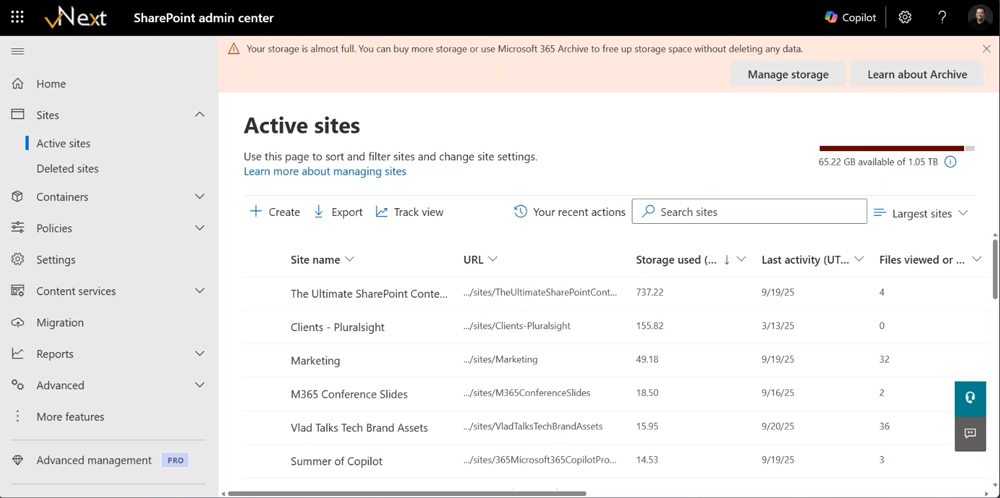
In many tenants, storage problems aren’t caused by steady growth—but by one or two sites suddenly consuming massive amounts of space.
Four proven ways to reduce storage costs
1. Delete inactive content (when possible)
Inactive SharePoint and Teams-connected sites consume full-cost storage even when no one uses them. Inactive site policies allow organizations to identify unused sites, notify owners, and apply actions such as read-only mode, archiving, or deletion. This is essential for long-term control, even if it doesn’t deliver instant savings.
2. Archive inactive sites instead of paying full price
Microsoft 365 Archive allows organizations to move inactive SharePoint sites into low-cost storage while preserving content, permissions, and metadata.
The cost difference is significant:
- Active storage: $0.20/GB/month
- Archived storage: $0.05/GB/month
That’s a 75% reduction, with no restore costs for SharePoint sites. Archived sites can be reactivated in minutes if needed.
As a bonus, archived content is removed from the Copilot semantic index, reducing AI noise from outdated information.
A lot of organizations are a bit of digital hoarders, where they like to keep stuff forever. We can archive inactive content that you don’t want to delete. So this way, if ever there’s content that is inactive but you don’t want to pay full price on it, you can archive it.
3. Reduce file version sprawl
File versioning is another silent storage consumer. Microsoft’s automatic version history management intelligently trims old versions while preserving meaningful recovery points. This dramatically reduces storage consumption without impacting users.
4. Set storage limits before sites get out of control
By default, SharePoint sites can grow up to 25 TB. Switching to manual site quotas introduces accountability and prevents a single site from consuming the entire tenant’s storage.
Syskit Point helps you optimize SharePoint storage in Microsoft 365 with centralized storage reporting, threshold alerting, and storage clean up.
Managing Copilot and pay-as-you-go AI costs
Microsoft has rapidly expanded pay-as-you-go offerings, especially around AI. These include:
- SharePoint document processing (OCR, autofill columns, image tagging)
- Copilot Chat and SharePoint agents
- Copilot Studio agents and credits
- Microsoft 365 Backup
Pay-as-you-go sounds ideal—you only pay for what you use. But without governance, it introduces unpredictable spending that finance teams struggle to accept.
Copilot licenses vs. pay-as-you-go
One of the most important optimization decisions is determining who needs a full Copilot license and who doesn’t.
Heavy users who rely on Copilot daily are usually better served by a fixed-price license. Light users, however, may cost significantly less on pay-as-you-go while remaining productive.
By aligning Copilot licensing with actual usage patterns, organizations can reduce AI spend without restricting access.
Copilot Studio credits can add up fast
Copilot Studio introduces another layer of cost through usage-based credits. Generative AI and premium responses consume credits quickly, and at scale, costs can rise fast.
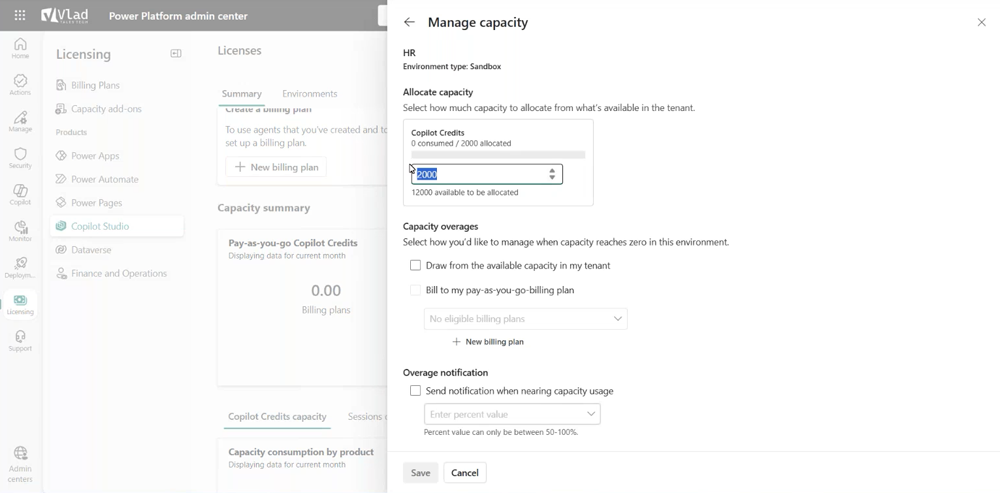
In the image above, HR gets 2000 credits a month. This way we don’t have somebody in HR who creates an agent, shares it on a public website, with people who shouldn’t. And then it takes all the credits from the entire organization. That’s something you should definitely do.
Microsoft provides governance controls that should be implemented early:
- Per-environment credit limits
- Per-agent monthly caps
- Visibility into usage trends
These safeguards prevent a single agent or department from consuming the entire credit pool.
The direction Microsoft is taking
Microsoft is moving toward better cost governance with:
- Departmental billing
- Multiple billing policies
- Budgets and alerts tied to Azure subscriptions
This allows organizations to charge usage back to departments instead of absorbing everything in IT.
Microsoft 365 cost optimization is about alignment, not restriction
Microsoft 365 cost optimization isn’t about limiting users or cutting innovation. It’s about aligning cost with actual value.
The organizations that save the most are the ones that:
- Assign the right licenses to the right users
- Proactively manage SharePoint storage
- Treat AI and Copilot usage as a governed resource
When licensing, storage, and AI consumption are optimized together, organizations often uncover large annual savings—without reducing productivity.
And in a world where Microsoft 365 continues to expand, cost optimization isn’t a one-time project. It’s an ongoing discipline.
Syskit Point helps you regain control by making license optimization actionable:
- Remove licenses from inactive users and reassign seats where they’re actually needed
- Reclaim unused add-on licenses such as Power BI, Visio, and Copilot
- Detect redundant licenses, like E5 users assigned overlapping add-on licenses
All insights are centralized in one dashboard, giving you a complete and reliable view of license usage and cost impact.