
SharePoint permission inheritance explained
Table of contents
Key takeaways:
- Treat broken inheritance as an explicit choice, every exception should have a clear purpose and an owner.
- Use inheritance to keep day‑to‑day administration clear, so real security efforts can focus on genuinely sensitive content.
- Think in containers, not documents. Securing a few well‑defined folders beats chasing hundreds of uniquely shared files.
- At scale, unique permissions can become an audit, compliance, and performance problem. The importance of proper governance cannot be overstated.
- Combining SharePoint’s inheritance model with tenant‑wide reporting from solutions like Syskit Point can help you keep exceptions visible and under control.
SharePoint permission inheritance is brilliant when it works and troublesome when it doesn’t. One broken chain or casual sharing link can leave files exposed, audits messy, and admins unsure how to fix things. Over time, those exceptions can pile up into serious security sprawl, something all successful organizations need to avoid.
Our complete guide to SharePoint permissions helps you build the rules needed to keep governance in order. But this in-depth companion piece takes you through the next logical step – how to master inheritance exceptions, without letting them spiral into chaos.
You’ll see how inheritance really works at site, library, folder, and item level; why modern sharing often creates invisible unique permissions; and where the technical limits and performance traps sit.
Most importantly, you’ll learn safe patterns for breaking and restoring inheritance, how to detect risky ‘one-off’ access across your tenant, and how management tools like Syskit Point give you the centralized visibility and governance needed to keep permission inheritance in order.
What is SharePoint permission inheritance?
SharePoint permission inheritance is how access cascades from one level of a site to everything beneath it. Permissions set at the top flow down automatically.
At a basic level, the hierarchy looks like this: Site > Library/List > Folder > Document/Item.
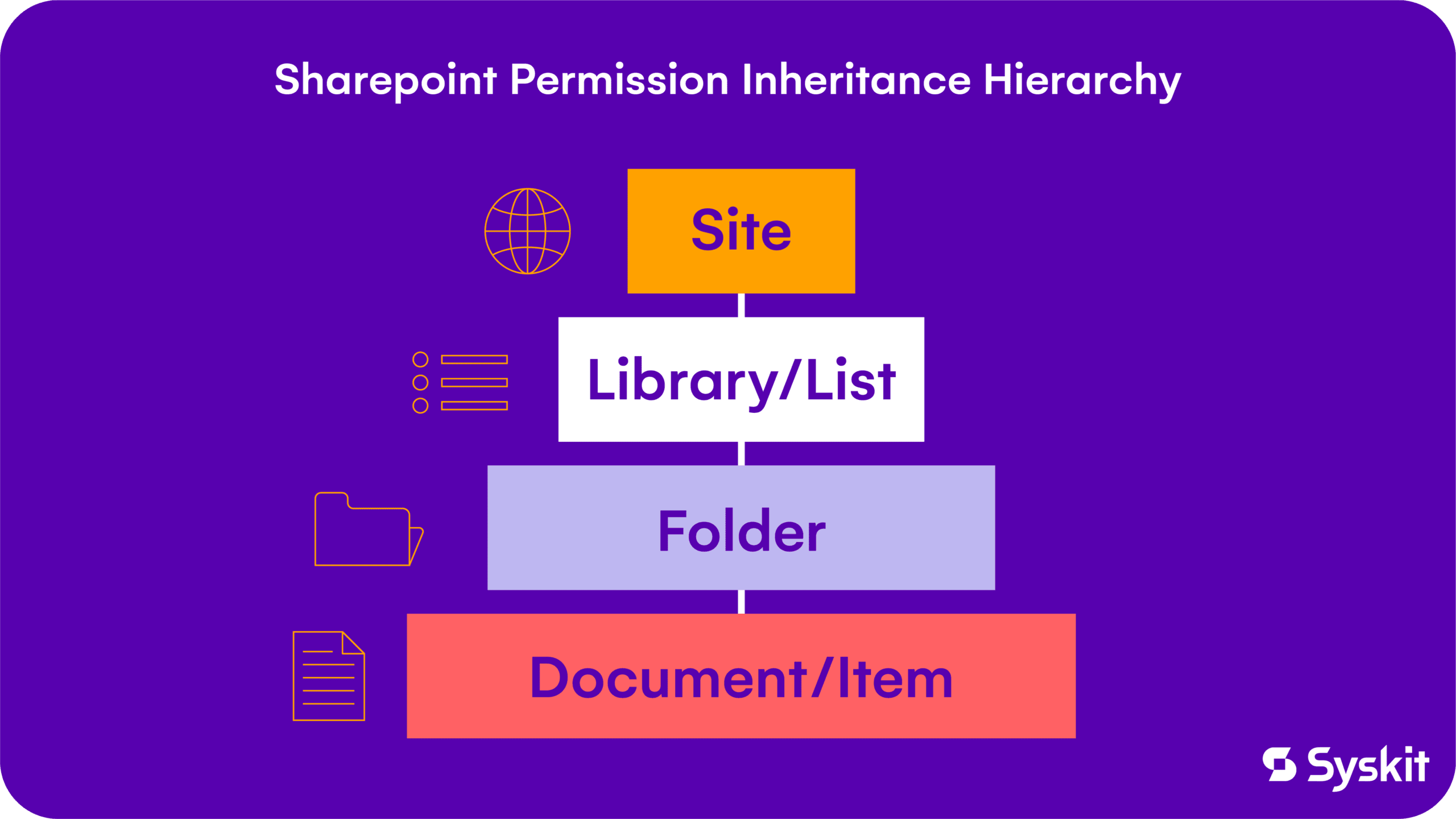
A document at the bottom inherits its permissions from its parent folder (if one exists), which inherits from the library, which in turn inherits from the site. Note that hub sites function differently: they connect sites for navigation and branding, but they can only push permissions for visitors down to associated sites.
In the default state, inheritance is intact at every level. You manage access at the site level, and everything below receives the same groups and permission levels. In theory, this keeps SharePoint relatively low-maintenance – change a group at the site level, and the update applies to all lists, libraries, folders, and items that still inherit permissions.
“The twist is that you can stop this flow at any level. When you ‘stop inheriting’ or ‘break inheritance’, that object (a library, folder, or single file) gets unique permissions and becomes the new parent for anything below it. This is how you can create exceptions for sensitive content – while still relying on the cascade principle for everywhere else.”
– Danijel Čižek, Product Manager Team Lead at Syskit
Step-by-step guide to managing unique permissions in SharePoint
Managing unique permissions is where inheritance enters your real-world workflows. This section walks through the exact clicks needed to open the classic permissions view, decide when an exception is justified, and safely turn a shared site, library, or folder into an item with its own access rules.
How to access the permissions page
Start in the document library, list, folder, or item you want to control, then open the modern ‘Manage access’ panel from the context menu.
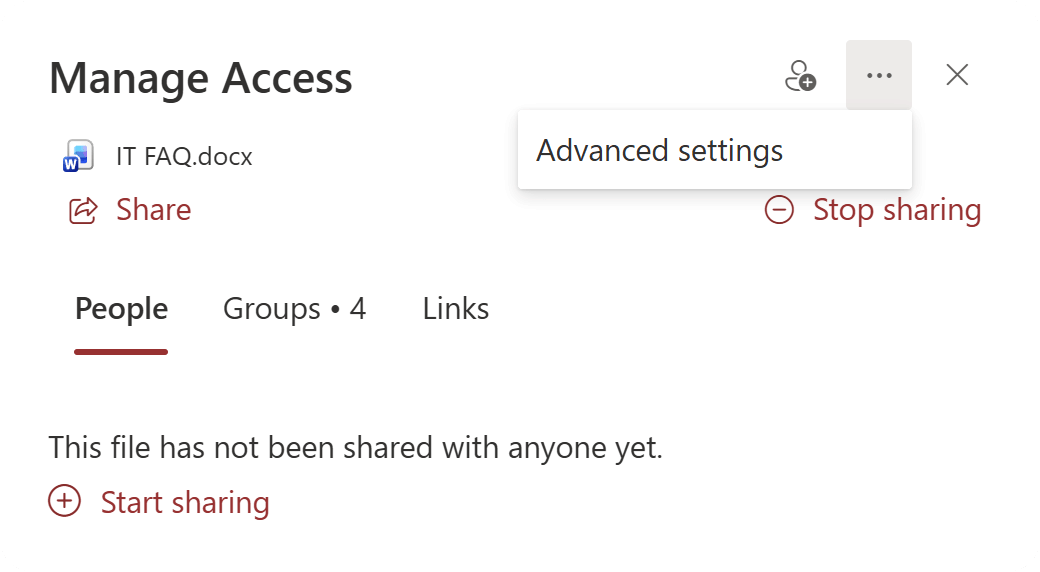
From there, use the Advanced link to jump into the classic permissions page for that specific object.
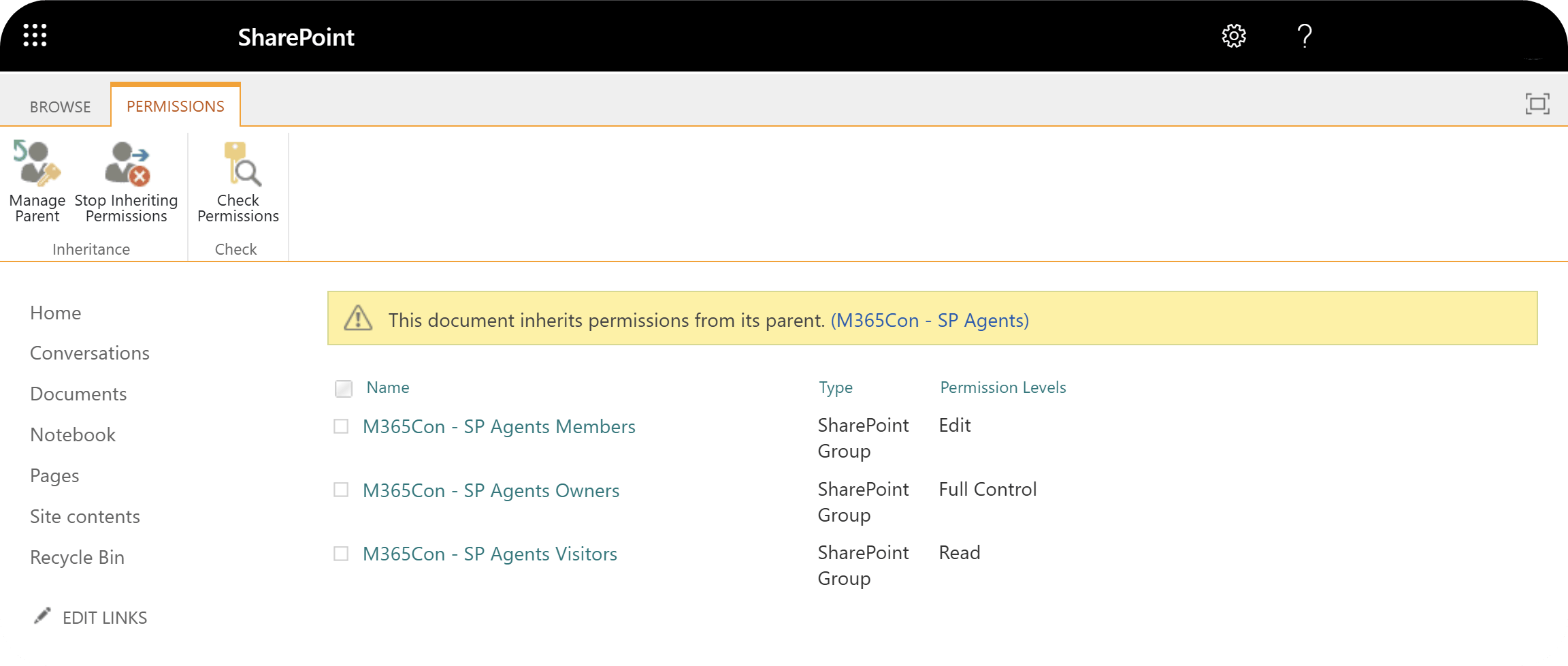
Think of this page as the control panel for inheritance. It shows whether the item still inherits from its parent and gives you the tools to change that behavior.
How to break inheritance
The phrase ‘break inheritance’ sounds like you are about to damage the site – a worrying thought for many admins. But in practice, it simply means that you are giving this one its own unique permissions instead of inheriting everything from the parent.
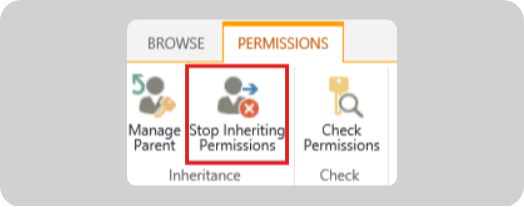
To do this, open the Advanced permissions page, then select Stop inheriting permissions. At that moment, SharePoint takes a snapshot of the current access. It copies all existing groups and users (such as Owners, Members, Visitors) into a new, local permission set for that object.
The people and groups you see will look identical right after you click, but the link to the parent is now severed, which is why the item is marked as having unique permissions.
How to manage access after breaking inheritance
Once inheritance is broken, the permissions page becomes your sandbox for fine-tuning access. This is where you add a specific project group, tone down a permission level, or remove a viewer that should never have seen this folder in the first place. The goal is to match access to the actual sensitivity of this one item, without rewriting your whole site model in the process.
Granting permissions
On the Advanced permissions page for your item, select Grant Permissions. Enter the user or group, choose the permission level you want (for example, Read or Edit), and confirm. This grants access only to this library, folder, or file, leaving their permissions on the rest of the site unchanged.
Editing permissions
To change what an existing group can do, select that user or group on the permissions page and choose Edit User Permissions.
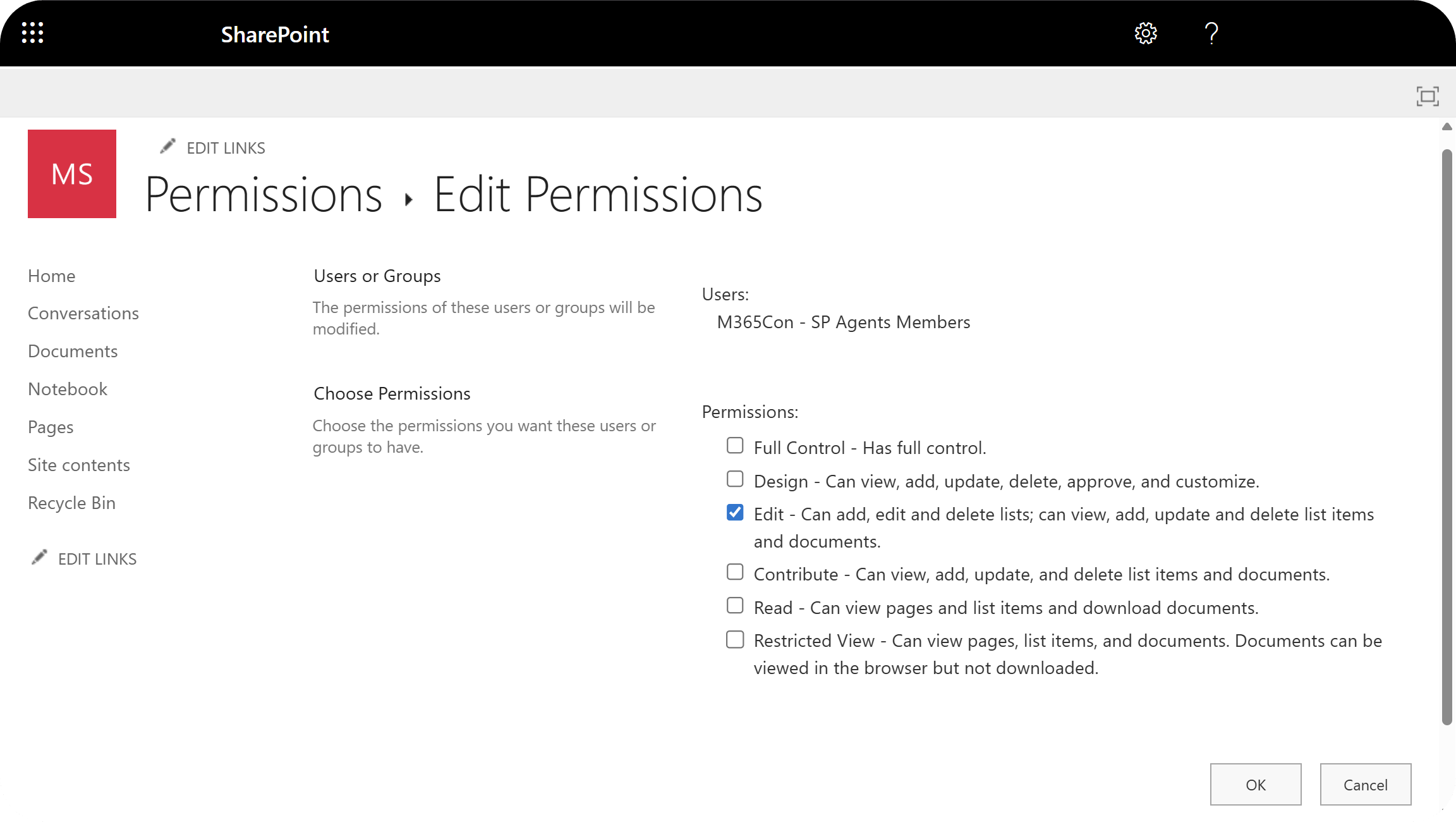
Pick the new permission level, such as switching Site Members from Contribute to Read. The change applies only to this specific item, not to the parent site or other content.
Removing permissions
To completely block a group from this item, select the user or group in the list and choose Remove User Permissions. Confirm the action, and they lose access to that library, folder, or file while keeping their rights everywhere else. This is how you can make exceptions for sensitive content.
How to restore inheritance
Restoring inheritance is the emergency exit when a one-off exception has outlived its usefulness.
On the item’s Advanced permissions page, use the ribbon command Delete unique permissions. SharePoint removes all the custom users and groups you configured on that object and reconnects it to its parent.
“From that point on, the item once again inherits whatever permissions exist at the parent level, including any future changes your admins make there. It’s an instant reset button – great for clearing experimental access, but worth using carefully because every unique rule on that item disappears in one go.”
– Danijel Čižek, Product Manager Team Lead at Syskit
The hidden consequences of broken inheritance
Broken inheritance occurs when SharePoint is configured so that a site, library, or item stops inheriting permissions from its parent. While this can be intentional, it often leads to unexpected access results if not closely tracked.
These side effects are confusing for admins during audits and make environments feel messy, even when the original permission model was solid. The good news is that once you understand what the UI is trying to tell you, these incidents are perfectly manageable.
The ‘Limited Access’ mystery
Limited Access looks like a strange permission level, but you never assign it directly. SharePoint adds it automatically to give users a route to the one item you shared with them.
When you grant a user access to a single document, SharePoint gives them Limited Access on the parent folder, library, and site so they can navigate to that file without seeing anything else. This is why you see Limited Access all over unique permission scenarios, even though you haven’t selected it.
Accidental broken inheritance
Not all broken inheritance starts with an admin on the Advanced page, and there are two main paths.
The first is manual – let’s say an admin breaks inheritance on a whole library or folder, such as an HR folder, then manages groups and permission levels there on purpose.
The second is automatic from the admin’s point of view. A user might hit the Share button on a single file or subfolder, select Specific people, then invite someone who didn’t previously have access. To make this work, SharePoint quietly breaks inheritance for that one item and adds the invited user as an explicit permission entry.
Over time, hundreds or thousands of these one-off shares can turn into a patchwork of unique permissions that no one sees from the site level. The resulting sprawl is a major source of confusing access behavior and precisely where tenant-wide reporting and governance tools like Syskit Point earn their keep.
Best practices for managing permission inheritance
The best SharePoint permission model is the one you touch the least. Inheritance gives you just that – one clean set of rules that flows everywhere until you have a strong reason to make an exception.
1. Keep inheritance intact whenever possible
Keep permissions at the highest sensible level, such as the site or library, and let everything else inherit. This keeps your security model predictable, easier to audit, and much faster to troubleshoot.
2. Use folders, not individual files
When you really need different access, secure a folder and use it as a container for related content instead of sprinkling unique permissions on dozens of files. Breaking inheritance once on a folder that holds all HR reviews, legal drafts, or board packs keeps the exception visible and intentional. It’s preferable to hiding one-off shares across hundreds of documents.
3. Always use groups, not people
Never grant direct permissions to a specific name (e.g. Rod, Jane, Freddy) if you can grant them to groups like ‘HR Managers’ or ‘Project A Contributors’. Assign access to SharePoint or Microsoft 365 groups, then manage membership there – you gain one place to add or remove people without touching every secured folder again.
4. Document and review your exceptions
Every broken inheritance should have a reason and an owner. In a manual world, that means keeping a simple register of where inheritance is broken/why/who approved it; then reviewing it on a fixed schedule.
At scale, integrated reporting and governance tools are your best option to handle that task, surfacing unique permissions, stale access, and high-risk locations – and all accessible from a single dashboard.
The problem with unique permissions at scale (and the centralized solution)
SharePoint’s native tools give admins solid visibility and control at the site or library level. The challenge comes when governance needs to scale across hundreds of workspaces and years of accumulated sharing activity.
The result is silent permission drift. Sites can end up with unique permissions everywhere, Limited Access entries no one understands, and no central place to see who has access to what across the tenant. Performance limits around unique permissions add further troubles, because lists with too many unique scopes become slower and harder to manage.
Now, scale that to 1,000 sites with 50 libraries each. There’s no native report that says ‘show me every library where inheritance is broken’, or ‘list all files shared externally’.
The native solution requires manual digging at site level, scripting, or one‑off reports that are out of date by the time you export them. Access can expand faster than admins can review it, which creates audit/compliance exposure and many a sleepless night. That’s where dedicated solutions like Syskit Point extend SharePoint’s native capabilities to deliver broader oversight and consistency.
Instead of hunting through sites one by one, admins work from a centralized view of Microsoft 365 that surfaces every location where inheritance is broken and every object with unique permissions.
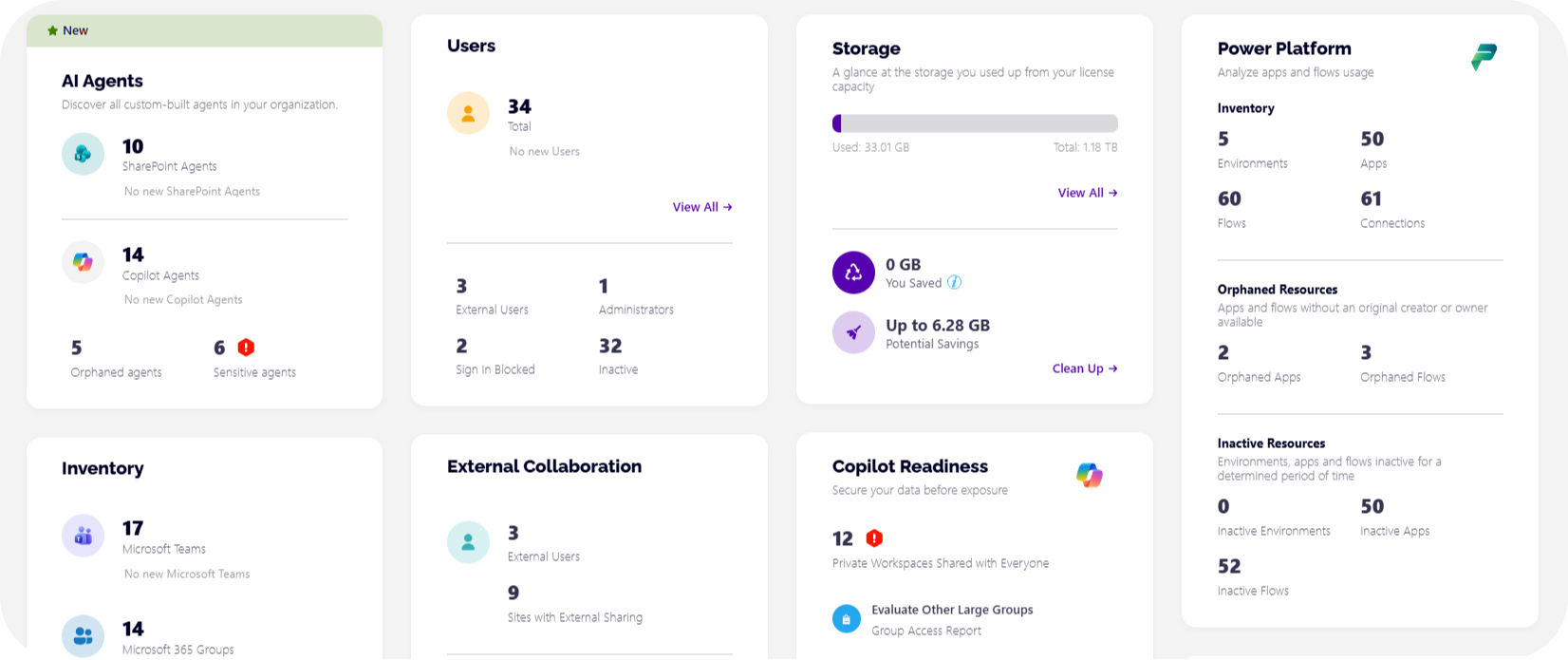
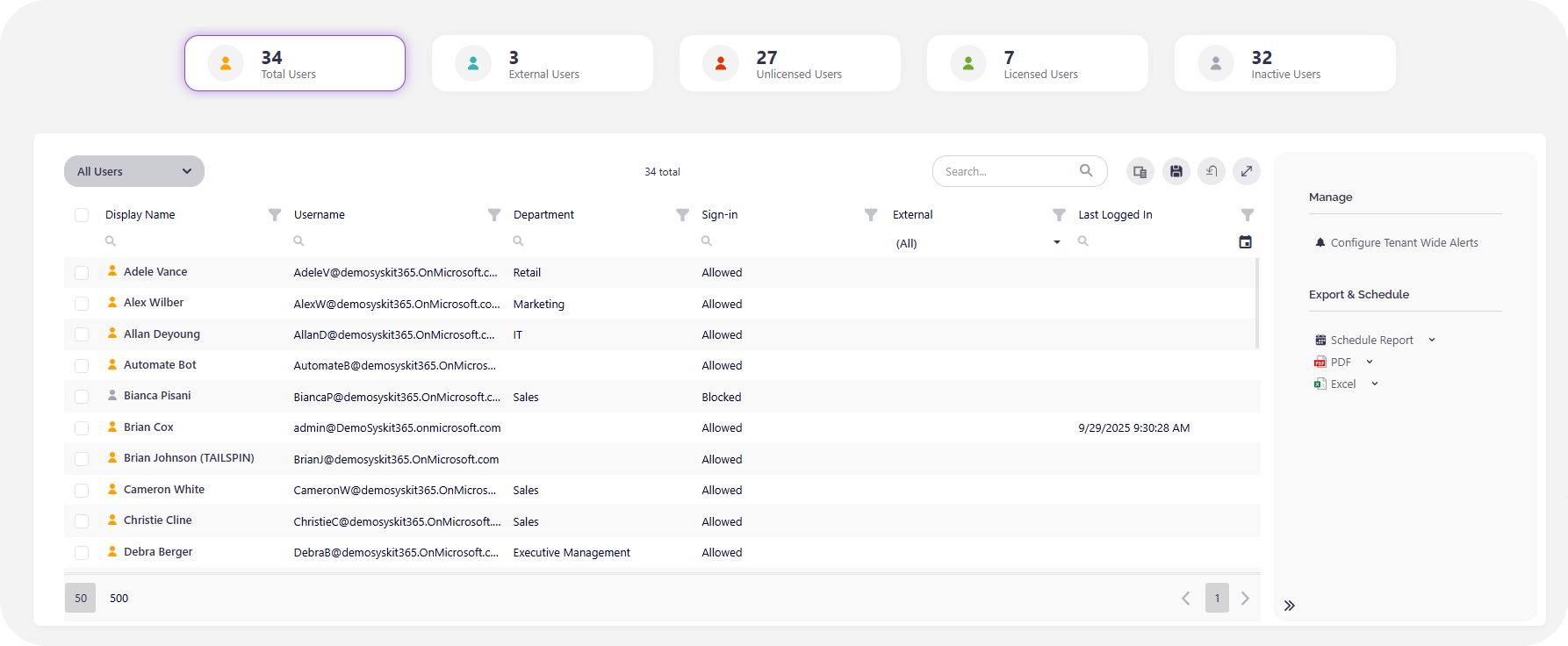
No matter what’s been happening within your M365 space, Syskit Point gives you the tools to instantly discover any problems and fix them in a click or two. Here’s our user dashboard for starters – every user from those Licensed to Inactive are clearly detailed, and easily editable:
Syskit Point provides ready‑made insights for external sharing, guest access, and overshared workspaces, along with the ability to remediate risky entries directly from a single console. Here’s a look at our sites’ dashboard, which can be broken down into Teams, Groups, SharePoint sites, and OneDrive:
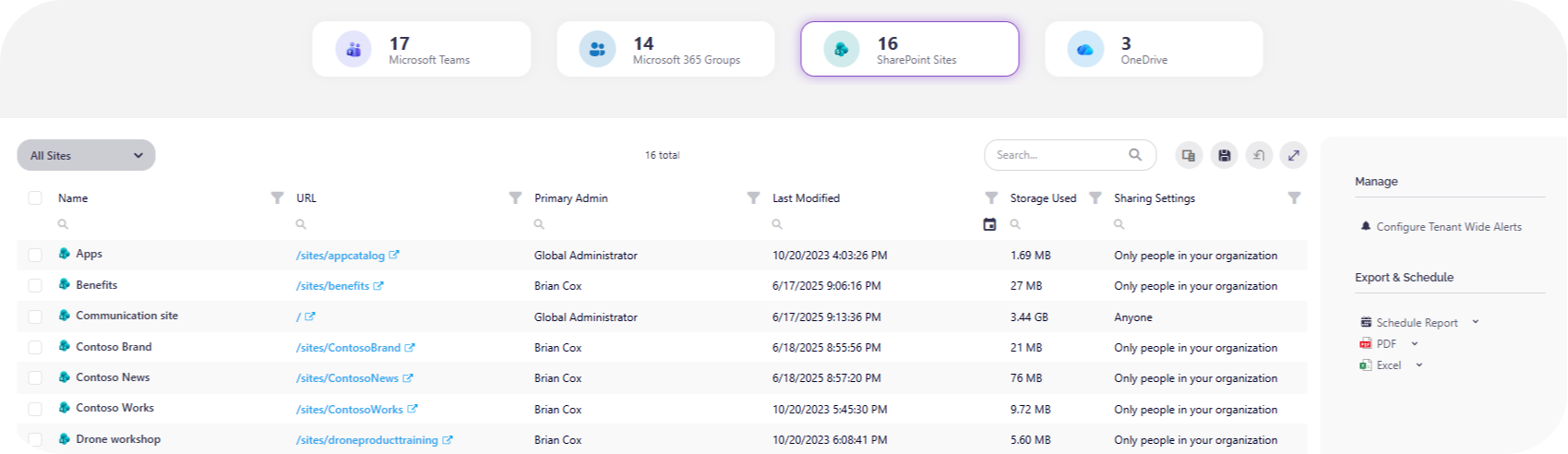
What’s more, automated access reviews / workspace recertification keep exceptions from going stale, while detailed auditing and reporting give you an evidence trail for security teams and regulators.
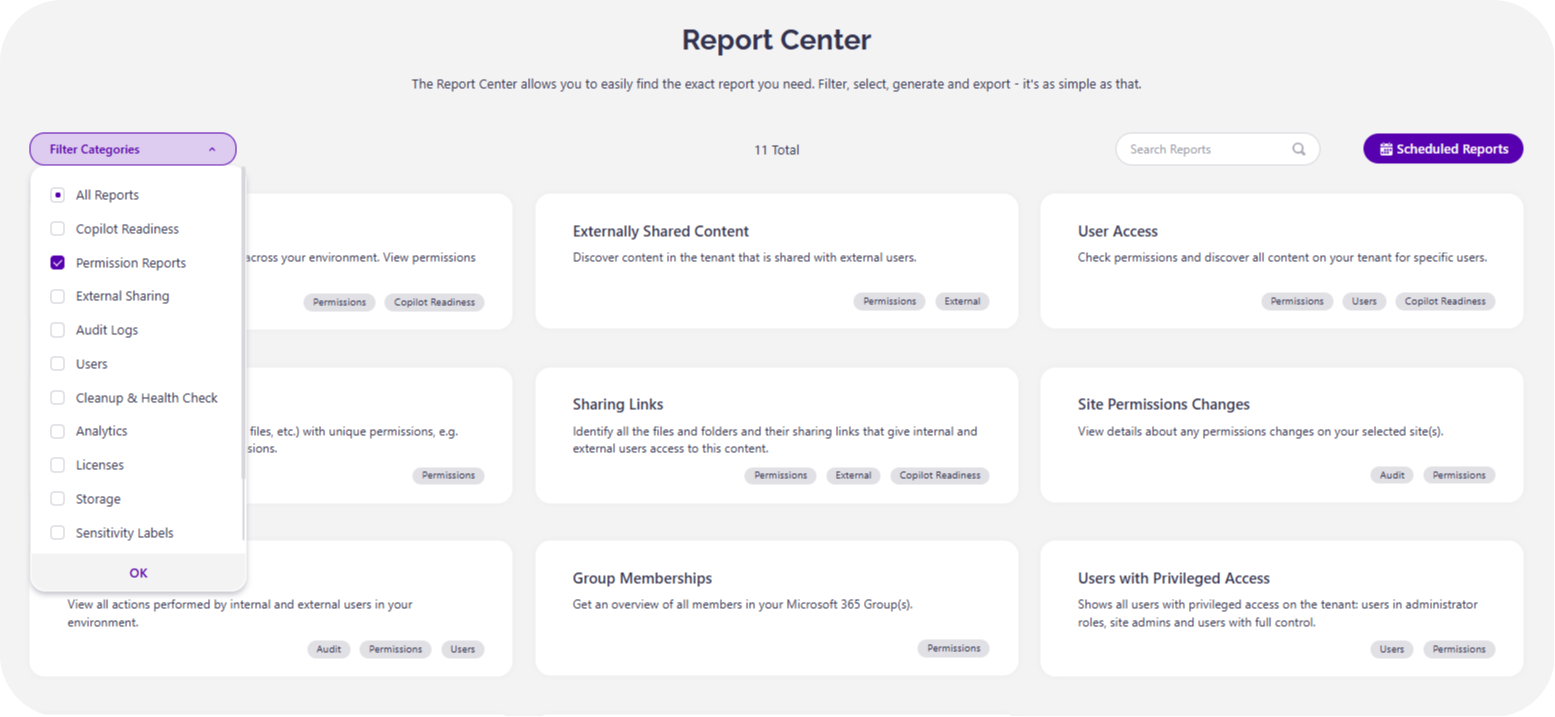
You’ll keep using SharePoint’s inheritance model, but Syskit Point handles everything native tools miss – finding, reviewing, and cleaning up the exceptions before they turn into major problems.
From inheritance sprawl to full control with Syskit Point
You’ve now seen precisely how SharePoint inheritance works, the correct way to break it safely, and why Limited Access and one-off sharing links create those hidden side effects that fill your audit reports. To keep permissions in good health, keep inheritance wherever you can, break it on folders rather than individual files, and always assign access to groups instead of individual people.
As we’ve seen, the action of breaking inheritance is the easy part. The hard part is seeing every exception across the tenant, proving it is still justified, and cleaning up the orphaned users from shares that happened ages ago. And that’s where adding Syskit Point to your M365 workspace comes in.
You’ll gain a centralized view of Microsoft 365 that allows you to manage inheritance exceptions, prevent sprawl, and maintain control over everything, no matter how many sites you have to manage. Why not give your organization the gifts of centralized visibility and automated governance? Try Syskit Point today.