How to enable SharePoint external sharing without opening security gaps
Table of contents
TL;DR: External sharing in SharePoint makes content accessible to users outside your Microsoft 365 organization. The challenge for most admins is to balance everyday workflow needs with compliance-level security. Syskit Point gives you the visibility to keep that balance steady as your tenant grows.
If you manage SharePoint, balancing the need for efficient business workflows with premium security is no mean feat. Business users need to share sites, files, and lists with partners and vendors to get real work done. Meanwhile, accidental overshares can make an organization vulnerable and lead to compliance issues.
Lock everything down and people jump to ‘shadow IT’ tools like Dropbox and personal Google Drives, making things even harder to manage. But leave things wide open and you’re one link away from a data leak.
Read on to find all the answers you need to fix your own SharePoint external sharing challenges. We’ll detail everything from best sharing and security practices, to troubleshooting and how to manage governance at scale using a third-party tool like Syskit Point.
Understanding SharePoint external sharing fundamentals
SharePoint supports external sharing with configurable controls at tenant and site levels. These settings allow you to share documents, folders, or entire sites while maintaining specific security restrictions:
- Guest users are formally added to your directory via Microsoft Entra B2B integration. This means they show up as managed identities with policies, sign-in logs, and lifecycle controls.
- External users receive sharing links but are not added to your directory. You have less insight into who they are beyond the email they use.
“Historically, SharePoint used its own legacy external authentication model, which led to scattered identities and inconsistent control. Modern environments have moved towards Entra B2B, where external collaboration is handled at the directory layer, giving you more consistent oversight and better alignment with conditional access and compliance policies.”
– Danijel Čižek, Product Manager Team Lead at Syskit
Configuring tenant-level sharing via the admin center
The SharePoint admin center controls tenant-level sharing, while site settings can only be more restrictive.
To turn on external sharing across your SharePoint organization, navigate to SharePoint Admin Center > Policies > Sharing to configure tenant-level external sharing.
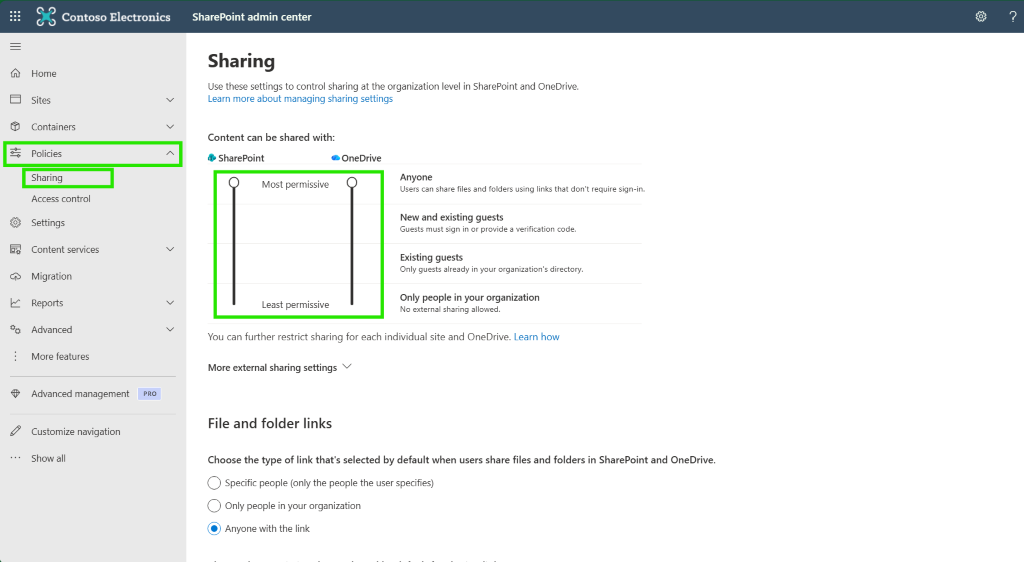
From here, you can set the maximum permissiveness for both SharePoint and OneDrive across your entire organization.
You’ll see four sharing levels:
- Anyone (anonymous access) is the highest risk and should be reserved for tightly scoped, low-sensitivity scenarios.
- New and existing guests is a strong default because it requires authentication while still letting users invite new partners as needed. SharePoint adds them as guests in your directory.
- Existing guests limits sharing to guests already in Entra ID, so every new partner must be added by an admin first.
- Only people in your organization disables external sharing for SharePoint entirely.
These SharePoint controls sit on top of Microsoft Entra ID. Cross-tenant access settings must allow the inbound and outbound B2B collaboration you actually want, including any organization-specific restrictions.
For extra control, you can allow or block specific domains and require guests to authenticate with the same email that received the invite, which helps prevent forwarding and impersonation issues.
Scoping access at the site level
You can allow external sharing for one specific SharePoint site while keeping others locked down. In the SharePoint admin center, go to Active sites, select the site, then open its Sharing settings to choose a more restrictive policy for that specific site.
Remember the precedence rule: a site can never be more permissive than the tenant. If your tenant is set to Existing guests, that site cannot offer Anyone links, no matter what a site owner wants to do.
A practical pattern is the dedicated site strategy. Instead of turning on external sharing for your main intranet or HR portal, create separate Extranet or Sandbox sites to host partner collaboration so internal content stays isolated.
To add another safety net, you can use Microsoft Purview sensitivity labels to automatically disable external sharing on Internal Only or Confidential sites. That way, even if a site owner tries to loosen sharing, the label keeps HR or Finance content internal.
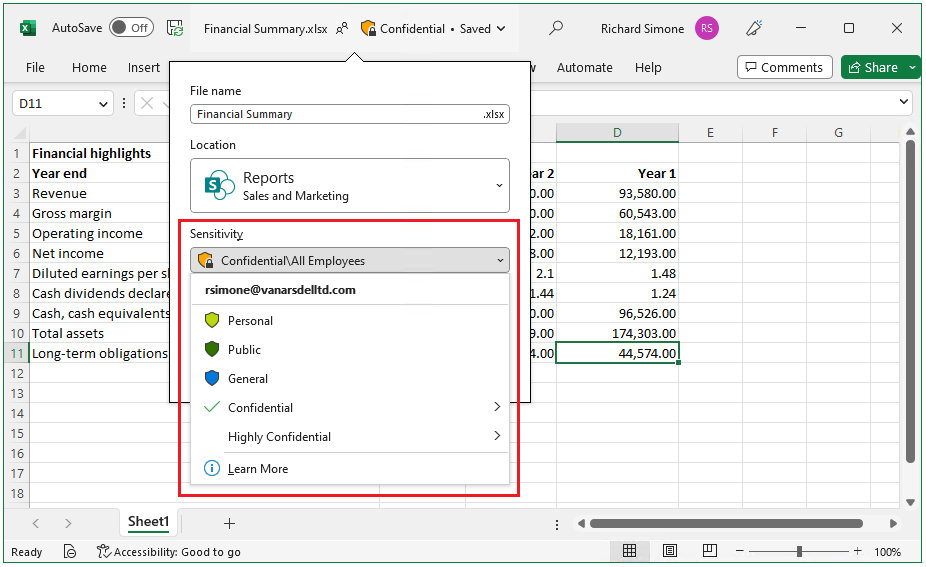
Step-by-step: Secure external sharing
Document sharing follows a specific path: Select file > Share > Enter email > Set permissions > Send invitation. Permissions can be View or Edit, so be careful to select the right level! The recipient then signs in with that address, so you keep an authenticated record of who accessed what.
If you need wider access, use site-level sharing instead. Navigate to Site Permissions > Add members > Enter the external user’s email > Assign permission level.
For one‑way uploads, use the Request files feature instead. This lets external users upload into a specific folder without seeing other files in that location, which is handy for collecting documents safely.
Security best practices for sustainable governance
Sustainable external sharing is less about one heroic setup session and more about shaping guardrails that work every day.
Start by avoiding Anyone links as a habit. When you truly need them, set up passwords and short expiration dates so links do not live forever in old email threads.
Make link expiration your default position. Link expiration ensures temporary access and aids compliance by automatically revoking permissions after a predefined period. Automatic expiry keeps access aligned with projects and helps you prove that sharing is time‑bound when auditors come knocking. Tighten who can share by allowing only site owners to invite external guests, rather than every member with edit rights.
Next up, restrict sharing to trusted partner domains instead of letting data trickle out to random personal addresses. Combine that with guest access expiration, so entire guest accounts lose site access after a set period unless a site owner renews them.
For very sensitive content, use Block download links so external users can view files in the browser without walking away with local copies.
Troubleshooting: Why external sharing fails
External sharing failures can usually be traced back to configuration. Start by checking the tenant-level setting under SharePoint admin center > Policies > Sharing, then compare it with the site’s own Sharing settings. If the tenant is more restrictive, the site must follow that ceiling even if the site toggle looks open.
“If users see an email domain or ‘this organization doesn’t allow you to share with this user’ error, review your domain restrictions. Under ‘Limit external sharing by domain’, look for the recipient’s domain on the block list or confirm it is present on the allow list if you run an allow-only model.”
– Danijel Čižek, Product Manager Team Lead at Syskit
You also need to account for the Entra B2B shift. From July 1, 2025, Microsoft retired legacy One-Time Passcode (OTP) links in SharePoint Online and OneDrive for Business. External users will authenticate as Entra B2B guests instead, which means older OTP-based links may break and users must be added or invited into your directory.
Cross-tenant access blockers
Sometimes the real blocker lives outside SharePoint. If users see ‘Your organization’s settings don’t allow sharing with this domain’ – even though your site and tenant settings look fine – the issue usually sits in Microsoft Entra ID.
Cross-tenant access settings can silently block collaboration with a partner tenant. In the Microsoft Entra admin center, go to Entra ID > External identities > Cross-tenant access settings and review both inbound and outbound B2B collaboration for that organization.
If your default stance is Block all, you must add the partner’s tenant – by domain or tenant ID – and explicitly allow B2B collaboration so SharePoint can complete the handshake.
To fix it, confirm that B2B collaboration for that partner is set to Allow access for external users and groups, and that invitations can be sent to their domain under External collaboration settings, not only within SharePoint.
Troubleshooting checklist: Where’s the block?
|
If you see this error… |
Check this setting first… |
Located in… |
|---|
Mastering governance at scale with Syskit Point
Native tools help you configure external sharing, but they don’t give you a single, trustworthy place to see what’s actually happening in your tenant. Reports live across different admin centers, they age quickly, and they rarely tell you which external shares are safe, risky, or simply forgotten.
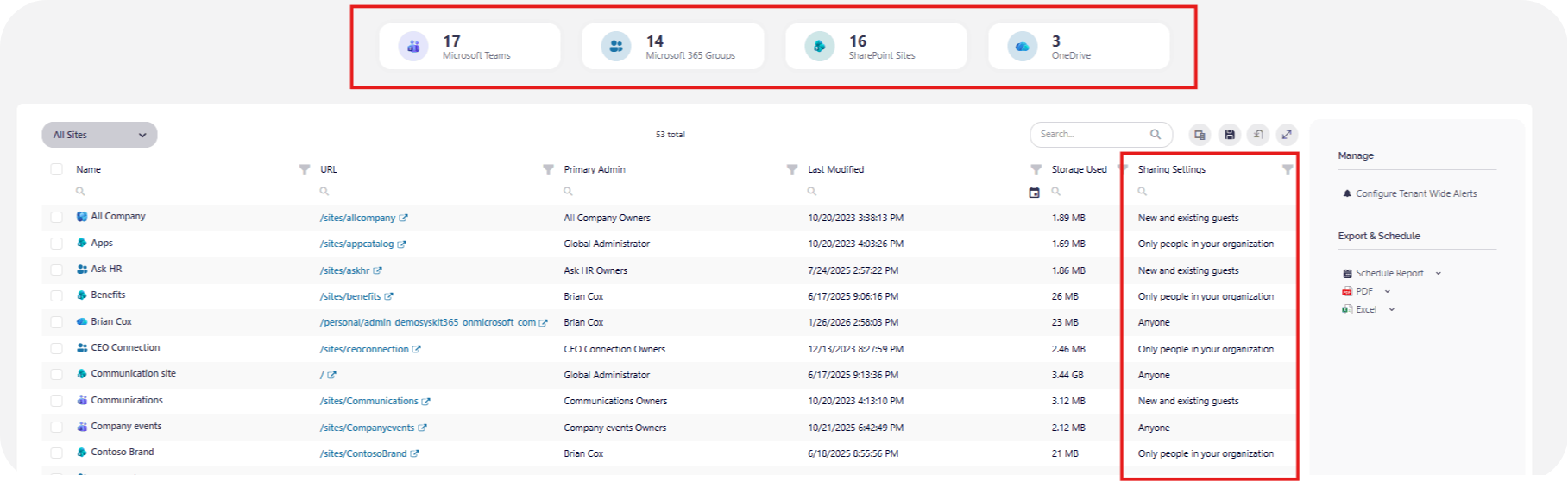
Syskit Point turns that mess into one command view across Teams, Microsoft 365 Groups, and SharePoint, so you can see every external user and every Anyone link across your environment in one dashboard. And Syskit Point lets you remove sharing links in bulk across many sites at once, instead of chasing them library by library.
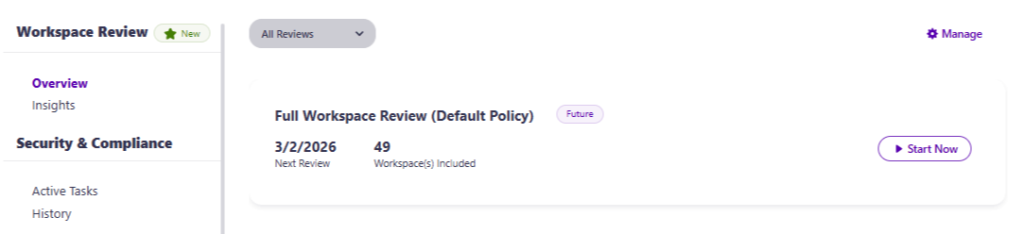
You can delegate responsibility to the edges with automated workspace reviews, prompting site owners to re‑certify whether specific guests still need access. Syskit Point is especially useful for orphaned external shares where the original internal owner has left the company.
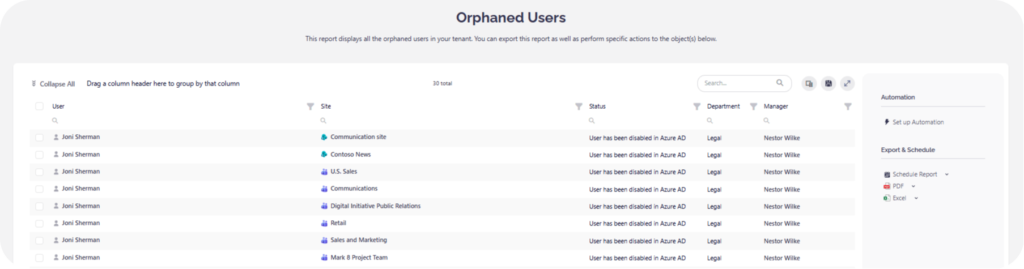
It detects these during its crawl cycle and lets you remediate them centrally, without pretending to block sharing in real time. And because it takes about 15 minutes to go live, you can start closing those orphaned guest gaps almost immediately.
Reframing the security conversation
Locking everything down feels safe, but it doesn’t stop sharing. It only pushes users to Dropbox links and personal Gmail threads where you have no control at all.
The real win is governing how data moves, so partners get what they need while sensitive content stays where it belongs. Managed external sharing, with clear ceilings at the tenant level and tighter rules on sensitive sites, lets you support the business without constant manual oversight.
Over time, your tenant becomes more self-governing: site owners review access, guests expire on schedule, and external links match real projects instead of old habits.
Ready to see where you really stand? Syskit Point gives you centralized governance, providing an easy-to-access overview of everything you need.