OneDrive audit logs explained for Microsoft 365 admins
TL;DR: OneDrive audit logs live in the Microsoft Purview unified audit log and capture essential file interactions like access, modifications, and sharing events. Retention is tied strictly to your license tier, ranging from 180 days for standard plans to 10 years with specific add-ons. While native tools provide the raw data, Syskit Point bridges the gap by centralizing visibility across all OneDrives and automating long-term compliance reporting.
When a sensitive file vanishes or an employee’s data access comes under scrutiny, the OneDrive audit log serves as a clear, documented view of events. However, these logs exist within a complex framework of Purview capabilities. You need to know exactly where to find them, which specific activities are captured, and where native visibility ends.
Auditing must be active before an incident occurs, as you cannot create logs for events that have already happened. You can also expect a 60-to-90-minute delay before events appear, though some can take up to 24 hours. Purview audit logs track activity performed within Microsoft 365 services, but they don’t reliably identify the physical device used, so endpoint logs may still be needed during investigations.
This guide explains how to navigate these constraints, and how you can move to a state of proactive, automated governance by using tools like Syskit Point.
Native retention and licensing: The 180-day wall
Standard Microsoft 365 licenses, including Business and E3 tiers, retain OneDrive logs for 180 days. For properly licensed E5 users, Audit (Premium) extends this to one year by default. A 10-year retention is also available with a ‘10-Year Audit Log Retention’ add-on.
The ‘silent expiry’ risk is a common problem for admins. An investigation often begins with a ticket regarding an event from seven or eight months ago, only for the admin to discover the data has already been purged.
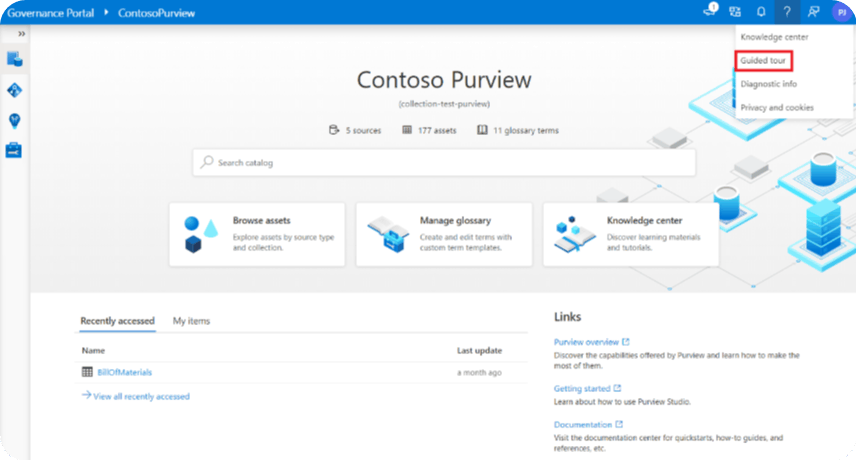
While the Microsoft Purview portal lets you quickly review recent activity, it’s still just a graphical frontend to the same unified audit log that Search-UnifiedAuditLog queries. For serious investigations or long‑term compliance, PowerShell becomes far more reliable. You can paginate through large result sets, automate recurring exports, and push audit data into a dedicated archive or SIEM.
However, if your compliance framework requires a multi‑year trail, relying solely on ad‑hoc searches in the Purview UI introduces risk. This isn’t because the data is different, but because manual, one‑off queries make it difficult to prove that every relevant event was consistently collected and preserved.
Accessing OneDrive audit logs in Microsoft Purview
To begin a manual investigation, navigate to the Microsoft Purview portal and follow the path to Solutions > Audit > Search.
OneDrive for Business activity is recorded in the unified audit log under the SharePoint/OneDrive workload, and most modern tenants expose OneDrive as its own selectable workload or as part of a combined SharePoint/OneDrive category. Because OneDrive is built on SharePoint, OneDrive events surface as file and folder operations on the user’s personal site, so it’s good practice to scope your queries by the relevant user. Next, configure Date range, Users, and Activities (such as ‘Accessed file’) to narrow the results.
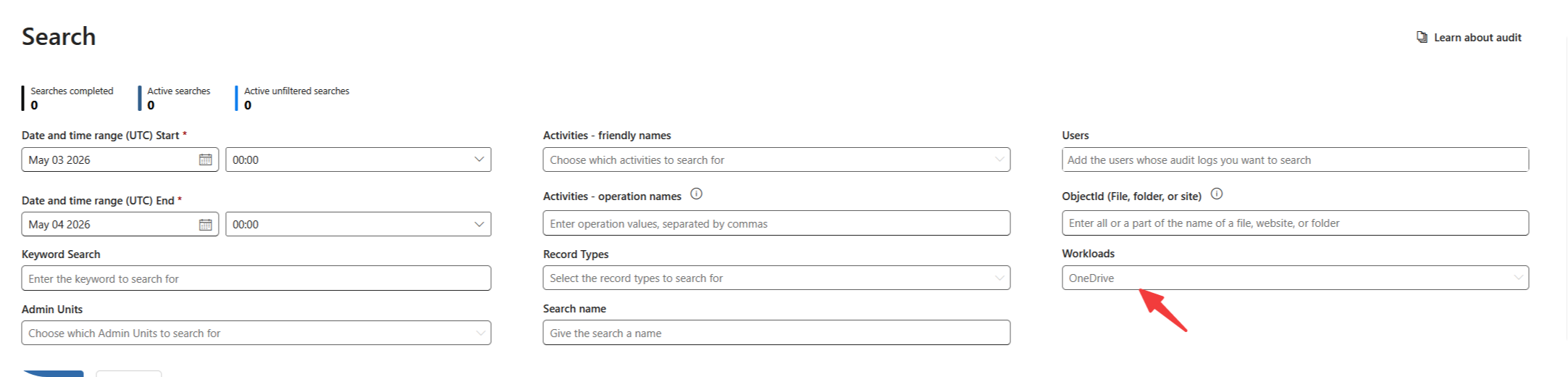
Although standard auditing is now always on and cannot be disabled, older tenants or environments that only recently enabled audit logging might not have historical data for the period you’re investigating. When a search returns ‘no data available’, the most common causes are ingestion lag (often up to 24 hours), the event falling outside your license’s audit retention window, or the activity occurring before auditing was enabled in your tenant. Understanding these boundaries helps you determine whether the data is simply delayed, never captured, or no longer retained.
Key OneDrive activities: What is actually recorded?
Mapping a question like ‘Who opened/shared this file?’ to a technical log entry requires an understanding of Microsoft’s event categories. While these operation names are most explicitly exposed when querying via PowerShell (for example, with Search-UnifiedAuditLog), they still underpin the activity filters available in the Purview UI – even if they aren’t always surfaced with the same labels.
Most investigations center on the ‘Big Four’ events:
- FileAccessed: To see who opened a file, filter for the
FileAccessedoperation. This log includes the User UPN, their IP address, and a precise timestamp. - FileModified & FileDeleted: These events allow you to track the lifecycle of a document, identifying exactly when a file was altered or moved to the recycle bin.
- FileShared: For OneDrive and SharePoint, sharing is captured through link‑related operations rather than a single generic
FileSharedevent. Focus on signals likeAnonymousLinkCreated,SecureLinkCreated, andAnonymousLinkUsed. If you see anonymous link activity without a corresponding permission or member‑addition event, the file was likely exposed via a broadly shared link rather than a targeted permission change. - FileRenamed: Often the missing link in investigations, this event explains why a document ‘disappeared’ in the UI when it was actually just retitled. Existing sharing links typically continue to work after a rename, but the new name can confuse users and obscure what actually happened to the file.
“To track external users, filter by external UPNs to see exactly which ones are interacting with shared content. It’s also important to distinguish between Version History and Audit Logs. While Version History shows what changed inside the document, Audit Logs record who interacted with the file object itself.”
– Danijel Čižek, Product Manager Team Lead at Syskit
Admins often have to spend hours searching through different events together to find the answers they’re looking for. As an alternative, tools like Syskit Point bring these different logs into a unified dashboard, replacing manual hunting with actionable activity reports.
Auditing via PowerShell: Search-UnifiedAuditLog
For admins handling high-volume datasets or automating repetitive tasks, PowerShell’s Search-UnifiedAuditLog cmdlet is the technical alternative to the Purview UI.
When scripting your search, two parameters are needed for accuracy.
- First,
-ResultSize 5000is more commonly used because thecmdletdefaults to only 100 records – forcing a higher limit ensures you don’t miss events in a busy tenant. - Second, using
.ToUniversalTime()is a best practice. Audit records are timestamped in UTC, so translating your local time into server language ensures your search windows align with the actual event logs.
Sample PowerShell investigation script
# 1. Set a 48-hour window in UTC (Audit records are timestamped in UTC)
$Start = (Get-Date).AddDays(-2).ToUniversalTime()
$End = (Get-Date).ToUniversalTime()
# 2. Run the search (ResultSize is capped per call; 5000 is a common practical ceiling)
$Logs = Search-UnifiedAuditLog -StartDate $Start -EndDate $End -UserIds "user@yourdomain.com" -ResultSize 5000
# 3. Parse AuditData JSON into readable rows
$Inventory = $Logs | ForEach-Object {
$Data = $_.AuditData | ConvertFrom-Json
[PSCustomObject]@{
Timestamp = $Data.CreationTime
Operation = $Data.Operation
Workload = $Data.Workload
FileName = $Data.SourceFileName
ClientIP = $Data.ClientIP
UserAgent = $Data.UserAgent
}
}
# 4. View results
$Inventory | Out-GridViewThe main advantage of using the PowerShell Command Line Interface (CLI) over Purview UI is its ability to deconstruct the AuditData property. The most important details – such as the Client IP, User Agent, and specific file paths – are trapped in a single, unparsed JSON string.
By using ForEach-Object { $_.AuditData | ConvertFrom-Json }, you can split that string into structured, filterable columns. This allows you to run advanced queries, such as isolating activity from a specific suspicious IP address or identifying which browser was used to access a sensitive folder.
For larger investigations, the PowerShell CLI also offers better stability. When pulling more than 5,000 records, you should implement the -SessionId parameter. This helps PowerShell maintain a consistent connection to the server, allowing you to trawl through massive datasets without the session timing out. This is a frequent problem when using the native web UI for deep historical audits.
Finally, always finish by exporting your findings to a CSV. This provides defensible documentation that can be handed directly to HR, legal, or external auditors, ensuring you have a permanent, portable record of the evidence.
Common auditing limitations
Even with the right license in place, the biggest challenge with native auditing isn’t just what’s captured, but how difficult it can be to reliably extract answers. In practice, investigations often turn into an iterative search process. You may start in the Purview UI, then refine filters multiple times, and eventually pivot to PowerShell when the interface surfaces only partial results or lacks the necessary detail.
This complexity is compounded by latency and query tuning. Because events can take up to 24 hours to appear, admins are often forced to rerun the same searches repeatedly. In PowerShell, getting meaningful output frequently requires adjusting parameters, parsing JSON fields, and rerunning queries until the dataset reflects the exact activity in question. Without working knowledge of cmdlets like Search-UnifiedAuditLog, critical details can remain effectively hidden.
There are also structural limitations to consider. Results are capped per query, large searches can trigger UI timeouts, and anything beyond 180 days requires either careful batching or reliance on extended retention licensing. These constraints make comprehensive, tenant-wide investigations time-consuming and error-prone, especially under pressure.
Finally, proactive monitoring is not straightforward. Creating targeted alerts for specific behaviors – such as files being shared externally – typically requires additional configuration across Purview policies or external tooling. As a result, many organizations remain in a reactive posture, relying on manual searches after an incident has already occurred rather than being alerted in real time.
Scaling beyond native auditing: Governance with Syskit Point
While Microsoft provides the foundations for auditing, enterprise admins may find themselves needing more than manual search-and-export processes. Syskit Point acts as a natural evolution, serving as a centralized governance tool that transforms raw logs into actionable intelligence.
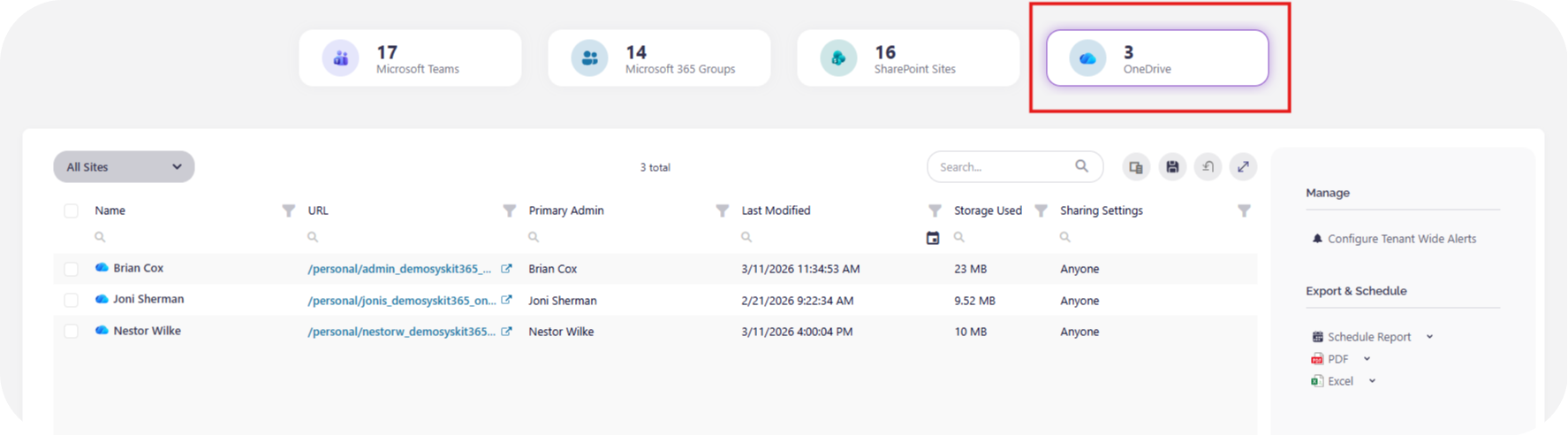
Instead of manually filtering for specific URL patterns in Purview, Syskit Point provides overall visibility. You get a unified dashboard covering Teams, SharePoint, and OneDrive, allowing you to trace activity across the entire tenant without jumping between admin centers.
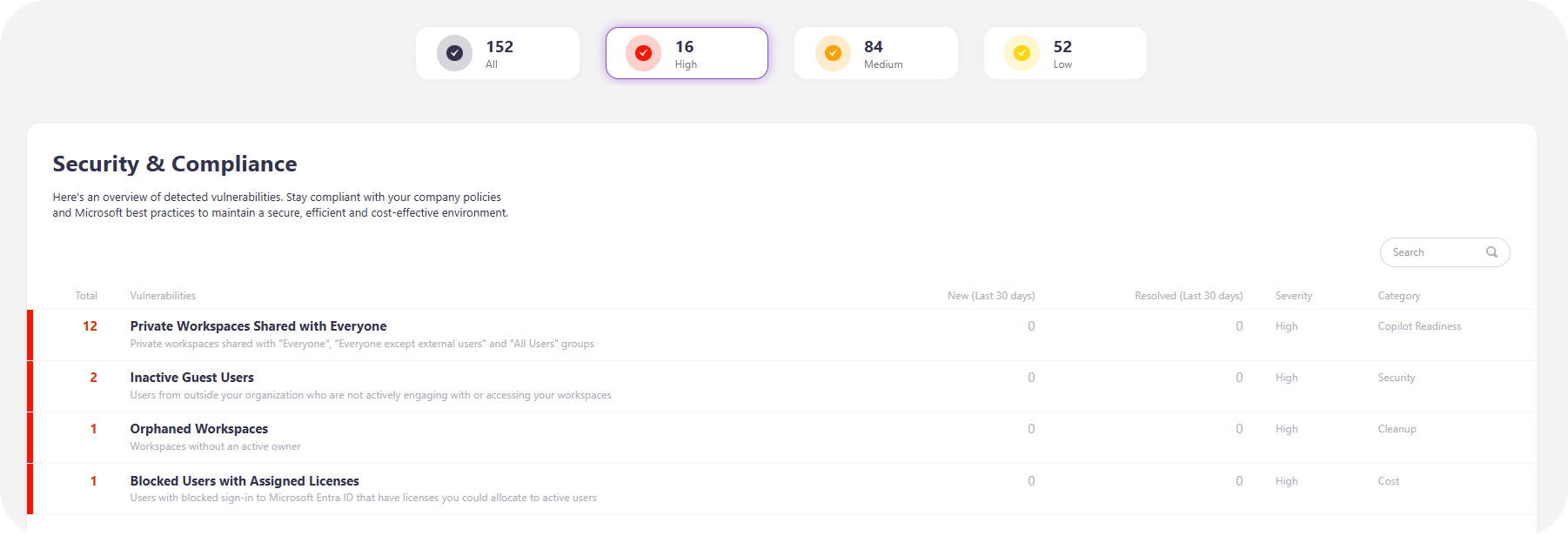
For a more proactive workflow, Syskit offers scheduled reports and automated alerts. You can automatically flag oversharing or suspicious external access as it happens, and everything you need is accessible via the main dashboard.
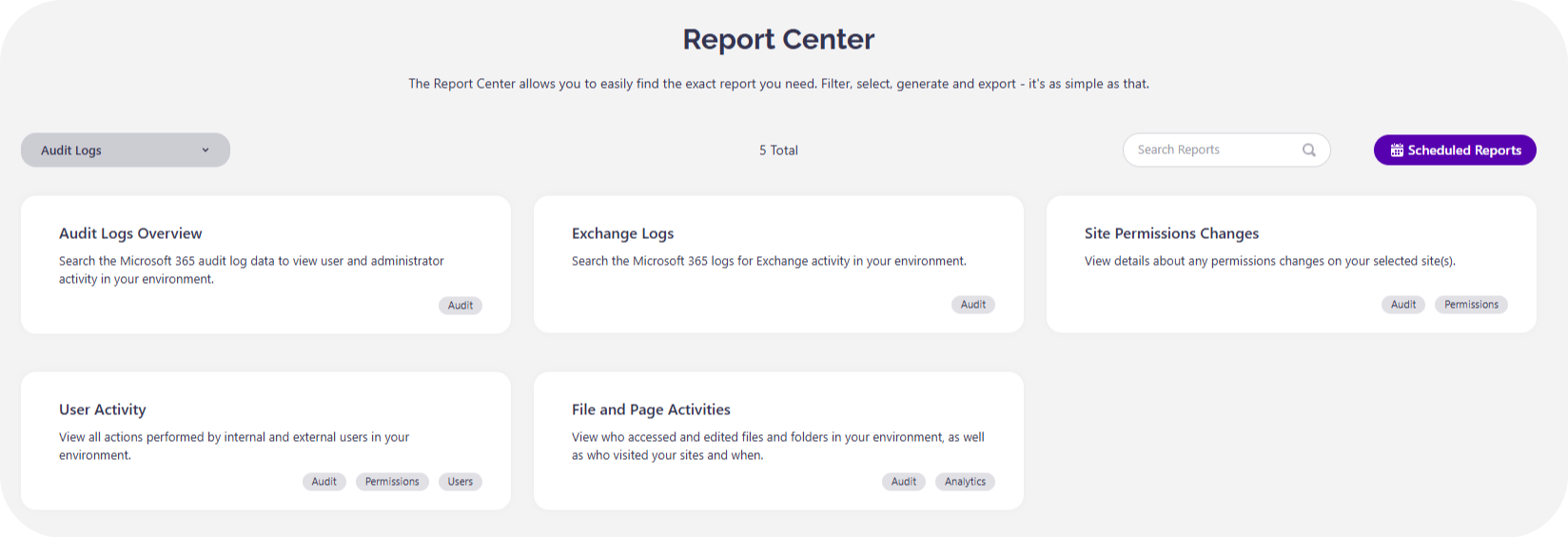
Within the Report Center, you can see key OneDrive activities through the File and Page Activities report, access User Activity to answer questions that would normally require custom PowerShell scripts, or gain overall visibility through the Audit Logs Overview. Site Permissions Changes shows you exactly how the security levels of a OneDrive (or any other) content have been changed – when, and by whom. Security risks are fixable within a click or two.
Our centralized governance tool also closes the retention gap. Syskit Point Cloud offers one-year retention by default, while the Enterprise edition provides an unlimited storage option – removing the need for complex E5 add-ons to meet long-term compliance rules.
“Effective audit logs need to offer visibility that leads to immediate action. Instead of simply identifying that a file was overshared, Syskit Point allows you to fix the permission directly – closing the security loop without leaving your dashboard.”
– Danijel Čižek, Product Manager Team Lead at Syskit
From OneDrive audit logs to proactive governance
Native OneDrive audit logs are a powerful resource, but one that requires considerable attention. Success in a modern IT environment depends on understanding log limitations – retention walls, latency gaps, and licensing tiers that dictate how far back your investigation can reach. And digging through Purview or PowerShell takes time – while you’re busy hunting for data, the security risk is still there.
An alternative route is to move away from reactive searches to a state of continuous compliance. By automating log collection and reporting through Syskit Point, you can ensure your tenant remains secure and audit-ready every day of the year.