How to run a SharePoint permissions audit that actually shows all risks
TL;DR: A SharePoint permissions audit is a systematic review of who can access what content and how that access was granted. Challenges emerge when permissions are scattered across sites, libraries, nested groups, and sharing links. Syskit Point gives you a single, continuously updated view of permissions and hidden access paths across your entire tenant.
If you’ve ever tried to answer the ‘who can see this?’ question across SharePoint, you’ll know it’s a detailed process. Between sites, Teams-connected libraries, sharing links, and nested groups, a clean permission audit takes time. And modern auditing also means preventing Microsoft Copilot from surfacing sensitive files to the wrong people.
To be defensible, your audit needs four things:
- Complete current-state visibility.
- Broken inheritance mapped.
- Every external or anonymous link tracked.
- Clear timestamps on who changed what.
That means going beyond site-level group lists and exposing hidden access paths at scale. Let’s explore how far manual logs and scripts can take your audit – and how automated platforms like Syskit Point enable continuous, tenant-wide permission monitoring, 24/7.
Methods for auditing SharePoint permissions
Modern SharePoint audits usually blend several approaches. Three common methods include:
- Microsoft Purview
- Site-level auditing
- Powershell
1. Microsoft Purview: Tracking changes via the Unified Audit Log
Modern SharePoint audits usually start in Microsoft Purview. In the Compliance portal, navigate to Solutions > Audit > Search, and work in the Unified Audit Log.
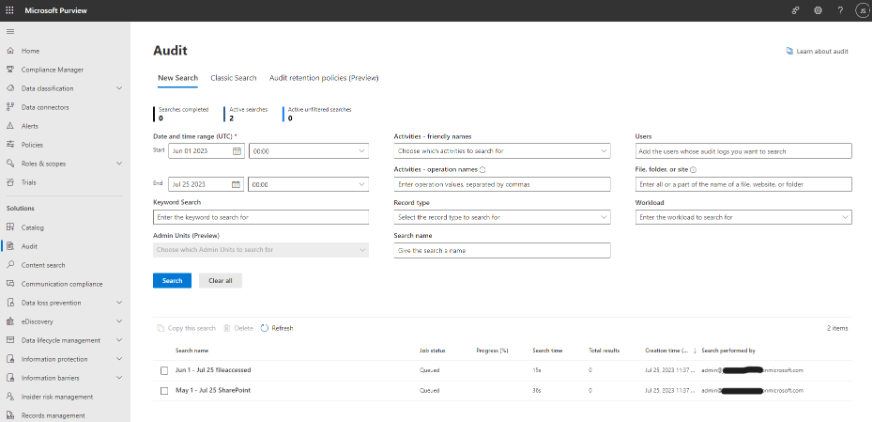
There, you narrow results by targeting operations like PermissionLevelModified, SharingSet, and AddedToGroup so you see actual permission changes instead of a wall of activity.
However, the audit log isn’t retroactive. If Purview didn’t log an event when it happened, you can’t discover it later. On standard licenses, you hit a 180‑day search window (90 days for audit logs generated before 17 October 2023), which still makes yearly audits and long‑running investigations a challenge.
On top of that, many admins mix up file access events (someone opened a file) with true permission changes (who can open it changed) and lose hours chasing the wrong entries.
If you prefer automation, you can query the Unified Audit Log with PowerShell using Search-UnifiedAuditLog cmdlet. To run it, your account needs the View-Only Audit Logs or Audit Logs role in Exchange Online.
E3 and similar plans usually give you 180 days of audit retention, while E5 offers one year. If your compliance framework (like HIPAA or SOX) requires a multi-year trail, you’ll need either E5 plus the 10-year Audit Log Retention add-on license or to export this data manually.
Alternatively, many organizations outgrow native tools and look at specialized governance platforms to gain a permanent archive. Beyond closing retention gaps, you also gain continuous, tenant-wide visibility into permissions and hidden access paths, so audits become repeatable workflows.
2. Classic site-level auditing
Classic site-level auditing is reached through Site Settings > Site Collection Administration > Audit log reports. If that link is missing, activate the Reporting feature under Site Collection Features.
From there, the Security settings report lists group changes, broken or restored inheritance, and permission grants or removals. However, the output is an Excel file saved in a library rather than a live dashboard.
In SharePoint Online, you can also find the Site Collection audit settings under Site Collection Administration. Since 2021, you cannot select specific events – the report is a fixed subset and only Site Collection Administrators can run it.
“In practice, these site-level reports duplicate a narrow slice of what Purview already exposes, with fewer filters and weaker search. Think of them as a legacy window, surpassed by Purview as a better source of truth.”
– Danijel Čižek, Product Manager Team Lead at Syskit
3. PowerShell: Scripting for tenant-wide enumeration
To move beyond site-by-site checks and automate a tenant-wide audit, you first need an Entra ID app registration. Grant it Sites.FullControl.All and User.Read.All Graph and SharePoint permissions. These ensure the script can query any site, even where you’re not a member. The app then authenticates via certificate-based auth, which keeps unattended jobs working under MFA and conditional access.
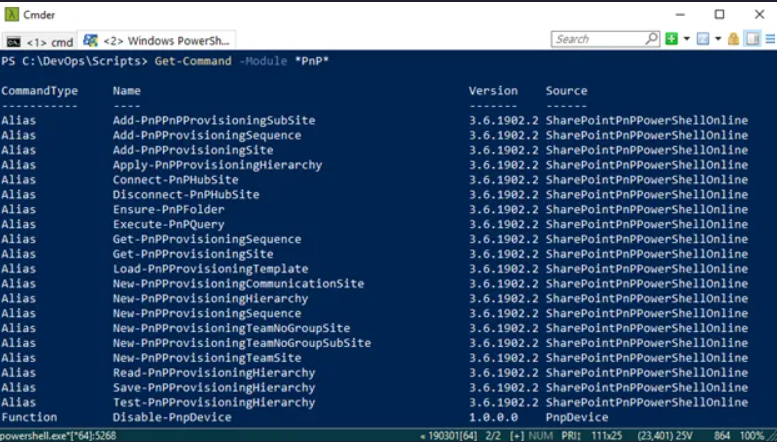
On the scripting side, admins usually rely on the PnP PowerShell module to enumerate all site collections, detect unique permissions, and recursively walk lists and libraries to flag inheritance breaks and direct grants. You need Global Administrator or a similarly powerful role to configure this safely, and you maintain both the scripts and app permissions as Microsoft updates APIs and throttling rules.
The outcome is always a snapshot that ages quickly, which means more runs, more exports, and more version control. Centralized governance tools like Syskit Point take over the crawling, nested group expansion, and history retention, so you keep tenant-wide visibility without chasing every API change yourself.
Broken inheritance and blind spots
Site-level reports feel reassuring, but they can be deceptive.
SharePoint permissions flow down a hierarchy – site, library, folder, item. The moment someone breaks inheritance on a library or folder, your neat site-level report shows only the starting point. Entire folders with direct grants simply vanish from that high-level view.
It gets messier with nested groups. You might see a clean Owners/Members/Visitors list, yet one of those groups includes an Entra ID or Microsoft 365 group that contains extra users. Those people gain ‘sideways’ access without ever appearing as direct site members.
Then there are Teams private channels. Each one spins up its own hidden SharePoint site. When you add a user to a private channel, they gain access to that site’s content, but they never appear in the parent team site’s permission reports, which makes traditional site-level auditing fundamentally incomplete.
Managing data exposure through Microsoft Copilot
Copilot respects existing permissions. If someone gained Edit rights to a sensitive payroll file because inheritance was broken three folders down, Copilot treats that access as legitimate and can surface that content.
Manual audits often stay focused on the ‘top 10’ sites or a few high-profile libraries, but Copilot crawls everything – SharePoint, OneDrive, and Teams. As a result, any data can be exposed.
However, Copilot also respects Sensitivity Labels, so it won’t bypass label-enforced encryption rights.
“A defensible Copilot rollout starts with a tenant-wide view of where sensitive labels and open access overlap. Your audit should highlight overshared sites and libraries, then prioritize removing anonymous links, tightening group membership, and restoring inheritance before users ever start asking Copilot real business questions.”
– Danijel Čižek, Product Manager Team Lead at Syskit
Common audit pitfalls
Even well-intentioned audits create their own blind spots if you rush the process.
UI-based reviews often miss disabled or departed users. Once an account is blocked or removed from Entra ID, it tends to fall out of everyday views, yet its direct permissions can linger on libraries or folders as ‘ghost’ entries that still clutter reports and confuse reviewers.
Native reporting also runs on a delay – changes in Microsoft 365 don’t always show up immediately. It can take close to a day before new grants or removals are fully reflected in audit views, which makes ‘same-day’ verification unreliable.
Remediation is another trap. Bulk ‘restoring inheritance’ may feel like a quick fix, looks tidy, but it may break legitimate access patterns that teams rely on. It’s also a lengthy process to reverse.
Remember that auditing is a detective control – it records what happened but does not block risky changes as they occur. A defensible pass always includes a separate review of who currently holds Site Collection Administrator rights and other users with privileged access, since those accounts bypass normal site-level permissions and can see far more than any standard group membership.
Mastering audit visibility with Syskit Point
Syskit Point turns SharePoint permissions auditing from a one-off project into an ongoing practice.
Instead of running scripts or ad hoc reports, Syskit Point continuously crawls your Microsoft 365 environment and keeps an up-to-date inventory of permissions, sharing links, and workspaces.
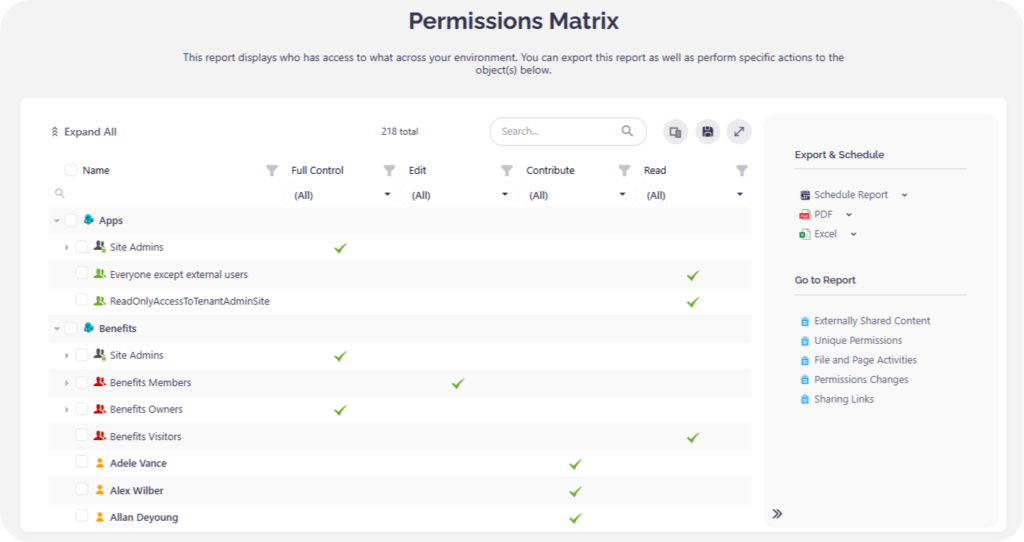
A permissions matrix in Syskit Point is a report that shows who has access to what, down to the file level, within one or more selected sites. It expands nested Entra ID and Microsoft 365 group memberships so you can see exactly how a user gained access, without pivoting through multiple admin centers.
You get a clear view across Teams, Groups, OneDrive, and SharePoint for the sites in scope, with the option to bulk remove Anyone links or overly broad sharing from a single place.
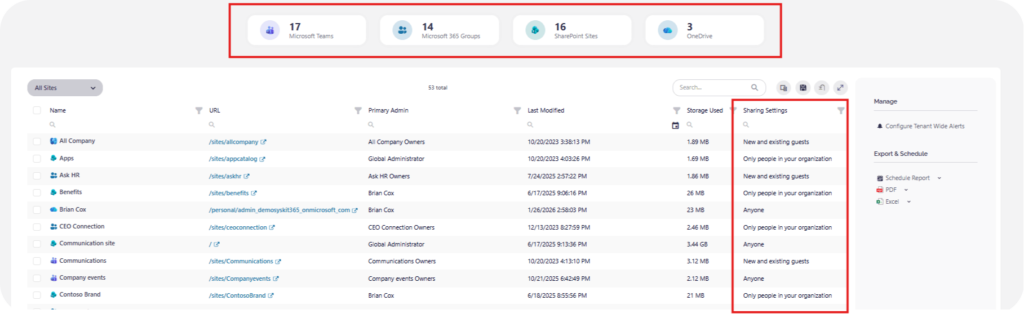
It also surfaces Sensitivity Labels alongside user rights, so you can see classification and access in a single view. This makes any high-risk overlaps obvious, like a confidential file that still has an Anyone link.
On the compliance side, Syskit Point maintains long-term audit history in its own database, so you’re no longer limited by 90-day search windows or 180-day retention on standard licenses.
Automated access reviews turn site and team owners into active governance partners by giving them a clear, guided way to validate who still needs access to their workspaces. This keeps day-to-day access decisions close to the people who understand the context best, while IT retains oversight and long-term auditability.
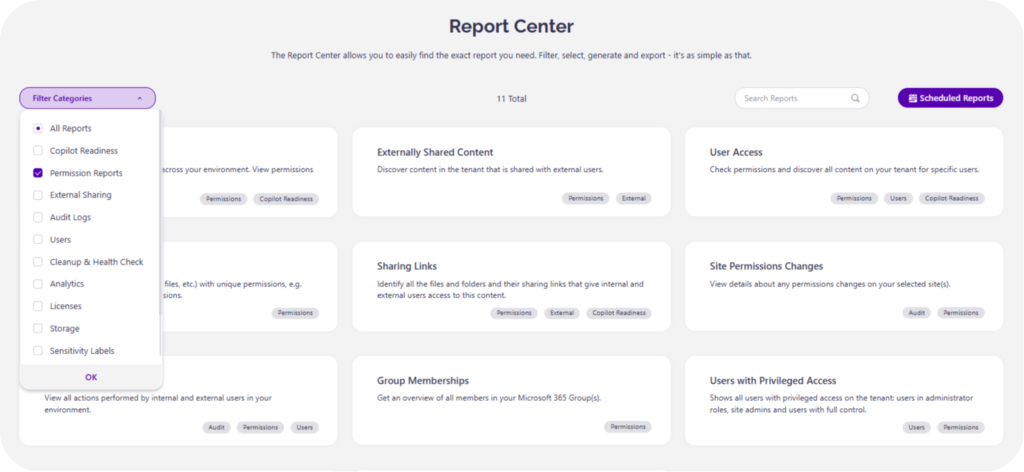
Once your audit surfaces risky or unnecessary access, Syskit Point’s Permission Reports in the Report Center make it clear what to clean up first. The Site Permission Changes screen then shows exactly which grants, removals, and inheritance breaks occurred, so you can remediate with confidence instead of guessing
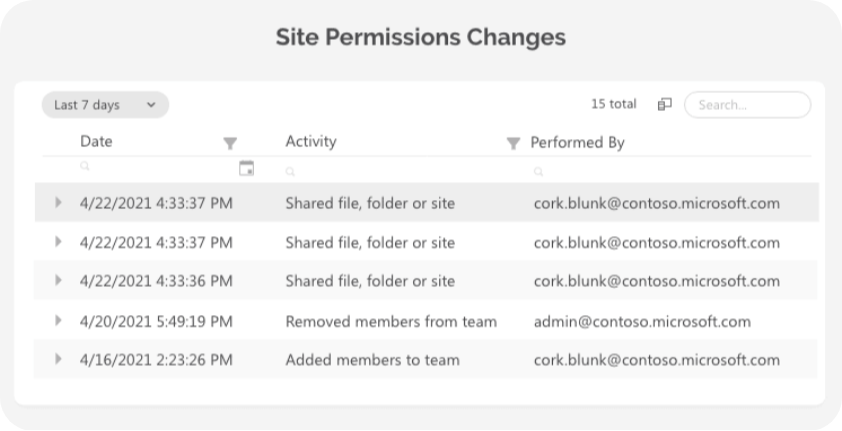
Centralized logs that are otherwise scattered across Microsoft 365 portals are filtered down to permission‑related events only, making periodic compliance audits simple.
From static audits to continuous compliance
Most SharePoint permission audits are performed manually, live in spreadsheets, and date quickly. An easier, more strategic approach is to use an ever-evolving system that keeps all access rights up to date. With such a workflow in place, you gain proof of security for auditors and leadership whenever required.
Once your permissions are audited and cleaned, you can roll out AI tools like Copilot with the confidence that internal data is strictly organized on a need-to-know basis.
For detailed, tenant-wide permissions audits that instantly update the moment anything changes, start a Syskit Point trial or demo today.