Microsoft 365 file-level archive: In-depth guide
Table of contents
This post builds on our earlier coverage of Microsoft 365 Archive. If you haven’t read it yet, start with Can you save money with Microsoft 365 Archive? for a full breakdown of site-level archiving, pricing, and setup. We also covered the removal of the reactivation fee earlier this year, and more recently explored what file-level archiving means for your storage costs.
In this post, we take a deeper dive into SharePoint file-level archive—how it works in practice, how it compares to site-level archiving, what it costs, and how organizations can use it to optimize storage, reduce noise for Microsoft 365 Copilot, and build a more effective data lifecycle strategy.
A quick recap: Microsoft 365 Archive and why it matters
If you manage SharePoint storage, you know the pain. Organizations keep accumulating data, storage quotas fill up, and Microsoft charges $0.20/GB/month for every extra gigabyte you need. For a company sitting on 5 TB of excess storage, that’s $1,000 a month just to keep the lights on.
Microsoft 365 Archive, which became generally available in May 2024, introduced a way to move entire SharePoint sites to a cold storage tier at $0.05/GB/month – a 75% discount. Archived sites retain their metadata, permissions, security, and compliance features. They remain ediscoverable, honor retention policies, and stay searchable through Microsoft Purview.
And since March 2025, Microsoft has eliminated the reactivation fee entirely for SharePoint content. That was a game-changer. Before that, many organizations were hesitant to archive because restoring a 100 GB site could cost $60 in reactivation fees alone. Now, the only cost is the monthly storage fee, and the only restriction is a four-month cooldown before you can re-archive a site you’ve reactivated.
But storage cost is only half the story. If your organization is using Microsoft 365 Copilot or getting ready to use Copilot, there’s another reason to care about inactive content: data quality. Copilot draws on your SharePoint content to generate responses. The more stale, outdated, and irrelevant files sitting in your active storage, the lower the quality of Copilot’s output. Old project drafts, superseded policies, and outdated reports don’t just waste storage – they actively degrade the AI experience for everyone in your organization. Archived content is excluded from Copilot’s index, so archiving old files directly improves the relevance and accuracy of Copilot responses.
Even if you’re not paying for extra storage today, cleaning up stale data is worth doing for the Copilot benefit alone.
The site-level archive was a strong start, but it had one big limitation: it was all-or-nothing. You had to archive an entire site. If a project site had 50 GB of old deliverables and 2 GB of documents your team still references weekly, you were stuck. You either archived the whole site and lost easy access to those active files, or you kept the entire site in hot storage and paid full price for 50 GB of content no one touches.
That’s exactly the problem file-level archive solves.
What is file-level archive?
File-level archive lets you archive individual files within a SharePoint site without taking the entire site offline. Microsoft announced the public preview on March 30, 2026, with general availability expected by July 2026.
A good analogy to put things into perspective is: site-level archive is like putting an entire filing cabinet into deep storage. File-level archive lets you go drawer by drawer – or even folder by folder – and move only the documents that are truly inactive, while keeping the rest of the site fully accessible and operational.
Here’s a real-world example. Imagine a project site for a multi-year client engagement. Over the course of the project, the team has accumulated hundreds of files: early proposal drafts, iterations of deliverables from a year ago, recorded Teams meetings from past milestones, and outdated reference documents. The team still uses the site every day for current work, but probably 80% of the files haven’t been touched in over a year.
Before file-level archive, you had two choices: keep paying full price for all of it, or archive the entire site and lose quick access to the files the team actually needs. Now, you can archive those old iterations, meeting recordings, and completed deliverables individually – keeping them available if anyone ever needs them, but moving them out of Copilot’s index and into cheaper storage. The active files stay exactly where they are, and the team’s workflow is completely unaffected.
It’s the perfect balance between keeping your data and saving on costs, all while improving the quality of Copilot responses across your organization.
How file-level archive works for end users
One of the best things about file-level archive is how seamless it is for end users. Archived files stay inline in their document library – they don’t disappear. Instead, they get a visual indicator showing they’re archived. Users can still see the file name, its metadata, and where it lives in the folder structure.
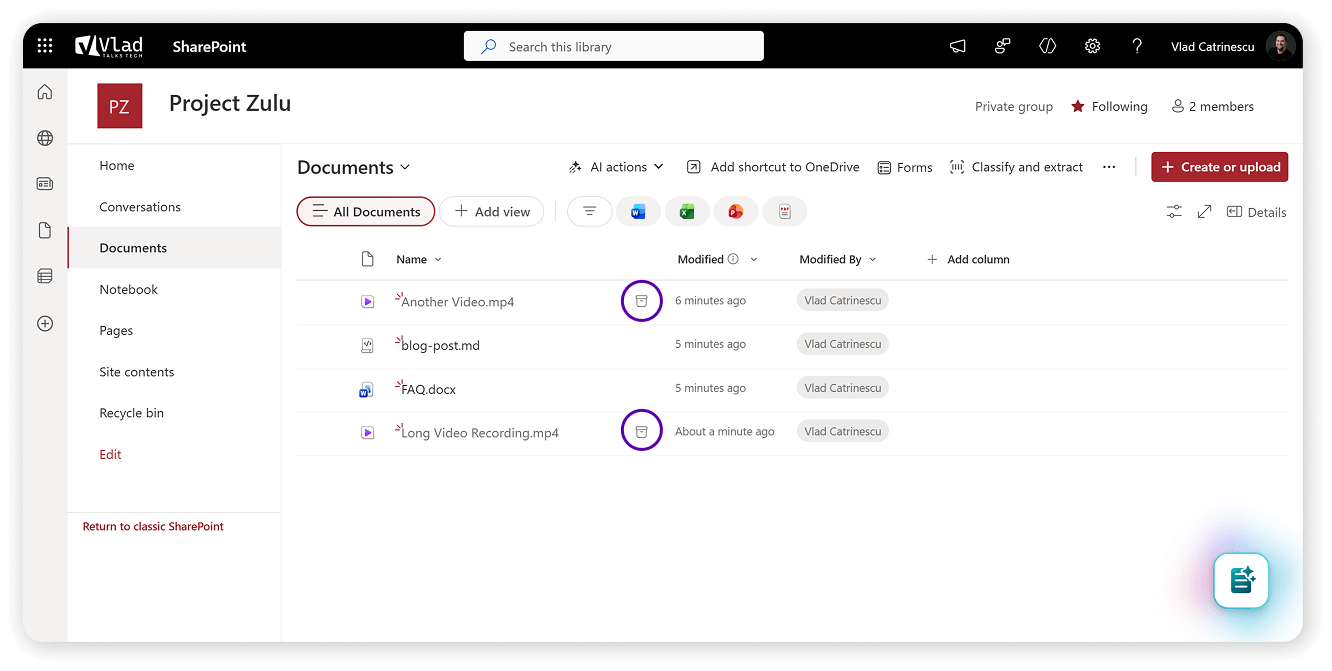
Here’s what end users need to know about archived files:
Archiving a file
Any user with edit permissions on a site where file-level archive is enabled can archive files. Select one or more files and click the “Archive” action as shown in the screenshots below:
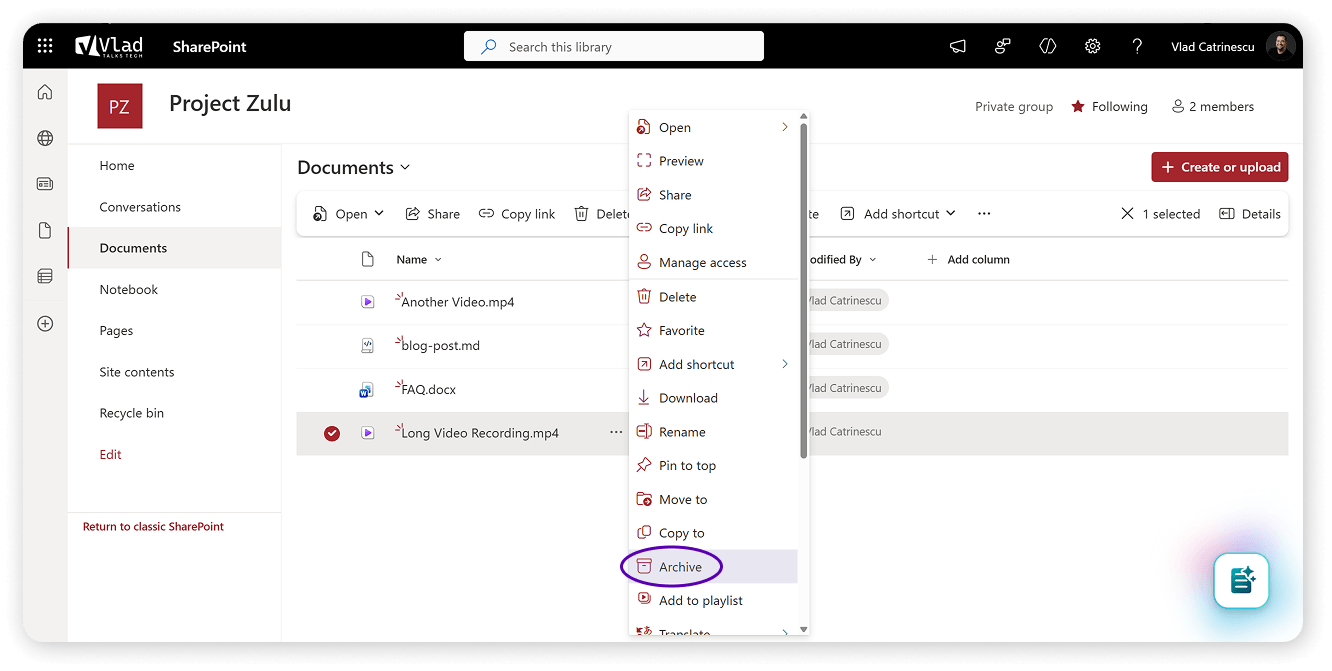
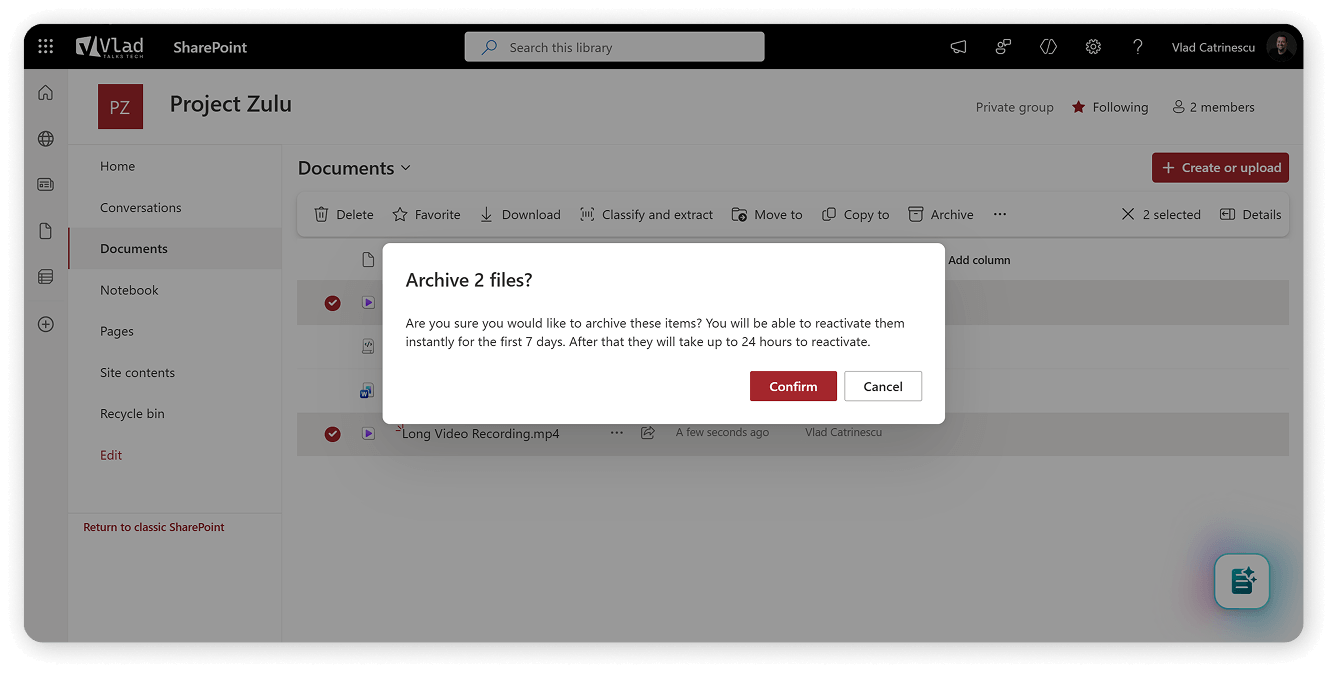
It’s that simple.
Reactivating a file
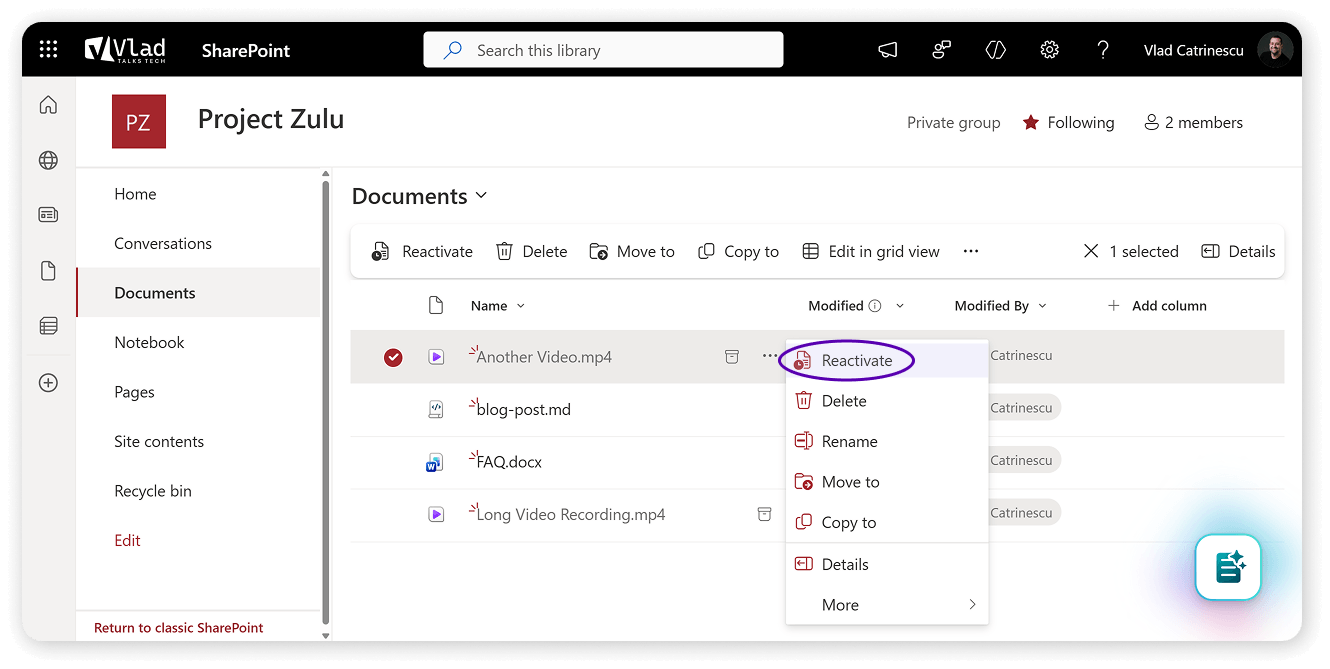
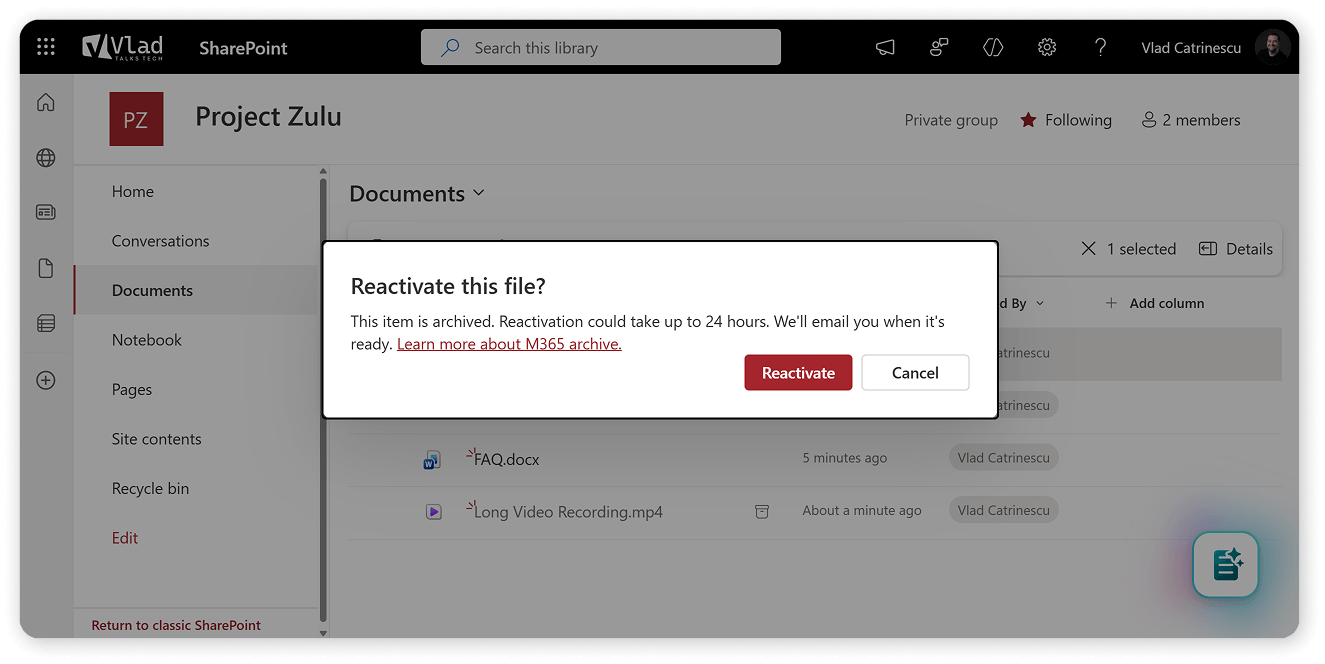
Any user with read permissions can reactivate an archived file. Select the file and click “Reactivate.” Within the first 7 days after archiving, reactivation is instant. After that, it can take up to 24 hours. The user who initiated the reactivation gets an email when it’s done.
Folder-level actions
You can also archive or reactivate all files within a folder (including subfolders) in a single operation. This is great for cleaning up entire project folders. Select a folder and use “Archive all files” or “Reactivate all files.” You’ll get an email when the operation is complete.
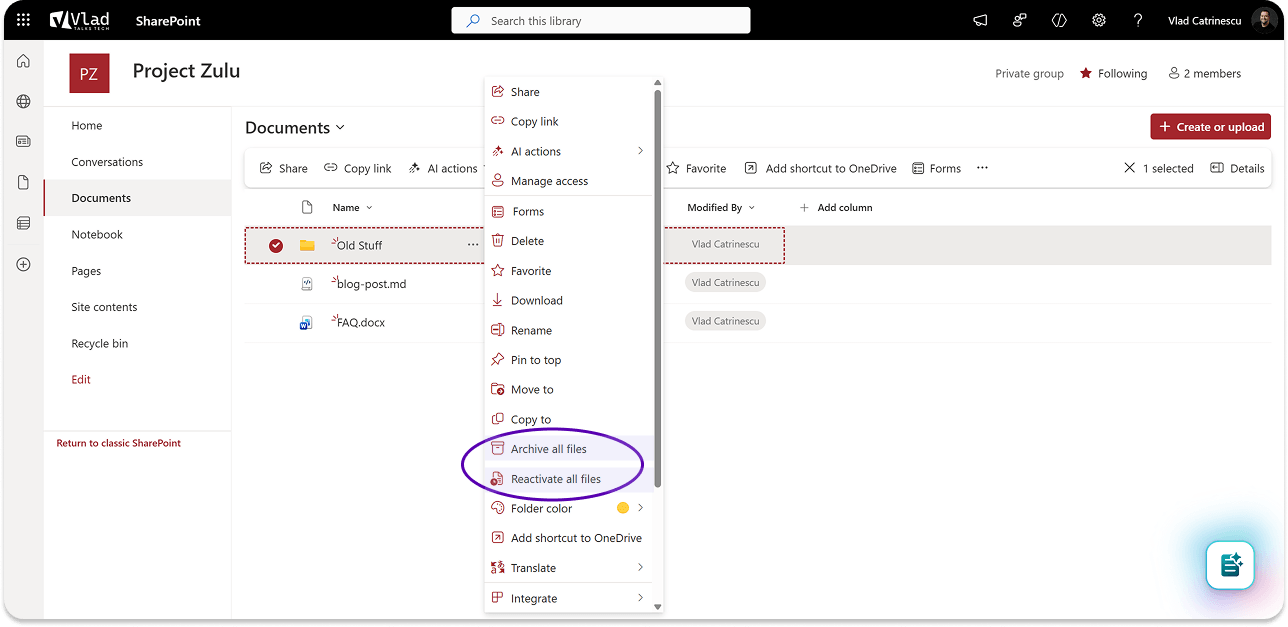
There are some limits on folder-level actions to be aware of: a maximum of 500,000 archive or reactivate actions per site per day, and individual folder operations are capped at 20,000 items each.
Key behaviors of archived files
Here are the seven things you should know about how archived files behave:
- Files stay inline. Archived files remain in their original location with a visual decoration indicating their archive status. They don’t move anywhere.
- 7-day grace period. Archived files can be reactivated instantly within the first 7 days. Changed your mind? No problem.
- Up to 24 hours to reactivate after the grace period. Once the 7-day window passes, reactivation can take up to 24 hours. Plan accordingly.
- Archive status follows copies and moves. If you copy or move an archived file, it stays archived in its new location.
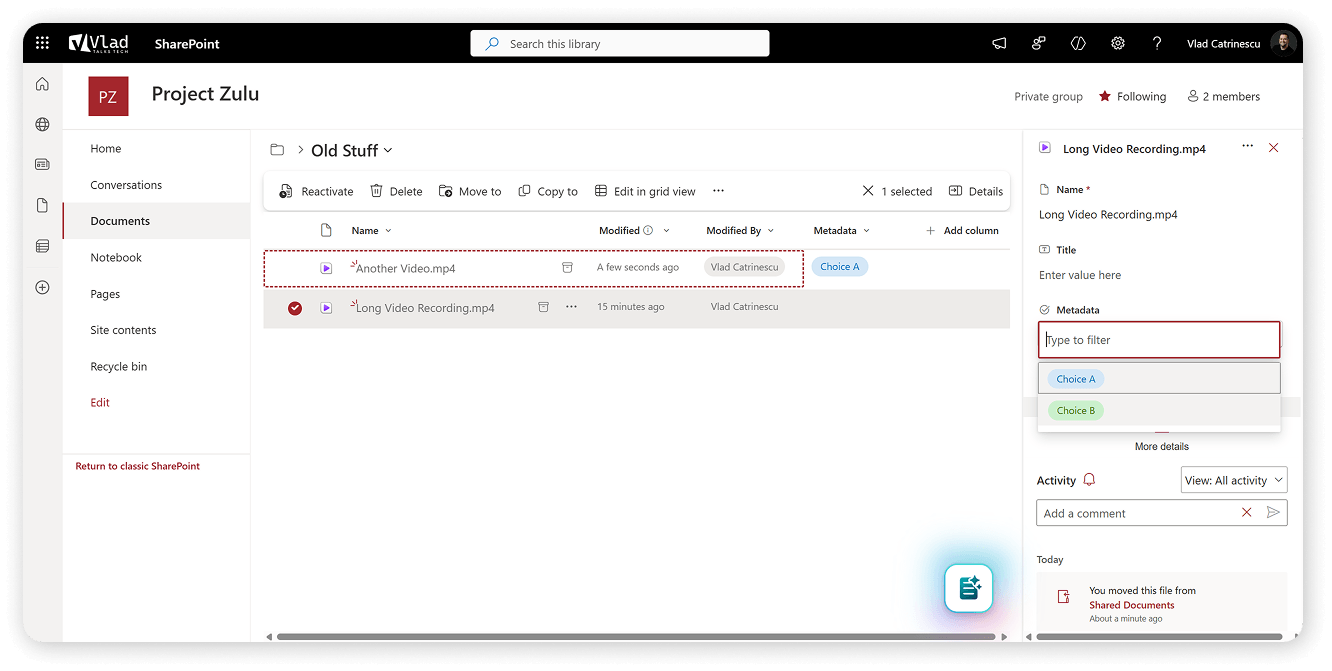
- Metadata remains fully editable. Custom columns and all metadata on archived files are still fully usable. You can update metadata without reactivating the file.
- Files are always reactivatable. Wherever an archived file ends up, it can be reactivated.
- Read permissions are required to reactivate. Any user who can read the file can bring it back. No admin ticket needed.
What stays the same between standard storage and archive
One of the biggest concerns IT pros and compliance teams have is: “If I archive content, do I lose any compliance capabilities?” The short answer is: almost nothing changes. Here is how Microsoft illustrates it:
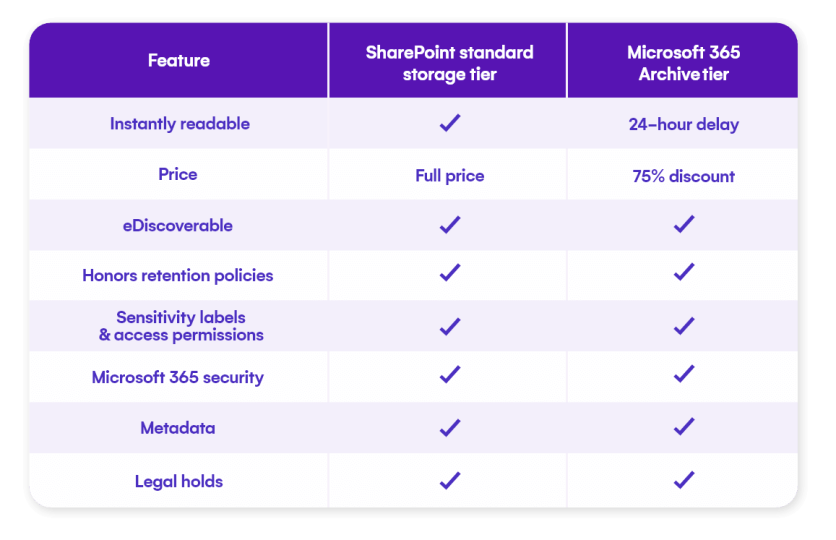
The two differences worth highlighting are Copilot grounding and instant readability. Archived files are not used by Microsoft 365 Copilot – and as we discussed earlier, this is actually a feature, not a limitation. By archiving old, irrelevant content, you’re improving the quality of Copilot’s responses across your organization. Less noise means better AI output.
The 24-hour delay on reading archived files (outside the 7-day grace period) is the main trade-off. For truly inactive content, this is rarely an issue. But it’s important to set expectations with your users so they understand that archived files aren’t immediately accessible.
Pricing: what does file-level archive actually cost?
The pricing model for file-level archive, at the time of writing this blog post, is the same as that for site-level archive:
Storage: $0.05/GB/month – but only for archived content that exceeds your tenant’s licensed SharePoint storage quota. If your combined active and archived storage is still under your quota, you pay nothing extra for the archived files. That’s worth repeating: if you’re under your pooled storage quota, archiving files costs you $0.
Reactivation: Free. Just like the site-level archive since March 2025, there is no fee to reactivate archived files. The only restriction is that reactivated files cannot be re-archived for 30 days.
Let’s run a quick example. Say your organization has a 10 TB SharePoint quota and you’re currently using 12 TB. That’s 2 TB of excess storage costing you $0.20/GB/month, which works out to about $400/month.
Now, imagine you identify 3 TB of inactive files scattered across various active sites. With file-level archive, you archive those 3 TB. Your active storage drops to 9 TB (under your 10 TB quota), and you have 3 TB of archived content. Since your active storage is now under quota, only the 2 TB of archived content that exceeds your total quota is billed at the archive rate.
Before file-level archive: $400/month in excess storage fees.
After file-level archive: $100/month in archive storage fees (2 TB at $0.05/GB).
Monthly savings: $300. That’s $3,600/year – and you didn’t have to delete a single file or take any site offline.
How to enable file-level archive
If you already have Microsoft 365 Archive set up for site-level archiving, you’re most of the way there. If not, you’ll need to complete the same prerequisites: an Azure subscription linked through pay-as-you-go billing, and Microsoft 365 Archive turned on in the admin center. We covered this setup in detail in our original Microsoft 365 Archive post.
During the public preview, there’s one additional step: you need to explicitly enable file-level archive via PowerShell. When file-level archive reaches general availability, this step won’t be required – it will be enabled by default for all SharePoint sites when Microsoft 365 Archive is turned on.
Here are the three levels of control admins have:
1. Tenant-level enablement. Enable or disable file-level archive for the entire tenant using the -AllowFileArchive flag on Set-SPOTenant (requires SPO admin PowerShell version 16.0.26714.12000 or later):
Set-SPOTenant -AllowFileArchive $true
2. Site-level enablement. Control which specific sites allow file archiving using -AllowFileArchive on Set-SPOSite:
Set-SPOSite -Identity https://contoso.sharepoint.com/sites/ProjectX -AllowFileArchive $true 3. Defaults for new sites. Control whether newly created sites get file-level archive enabled by default:
Set-SPOTenant -AllowFileArchiveOnNewSitesByDefault $true
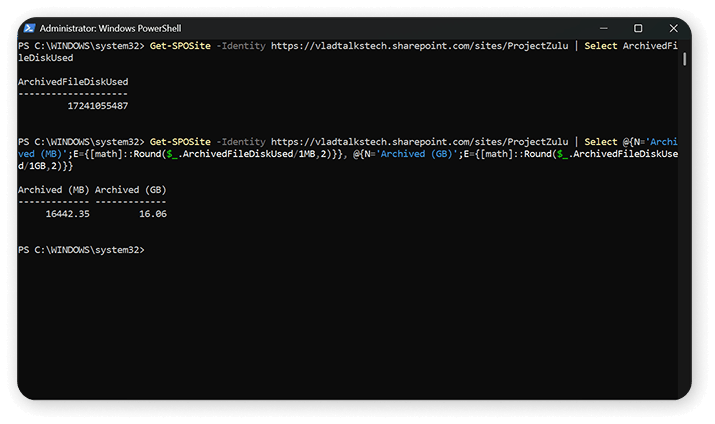
To check how much storage archived files are consuming on a given site, use:
Get-SPOSite -Identity https://contoso.sharepoint.com/sites/ProjectX | Select ArchivedFileDiskUsed
However, the value it shows is in bytes, which is not the easiest one to read! Here is a version I use which shows me the information in both MB and GB.
Get-SPOSite -Identity https://vladtalkstech.sharepoint.com/sites/ProjectZulu | Select @{N='Archived (MB)';E={[math]::Round($_.ArchivedFileDiskUsed/1MB,2)}}, @{N='Archived (GB)';E={[math]::Round($_.ArchivedFileDiskUsed/1GB,2)}} And here are the results:
Microsoft 365 Archive also includes support for Microsoft Graph APIs, enabling organizations and partners to integrate file-level and site-level archiving into custom workflows and lifecycle management solutions.
Known limitations during public preview
File-level archive is in public preview, and that means there are some rough edges. Here are the key limitations to be aware of, based on the official Microsoft documentation:
Application support is still catching up. Some Microsoft 365 apps don’t fully support archived files yet and may display incorrect error messages or fail to load archived content. The known list includes Word and PowerPoint Online, Teams/OneDrive/SharePoint mobile apps, macOS with the OneDrive sync client, older versions of Windows (Windows 10 and earlier) with the sync client, and Office desktop apps that haven’t been updated since March 1, 2026. Other apps like Clipchamp and Power BI also fail to load archived content when attempting to import.
Certain file types can’t be archived. OneNote files, SharePoint pages, and SharePoint agents are excluded. The Site Assets library also does not support file-level archive.
SharePoint sites only (for now). File-level archive is available on SharePoint sites. If an archived file is moved or copied to OneDrive, the archive state might not always be visually represented in the OneDrive interface.
No folder-level archive state. Folders themselves don’t have an archived or active state. The “Archive all files” and “Reactivate all files” actions work recursively on the files inside, but the folder itself stays as-is.
30-day re-archive restriction. Once you reactivate a file, you cannot archive it again for 30 days. This prevents constant toggling of files in and out of the archive tier.
Microsoft has said it is actively working on improving app support and client experiences, so expect many of these limitations to be resolved by general availability.
Site-level vs file-level archive: when to use which
With both options now available, the natural question is: when should I use site-level archive, and when should I use file-level?
Use site-level archive when: An entire site is inactive. Nobody has touched it in months or years. The classic example is a completed project site or a decommissioned team site. Archiving the whole site is faster, cleaner, and removes it from the active site list entirely.
Use file-level archiving when: A site is still active, but much of its content is not. Think of a department site where 80% of the documents haven’t been opened in two years, yet the team still uses it daily for new work. File-level archive lets you move those dormant files to cold storage while keeping the site fully operational.
The two approaches complement each other. A smart storage strategy will use site-level archives for fully inactive sites and file-level archives for inactive content within active sites.
What’s coming next
The public preview focuses on manual and API-based archiving. But Microsoft has already signaled what’s next. In the public preview announcement, Microsoft stated: “We know that the best way to manage archive files at scale is through policies. We’re working hard to make policy-based automation for archiving files available soon.”
This means that in the future, you’ll be able to define rules – for example, “archive files that haven’t been accessed in 2 years” – and let the system handle it automatically. That will be a significant step toward truly hands-off storage lifecycle management, similar to how site lifecycle management policies already work in SharePoint Advanced Management.
Recommendations for getting started
Here’s the thing that surprises most people: you don’t need to have a storage problem to benefit from file-level archive. There are good reasons to start archiving today, even if your organization is well under its SharePoint storage quota.
First, it improves Microsoft 365 Copilot right away. Every stale file you archive is one less piece of outdated content that Copilot might surface in responses. If your organization has rolled out Copilot, archiving inactive files is one of the simplest things you can do to improve AI quality – and it doesn’t cost a thing if you’re under your storage quota.
Second, you’re building an archive culture before you need one. Storage problems don’t announce themselves with a lot of warning. By the time your tenant hits its quota, you’re already paying $0.20/GB/month for overage while scrambling to put a process in place. If you start building archive habits now – educating users, enabling the feature on pilot sites, creating guidelines for when to archive – you’ll delay the day you hit your quota in the first place. And when (not if) that day eventually comes, you’ll already have a process running instead of starting from scratch while the meter is ticking.
And remember: archived content under your pooled storage quota is free. You’re only charged for archive storage that pushes your combined total (active + archived) above your tenant’s included quota. So there is literally no cost to getting started early.
With that in mind, here’s what I’d recommend:
- Get your site-level archive strategy in place first. If you haven’t already, start archiving fully inactive sites. With no reactivation fee, there’s very little risk.
- Identify your biggest storage consumers. Figure out which active sites have the most inactive content. Storage reports and activity data will be your best friends here.
- Enable the file-level archive preview on a few pilot sites. Don’t roll it out everywhere on day one. Start with a few sites where you have clear candidates for file archiving, get feedback from users, and iron out any issues with app support during the preview.
- Communicate with your users. Make sure they understand what the archive badge means, how to reactivate files, and that the 24-hour delay exists after the 7-day grace period. A simple email or intranet post goes a long way in avoiding confusion and support tickets.
- Don’t forget to clean up, too. Archive is great for content you need to keep but don’t actively use. But if content is truly obsolete and past its retention requirements, deleting it is still the most effective way to free up storage. Archive is not a substitute for good data lifecycle management – it’s a complement to it.
How Syskit Point helps you manage file-level archive at scale
File-level archive gives you the underlying infrastructure to reduce storage costs. But identifying which files to archive, acting on them with confidence, and proving the results to leadership are where most IT teams hit a wall. Syskit Point adds the governance layer that turns file-level archive from a manual task into a scalable, managed process.
Syskit Point supports file-level archive directly from the Storage Metrics report. You can identify inactive files across the entire tenant, and bulk archive them — all from one place, without switching between admin centers or running PowerShell scripts.
Here’s exactly how Point helps you:
It filters by last accessed, not just last modified. A file can be modified by an automated process without anyone ever opening it. Point surfaces genuinely cold content, so you’re not accidentally archiving files people are actively using.
You can trim versions before archiving. Version history is one of the biggest hidden storage cost multipliers because files can accumulate hundreds of versions over time. Point lets you trim old versions before archiving, compounding your savings.
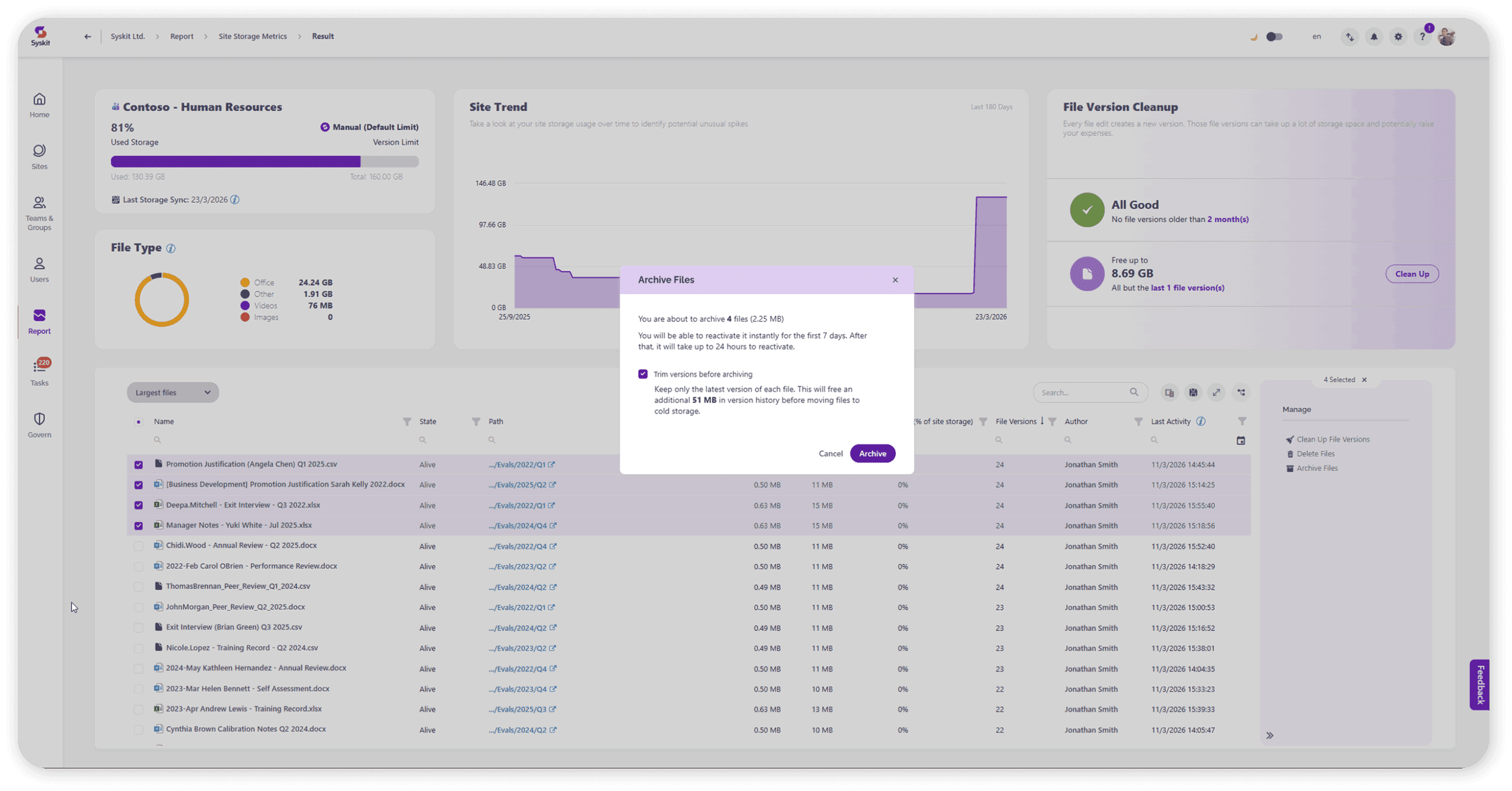
Compliance is maintained throughout. Retention and sensitivity labels are preserved during archival. End users can perform self-serve restores without opening an IT ticket, which means less support burden on your team and faster access when someone genuinely needs an old file.
You get ROI visibility. Tenant-level and site-level reporting lets you put hard numbers behind the work — useful when you need to show leadership the value of governance investments.
The bottom line
File-level archive fills the biggest gap that Microsoft 365 Archive has had since its launch. Site-level archive was a strong start, but the inability to archive individual files within active sites left a lot of potential savings on the table. Now, with file-level archive in public preview, free reactivation, Graph API support, and automatic archiving policies on the horizon, Microsoft 365 Archive is becoming a genuinely powerful tool for managing SharePoint storage costs and improving Copilot quality.
Whether you’re an IT admin staring at a growing storage bill or a CTO looking for ways to get more value out of your Microsoft 365 Copilot investment, file-level archive gives you a new lever to pull. And the best part? If you’re under your storage quota, getting started costs you nothing.