SharePoint Storage Pricing Per GB and Per TB Explained
Table of contents
Learn how SharePoint storage is allocated, priced, and optimized so you can budget confidently and avoid surprise overage bills.
Key takeaways
- When you plan storage costs, treat the tenant pool (1 TB + 10 GB per qualifying user) as the budgeted, billable capacity, and the 25 TB per‑site limit as a technical ceiling that controls how much of that pool one site can consume.
- The ‘official’ extra storage cost is effectively $0.20/GB/month, but license mix, region, and agreements mean every tenant’s real rate still needs validation.
- The most expensive GB is the one you waste – version bloat, recycle bins, and Teams files quietly push you into overage long before you actually run out of space.
- Microsoft 365 Archive turns cold SharePoint sites into a cheaper storage tier, so you can keep long‑lived content for compliance or reference without paying full‑price storage rates.
- Third-party governance tools like Syskit Point help you see storage usage at tenant scale, so storage decisions become data‑driven instead of last‑minute reactions to warning emails.
Many admins first encounter SharePoint storage costs per GB when finance asks for next year’s budget, and the answer is not obvious from public pricing pages alone. The current Extra File Storage add‑on price is typically around $0.20 per GB per month, shown directly in the Microsoft 365 admin center and pay‑as‑you‑go meters. But you should still confirm the exact figure in your own tenant before locking in a budget.
This guide cuts through any SharePoint Online pricing uncertainty. We’ll show you how your pooled tenant allocation is calculated, what really counts against that quota, and how Microsoft’s Extra File Storage and Archive tiers translate into usable per‑GB and per‑TB figures. We’ll also detail practical ways to reduce storage costs, so you can plan ahead using real data.
How SharePoint storage allocation is calculated
SharePoint gives you a single storage pool for the whole tenant – not a separate quota per site.
Your baseline formula is straightforward: 1 TB base allocation plus 10 GB for every eligible licensed user.
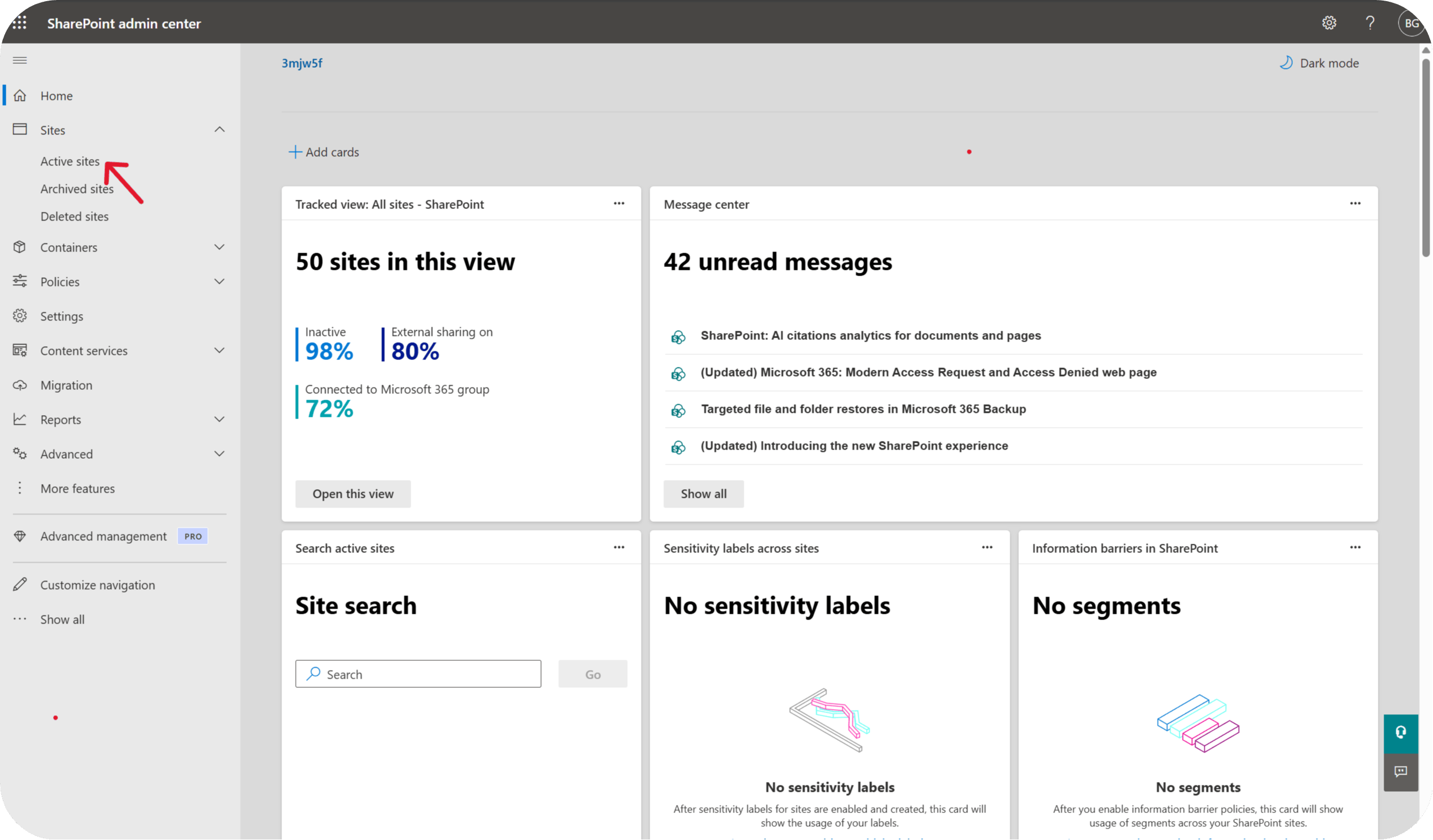
This storage pool is shared across all SharePoint Online sites in your tenant. You can see current usage and remaining capacity on the Active sites page in the SharePoint admin center, while OneDrive for Business storage is tracked separately per user license. You can find your remaining storage via Active Sites in the SharePoint Admin Center.
The catch is that not every license type adds to that pool, which is why many admins see a mismatch between their headcount and their storage total.
Frontline licenses are the big exception. F1 and F3 users get access to SharePoint content, but their licenses contribute 0 GB to the tenant storage pool. That means a tenant with 200 E3 users and 800 F3 users does not get 1 TB + (1,000 × 10 GB) = 11 TB. It gets 1 TB base plus 2,000 GB from the 200 E3 licenses, for a total of 3 TB to share across all sites.
Once you know the formula, you can sanity-check your own allowance. A 100‑user E3 tenant gets 1 TB + (100 × 10 GB) = 2 TB. While a 500‑user E3 tenant jumps to 1 TB + (500 × 10 GB) = 6 TB. Add or remove licenses and the pool adjusts with them, which is why license optimization work directly affects storage headroom over time.
On top of the pool, there is a hard limit per site. Individual SharePoint sites (site collections) can grow up to 25 TB each, but they are all drawing from the same shared tenant allocation. The 25 TB figure is a cap for any one site, not extra storage added on top of your pool. A single runaway site can still eat a painful chunk of your allowance if nobody is watching growth trends.
Here’s how the main plans line up from a storage point of view:
| Plan | Current price (user/month) |
Price from July 2026 |
Storage per license | Notes |
| SharePoint Plan 1 | $5 | $5 | 10 GB | Standalone |
| SharePoint Plan 2 | $10 | $10 | 10GB | Standalone |
| M365 Business Standard | $12.50 | $14 | 10 GB | Includes Office apps, Teams, Exchange |
| M365 E3 | $36 | $39 | 10 GB | Enterprise suite |
| M365 E5 | $57 | $60 | 10 GB | Adds advanced compliance |
| M365 F1/F3 | F1: approx. $2.25; F3: approx. $8 | F1: approx. $3; F3: approx. $10 | 0 GB | Frontline, no storage contribution |
Microsoft lists these plan prices and storage entitlements on its SharePoint and Microsoft 365 pricing pages.
The cost of extra SharePoint storage per GB and per TB
For budgeting purposes, the working number for extra SharePoint storage is around $0.20 per GB per month, purchased in 1 GB chunks through the Office 365 Extra File Storage add‑on. Over a year, that works out to roughly $2,450 per additional TB of capacity, assuming a steady allocation rather than short‑term bursts.
The real price on your quote can differ because Microsoft pricing is a maze of regions, currencies, discounts, and agreement types. Enterprise agreements, CSP resellers, and different subscription mixes create thousands of combinations, which is why you do not see a clean public ‘SharePoint storage price list’ page.
The practical move is to use the $0.20/GB/month figure as a planning baseline, then validate your exact rate with your reseller or Microsoft account manager when you’re close to hitting the limit.
When you actually need to buy more, you can do it through the Microsoft 365 admin center. Go to Billing, then Purchase services, and search for Office 365 Extra File Storage. You’ll see the add‑on as a subscription that you assign in 1 GB increments. When you complete checkout, that extra capacity is added to the pooled tenant storage, not to any specific site. Before you press Buy, check whether storage reports or version history cleanup could reclaim enough space to postpone or avoid the purchase.
What counts toward your SharePoint storage quota
Your SharePoint storage bill measures more than files on sites. It includes active content, and a few places many tenants forget about. Here’s what counts toward your SharePoint storage quota:
- Active files: Every document stored in SharePoint sites and Teams-backed document libraries consumes space from the shared tenant pool.
- Versions: SharePoint keeps up to 500 versions per document by default, and for many binary formats (such as large videos, PDFs, and images) each version can behave like a full copy in storage terms. In those cases, a single 1 GB training video with hundreds of versions can easily consume hundreds of GB on its own, which adds up quickly at an indicative $0.20/GB/month.
- Recycle bins: Both stages of the recycle bin count. When users delete files, they move into the first-stage recycle bin, then the second-stage bin, and remain there for up to 93 days. Storage is not freed until they age out or are purged from both stages.
- Retention-held content: Files under retention policies stay in the preservation hold library after users ‘delete’ or edit them. They continue to consume storage as long as the retention period keeps them, even when they are invisible in normal views.
- Teams files: Every standard Teams channel is backed by a folder in the site’s document library, and private or shared channels create their own underlying sites. As Teams’ usage grows, your SharePoint storage graph grows with it, even if nobody ever visits those sites directly.
What does not count:
- OneDrive allocations: Each licensed user gets their own OneDrive storage allocation, which is tracked separately from the SharePoint tenant pool. File growth there does not reduce your SharePoint quota.
- OneDrive-hosted meeting recordings: When Teams meeting recordings are stored in OneDrive rather than channel libraries, they draw from the user’s OneDrive allocation, not the SharePoint pool.
What happens when you exceed the storage limit
Once your tenant hits its SharePoint storage limit, affected sites flip into read‑only mode with no grace period. Users can still open and read files, but they cannot upload, edit, sync changes, or create new items. Microsoft notes that ‘sites are in read‑only mode and changes can’t be saved’. Workflows and apps that need to write to libraries fail, which tends to surface as broken business processes rather than a clear ‘storage full’ message to end users.
You do get warning emails as the overall tenant usage approaches its limit, but these notifications go to admins and designated contacts who might be on leave, in the wrong distribution list, or simply overwhelmed. That combination of quiet warnings and a hard stop is why capacity planning and early cleanup matter more than debating the exact overage cost per GB.
How to reduce SharePoint storage costs
There are three main ways to pay less for SharePoint storage, starting with the changes that cost nothing and moving up to paid options.
Option 1: Version trimming (free, highest impact)
The fastest savings usually come from reducing version bloat in large libraries. Intelligent Versioning in SharePoint can help you control how many versions are kept over time, but it still needs good limits and periodic cleanup to prevent large files from quietly consuming hundreds of GBs. The real challenge at enterprise scale is finding the worst offenders across thousands of sites and libraries without manual digging, which is where dedicated reporting and governance tools become essential rather than nice to have.
💡 Budget insight: How M365 governance tools help
Governance platforms built for Microsoft 365 can monitor growth patterns and trigger alerts before you hit the limit.
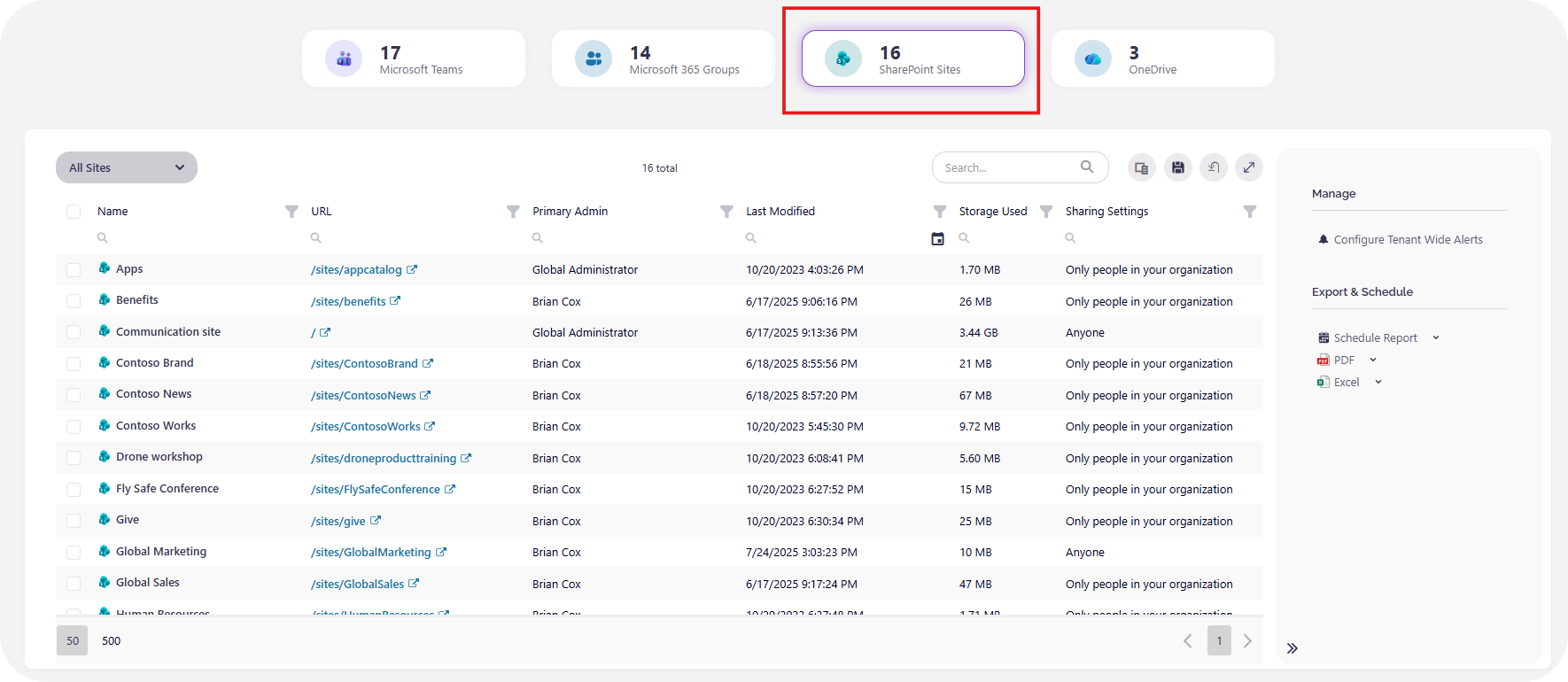
Syskit Point is the governance layer that gives you tenant‑wide visibility into SharePoint storage usage, including version-heavy libraries and large sites, and its Storage Management and Licenses Overview dashboard estimates how much you can save before you delete a single file.
Ovative Group used Syskit Point to clean up file versioning and saved about $24,000 in storage costs in under 60 minutes.
If you can combine better version limits with targeted cleanup, this route helps you avoid every other cost on this list.
Option 2: Microsoft 365 Archive ($0.05/GB/month)
When you have truly cold sites – projects that wrapped years ago, inactive team spaces, legacy archives – Microsoft 365 Archive lets you move them to a cheaper ‘cold storage’ tier. Archived data is billed at $0.05 per GB per month, around one quarter of the cost of standard SharePoint storage at $0.20/GB/month.
That difference is material. If your tenant sits 500 GB over quota, paying for standard storage means about $100/month, archiving that 500 GB drops the bill to roughly $25/month for the same data.
Billing only starts when your active + archived SharePoint storage exceeds the tenant’s pooled storage quota, so you do not pay extra to archive data if you still have spare allocation. Microsoft used to charge a $0.60/GB restoration fee to bring archived sites back to the active tier, with a seven‑day grace window where reactivation was free.
From 2025 onward, Microsoft announced that reactivating sites would no longer incur this fee, which makes Archive more cost‑predictable for long‑lived but rarely accessed content.
Option 3: Buy more standard storage (around $0.20/GB/month)
If your growth is rapid and the data is genuinely active, you eventually reach the point where you simply need more standard capacity. Extra File Storage, at around $0.20/GB/month keeps sites fully online. Use the earlier ‘cost of extra storage’ section as your reference point for planning numbers.
Bear in mind that Microsoft is eliminating volume‑based discounts under Enterprise Agreements, which means a lot of organizations will see a 6-12% uplift on their overall Microsoft 365 spend at renewal. Even if the Extra File Storage SKU itself was never discounted, higher baseline subscription costs make the free option (version trimming) and the cheaper Archive tier more attractive, because every GB you save helps offset those broader price increases.
Forecasting your SharePoint storage budget
Treat everything in this guide as input to your budget.
Start with your current Microsoft 365 license count, apply the 1 TB + (10 GB × eligible users) formula, then compare that allowance to your real SharePoint usage to see how close you are to overage territory. Map which sites, libraries, and versions are driving growth, and decide where version trimming or archiving can delay the day you need to buy extra storage.
For tenant‑wide visibility into what is consuming your SharePoint storage before the next budget cycle, use Syskit Point’s storage optimization tools to surface the heaviest sites, flag redundant or inactive content, and highlight where you can reclaim space and reduce overage risk.