How to automate Microsoft 365 access reviews in 5 steps (2026)
Table of contents
For many organizations, Microsoft 365 is the business operating system. It holds your email and your most important documents, and it keeps the whole workforce productive. Yet for a system of that importance, it is often neglected compared to line-of-business applications.
M365 is often monitored by a small team of IT people who handle it on the side. Most of the time this is fine, because Microsoft 365 keeps running with little effort. However, the question is when, not if, this pile of problems will start mounting up and cause business harm.
This guide walks through how to set up automated access reviews for Teams, Groups, and SharePoint sites, and the steps you need to get there. The goal is a repeatable process that keeps access under control without constant IT intervention.
Quick guide: How to automate Microsoft 365 access reviews
- Build Workspace Inventory: Identify the SharePoint sites, Groups, and Teams that need review and the data to collect for each.
- Gather Inventory Data: Pull the required information from the Microsoft 365 admin centers or PowerShell, and automate it where possible.
- Categorize Workspaces and Estimate Risk: Map sensitivity labels to risk levels and review cadence to focus effort where it matters.
- Assign Ownership: Make sure every workspace has the right business owners who are accountable for review decisions.
- Apply Control Questions and Governance Safeguards: Run a consistent set of review questions covering lifecycle, access, sharing, and close-out.
How to set up automated access reviews across your Microsoft 365 tenant
1. Build workspace inventory
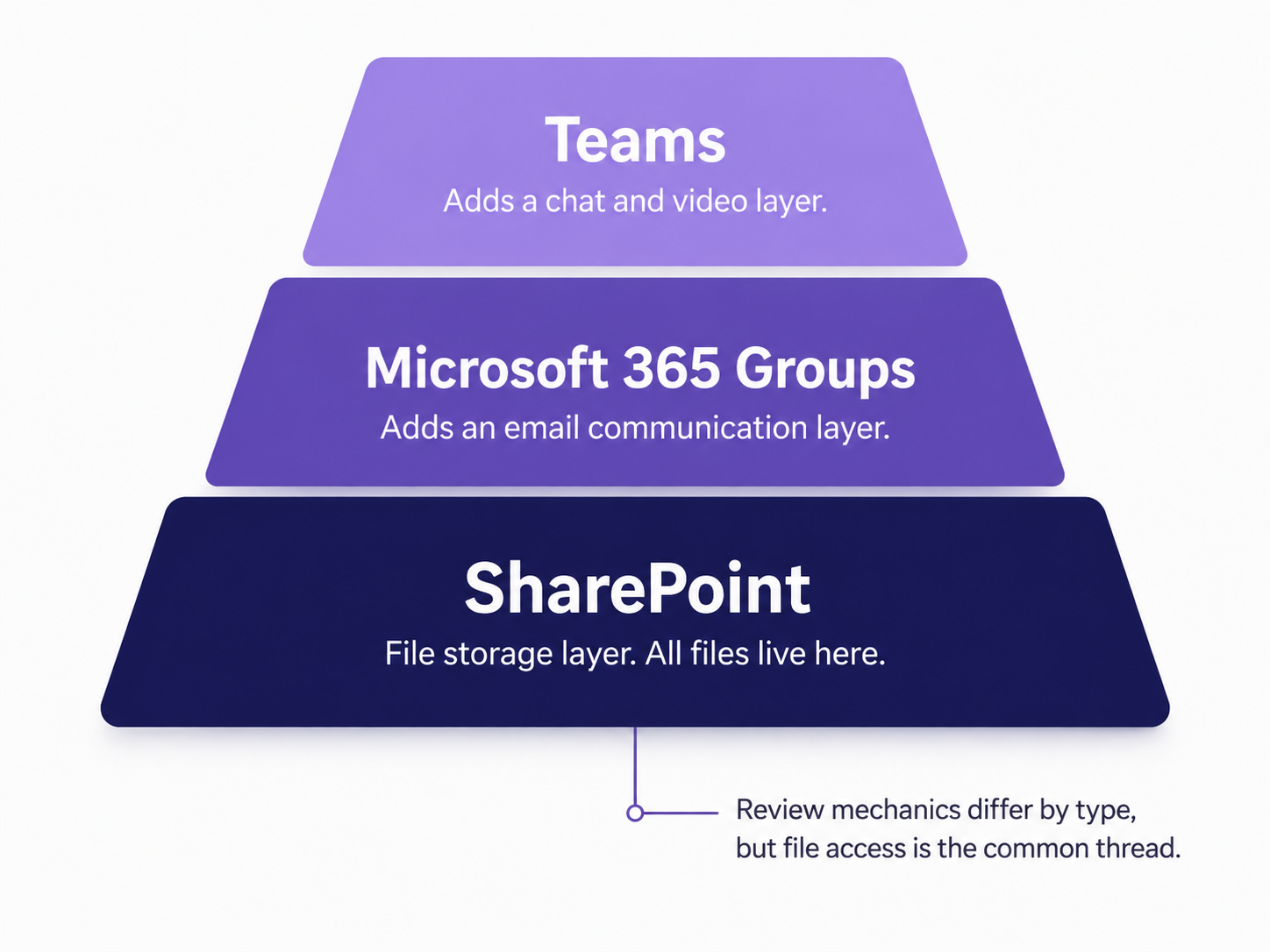
Start by building an inventory of the SharePoint sites, Microsoft 365 Groups, and Teams that will need a review. While there are many other workloads in Microsoft 365, these three are the most commonly used. It is important to understand the similarities and differences between them.
All three ultimately use SharePoint as their file storage. Groups build on top of that by adding an email communication layer, and Teams serve as a chat and video conferencing layer. The mechanics of the review differ slightly for each, but files access is the most important item, and all files live in SharePoint.
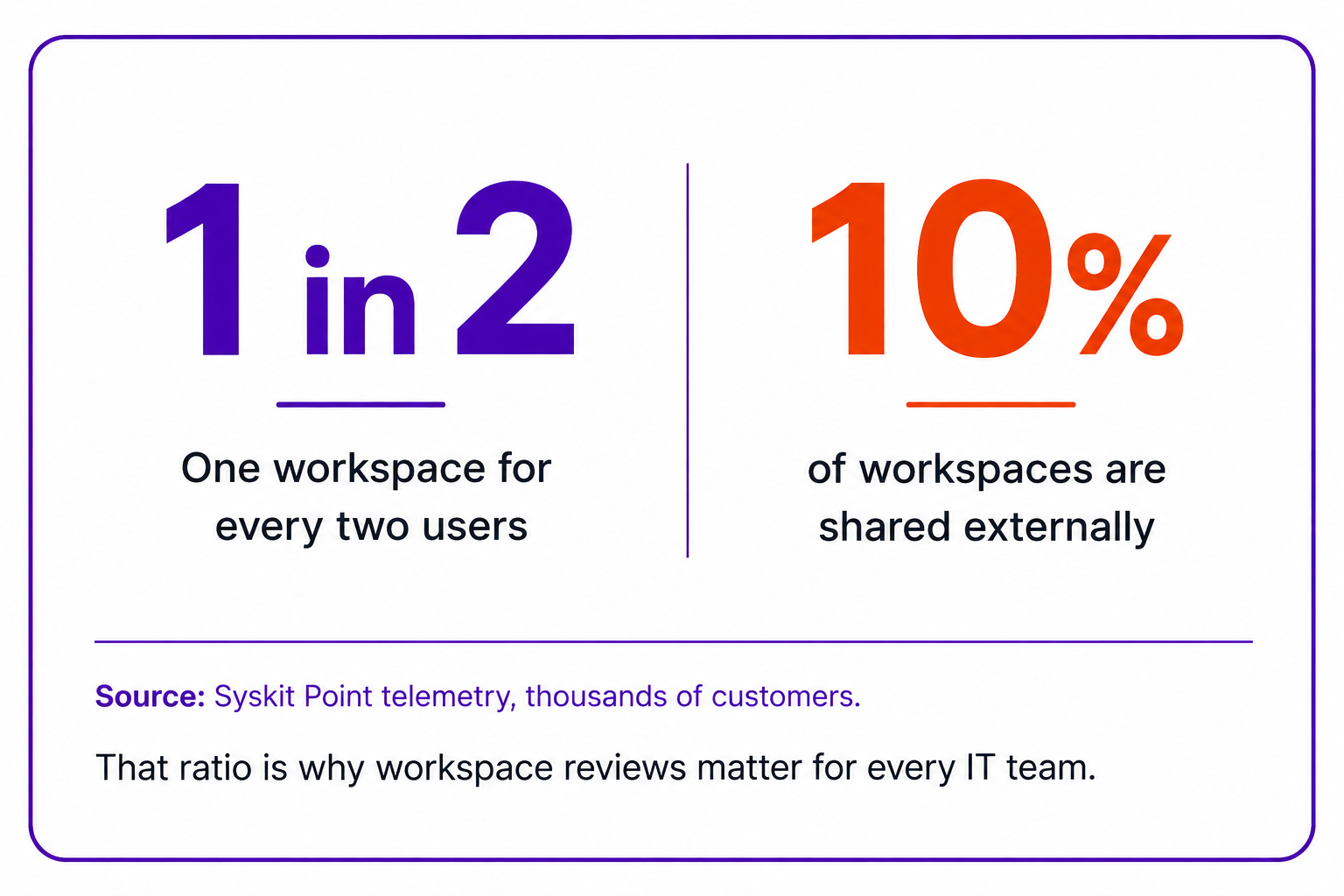
These types of workspaces are the main source of sprawl in Microsoft 365 tenants. Syskit Point telemetry from thousands of customers shows one team, group, or site for every two users, and 10% of those workspaces are shared externally. That ratio is why workspace reviews are an important task for every IT team.
To start with your inventory, gather the critical information first:
- Workspace name
- Workspace type (SharePoint, Group, Team)
- Sharing Settings
- Owners
- Sensitivity Label
Where you can, also collect:
- Members
- External Members
- Shared with everyone groups
- Last Activity
- Storage Used
2. Gather inventory data from admin centers and PowerShell
To gather all this information, you will have to rely on the Microsoft 365 admin centers or use PowerShell. Consider automating some of this work, because for a large estate it can take a long time to build such an inventory, and even longer to maintain it.
If you are new to this, gathering all this information is not going to be easy. Microsoft 365 is a complex ecosystem that has evolved over the years, so the data admins need is spread across various places and apps. Similar bits of information can also overlap from one admin center to another.
Here are your key resources (replace your-tenant in the URLs below with your own tenant name):
- SharePoint Admin Center (https://your-tenant-admin.sharepoint.com/_layouts/15/online/AdminHome.aspx#/home) - gives a basic overview of all the sites
- Exchange Admin Center (https://admin.cloud.microsoft/exchange#/homepage) - for Microsoft 365 Groups management
- Teams Admin Center (https://admin.teams.microsoft.com/dashboard) - for Teams management
- Microsoft Purview (https://purview.microsoft.com/) - for label management and configuration
- Microsoft Entra ID (https://portal.azure.com/#view/Microsoft_AAD_IAM/ActiveDirectoryMenuBlade/~/Overview) - users and groups
On top of these default capabilities, there are additional features available as part of premium licenses:
- SharePoint Advanced Management (https://your-tenant-admin.sharepoint.com/_layouts/15/online/AdminHome.aspx#/advancedManagement) - adds premium reporting and controls such as data access governance and restricted access policies
- Entra ID Governance (https://portal.azure.com/#view/Microsoft_AAD_ERM/DashboardBlade/~/Dashboard) - identity governance with access reviews, entitlement management
3. Categorization of workspaces and estimating risk
The data gathered in the previous steps is an important baseline that helps you determine the risk for each workspace. Ideally, the risk categories align with the sensitivity label, as shown in the table below. While you can categorize your workspaces using various techniques, such as site properties or your own inventory list, sensitivity labels are the way to go.
Sensitivity labels are the feature of Microsoft Purview. Beyond basic labeling, they enable data loss prevention (DLP) and encryption controls for files and emails.
As part of categorization, you can determine which labels truly represent sensitive data and how often that data should be reviewed, which is the basis for a proper governance plan.
Example mapping of labels and risk
Here is an example of how labels map to risk and review cadence.
| Label | Risk | Review Cadence | Sensitive |
|---|---|---|---|
| Public | Low | No review | No |
| Internal | Medium | Quarterly | No |
| Confidential | High | Monthly | Yes |
| Highly Confidential | Critical | Monthly | Yes |
Based on this information, you should be able to calculate the risk for each workspace. The risk determines how often the review should be conducted.
Example inventory snapshot
| Field | Workspace A | Workspace B | Workspace C |
|---|---|---|---|
| Workspace Name | Finance Quarterly Reports | Product Launch Team | HR Policy Hub |
| Workspace Type | SharePoint | Team | Group |
| Sharing Settings | Existing guests only | New and existing guests | Internal only |
| Owners | Priya Sharma; Daniel Kim | Fatima Al-Mansouri; Lucas Meyer | Amina Hassan |
| Sensitivity Label | Confidential | Internal | Highly Confidential |
| Members | 18 | 42 | 11 |
| External Members | 1 | 6 | 0 |
| Shared with everyone groups | No | Yes | No |
| Last Activity | 2026-08-08 | 2026-08-10 | 2026-07-29 |
| Storage Used | 128 GB | 54 GB | 9 GB |
| Risk | Medium | High | Critical |
| Cadence | Quarterly | Monthly |
Quarterly |
4. Ownership
Aim for two to five owners per workspace. Two is the practical minimum, so one can cover for the other during time off. For some busy workspaces you may need a few more to share the load. However, if a workspace has more than five it will be hard to keep owners accountable for anything. While some customers do have workspaces with thousands of owners, that is not manageable in the long run.
The owner should be an actual business user who works in the workspace regularly and knows what content it holds, and who can make decisions about it without asking for approval. Avoid IT admins (except on IT-related workspaces) and never use service accounts, as that is the same as having no owner and avoiding accountability.
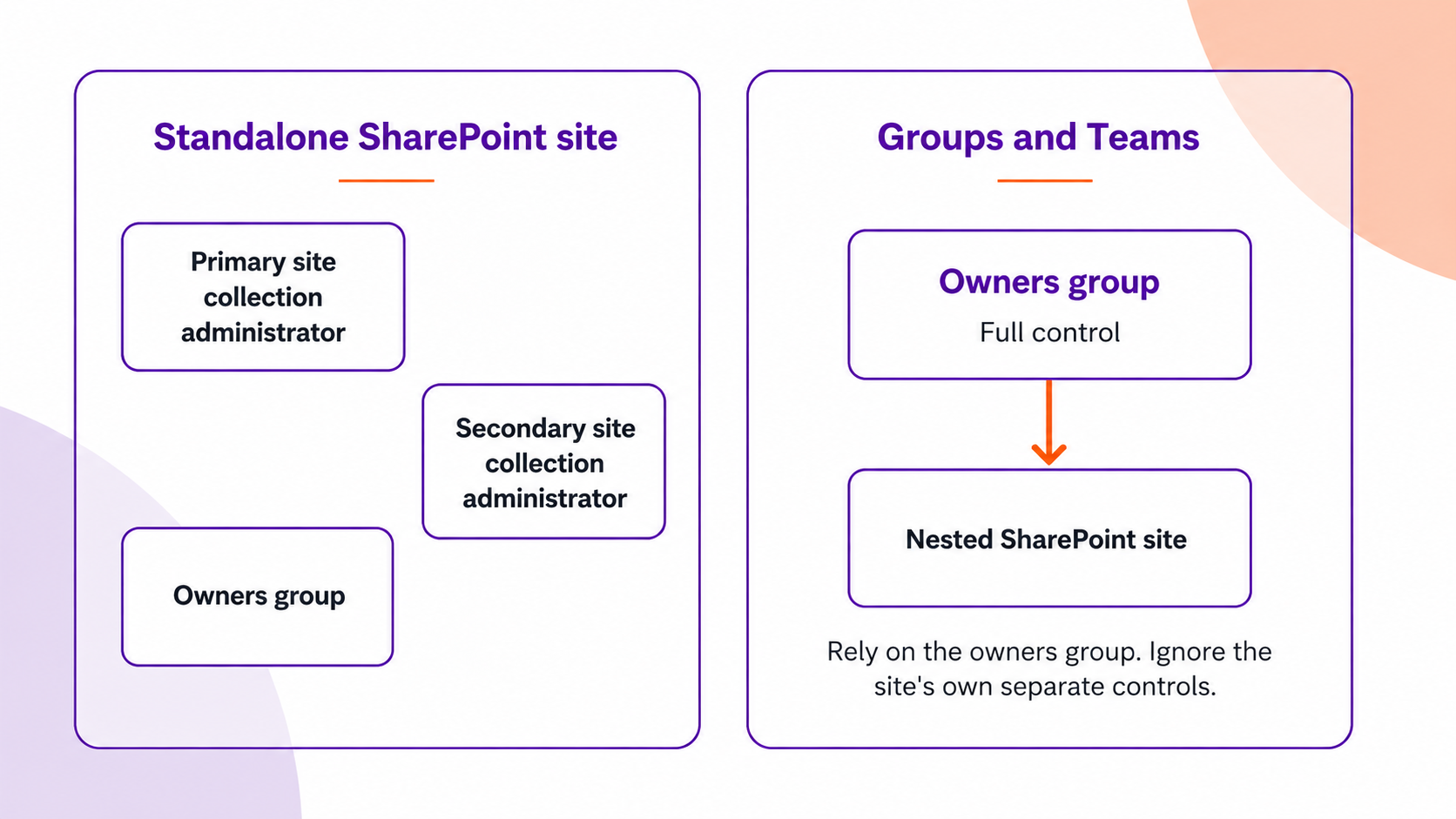
There are different technical aspects to what an owner is when comparing a standalone SharePoint site with Groups and Teams. In a SharePoint-only environment, you have primary and secondary site collection administrators alongside an owners group. For Groups and Teams, you have a dedicated owners group that has full control over the nested SharePoint site. In the latter case, rely on that mechanism to control the underlying SharePoint site and ignore the site's own separate controls.
5. Control questions and governance safeguards
At this point, reviewers should run through a consistent set of control questions for each workspace. These questions are a practical baseline you can use regardless of tooling.
- Workspace purpose and lifecycle
a) Is this workspace still actively used, or should it be archived or deleted?
b) Does the current usage match the original business purpose (site, mailbox, channels, files)?
c) Is the last activity recent enough to justify keeping it active? - Privacy and sensitivity
a) Is the current privacy mode correct (private vs. organization-wide visibility)?
b) Does the workspace have the right sensitivity label for the data it holds?
c) If the label changed over time, do current permissions still match that label? - Ownership quality
a) Are there enough active business owners assigned to ensure accountability?
b) Are any owners service accounts, stale accounts, or users who should no longer own this workspace?
c) If ownership changed, who is responsible going forward? - Members and guests
a) Does every member still need access for their current role?
b) Are there blocked or disabled users that should be removed?
c) Are guest users still legitimate collaborators, or have they become inactive?
d) Are there guest accounts that are stale, never accepted the invitation, no longer reachable, or effectively external despite being marked as members, and should they be removed?
e) Is broad membership (for example, everyone/company-wide groups) intentional for this workspace? - Shadow access (direct permissions outside membership)
a) Who has direct access without being a formal member of the workspace?
b) Are any of those users deleted, blocked, orphaned, or inactive external accounts?
c) For each shadow user, is there a valid business reason to keep access?
d) Which service principals or applications have access to this workspace content, and is that access still required, scoped to least privilege, and reviewed regularly? - Sharing links and oversharing risk
a) Are there expired links that can be removed immediately?
b) Are there unused links (for example, not used in the last 30 days) that should be revoked?
c) Are "Anyone" or company-wide links exposing content more broadly than intended?
d) For sensitive files, is link type (view/edit) and audience still appropriate? - Close-out and evidence
a) Were all decisions documented with comments for audit traceability?
b) Were actions completed successfully, or are any still in progress and requiring follow-up?
c) If no reviewer responds by the deadline, is the default action set to remove access, especially for guest users and high-risk workspaces?
d) Is the next review cadence aligned with the workspace risk level?
Doing this at scale with Syskit Point
Every step above can be done with the native admin centers and PowerShell, but it gets hard to sustain once you have hundreds or thousands of workspaces. Syskit Point automates the parts of this process that are tedious to build and maintain by hand:
- A single, always-current inventory of every SharePoint site, Group, and Team, with owners, members, external users, sharing settings, sensitivity labels, storage, and last activity, so Steps 1 and 2 are handled for you.
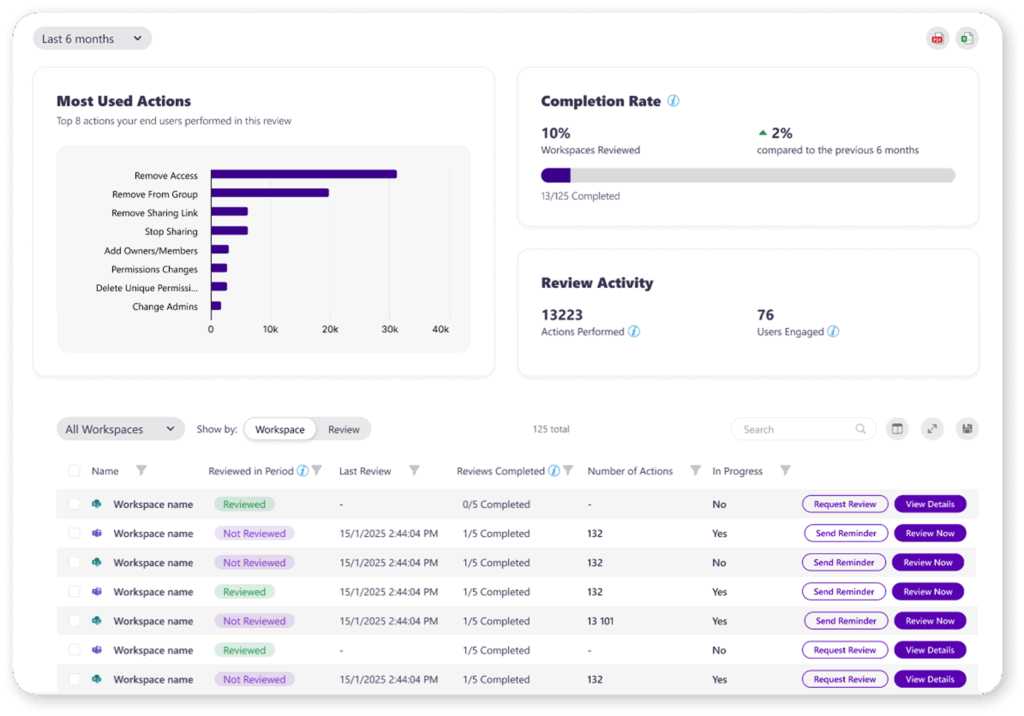
- Risk-based access reviews you can schedule and route to the real business owners, with cadence tied to sensitivity and risk instead of a spreadsheet reminder.
- Owner accountability checks that flag workspaces with missing, excessive, or invalid owners (including service accounts) before a review runs.
- Built-in review questions and audit trail, so reviewers confirm purpose, membership, guests, shadow access, and sharing links, and every decision is logged as evidence.
The outcome is the same repeatable process described in this guide, without the manual data gathering.
Conclusion
Get the inventory and ownership right first, then layer in risk-based cadence and the control questions. Each piece makes the next one easier: a clean inventory tells you what to review, accountable owners give you someone to route decisions to, and consistent questions produce the evidence auditors ask for.
The more of this you automate, the less it depends on any one person remembering to act, and the closer access management gets to running as quietly as the rest of Microsoft 365.