SharePoint hero links: Why every file now gets a single primary sharing link, and what it means for admins
Table of contents
Key takeaways
- SharePoint hero links introduce a single primary sharing link for each file or folder, allowing users to change its audience without creating another link.
- Existing sharing link expiration policies don't apply to hero links, making it important for admins to monitor links with broader access.
- Hero link defaults are configured per SharePoint site or OneDrive, using the
DefaultMainLinkScopeparameter, with no tenant-wide setting currently available. - Sharing reports may become harder to interpret, as community testing shows hero links can appear even when files haven't been deliberately shared.
- Syskit Point helps admins track SharePoint hero links, distinguish them from classic sharing links, and identify who can access shared content across SharePoint and OneDrive.
Share a file with a colleague, then with your whole team, then with a partner, and the classic SharePoint sharing model will often give you 3 different links to the same file, each with its own audience and its own expiration rules. Microsoft is changing that. The new sharing experience rolling out to SharePoint and OneDrive gives every file and folder a single primary sharing link, called the hero link, and when someone needs a wider audience, they change that link instead of creating another one.
In message center post MC1454378, Microsoft says the goal is to make collaboration "simpler, smarter, and more secure by default," and by default, a hero link grants no access of its own, so it only works for people who already have access. For admins, though, a few things change. Your link expiration policies don't apply to hero links, there's currently no tenant-wide setting for their default audience, and in community testing, hero links show up in sharing link exports even for files nobody deliberately shared. The rollout is already underway and runs through the end of November 2026.
Classic sharing links and the hero link, side by side
|
|
Classic sharing links |
Hero link |
|
Links per file |
Often a new link for each audience |
A single primary link per file or folder |
|
Starting audience |
Your default sharing link setting |
Only people added, unless you change the site's default |
|
Starting permission |
Your default link permission |
View |
|
Widening access |
Create another link |
Change the same link's audience |
|
Where the default is set |
Organization-wide, with site overrides |
Per site or OneDrive, with no tenant-wide setting yet |
|
Expiration policies |
Apply |
Don't apply |
What changes, and what doesn't
Every file gets a single primary link that users change instead of replacing. Whether someone selects Copy link, shares by email, or copies the URL from the browser, it's the same hero link. When a colleague can't open a file, the sender can add them directly or widen that link to people in your organization or, where your policies allow it, to anyone, and the URL they already sent starts working.
Adding people directly is still the simplest way to share. People you add are granted access to the file or folder explicitly, and the hero link decides who else can open it. Effective access is still the most permissive combination of direct, inherited, group, and link permissions, so a hero link set to Only people added doesn't take anything away from site members.
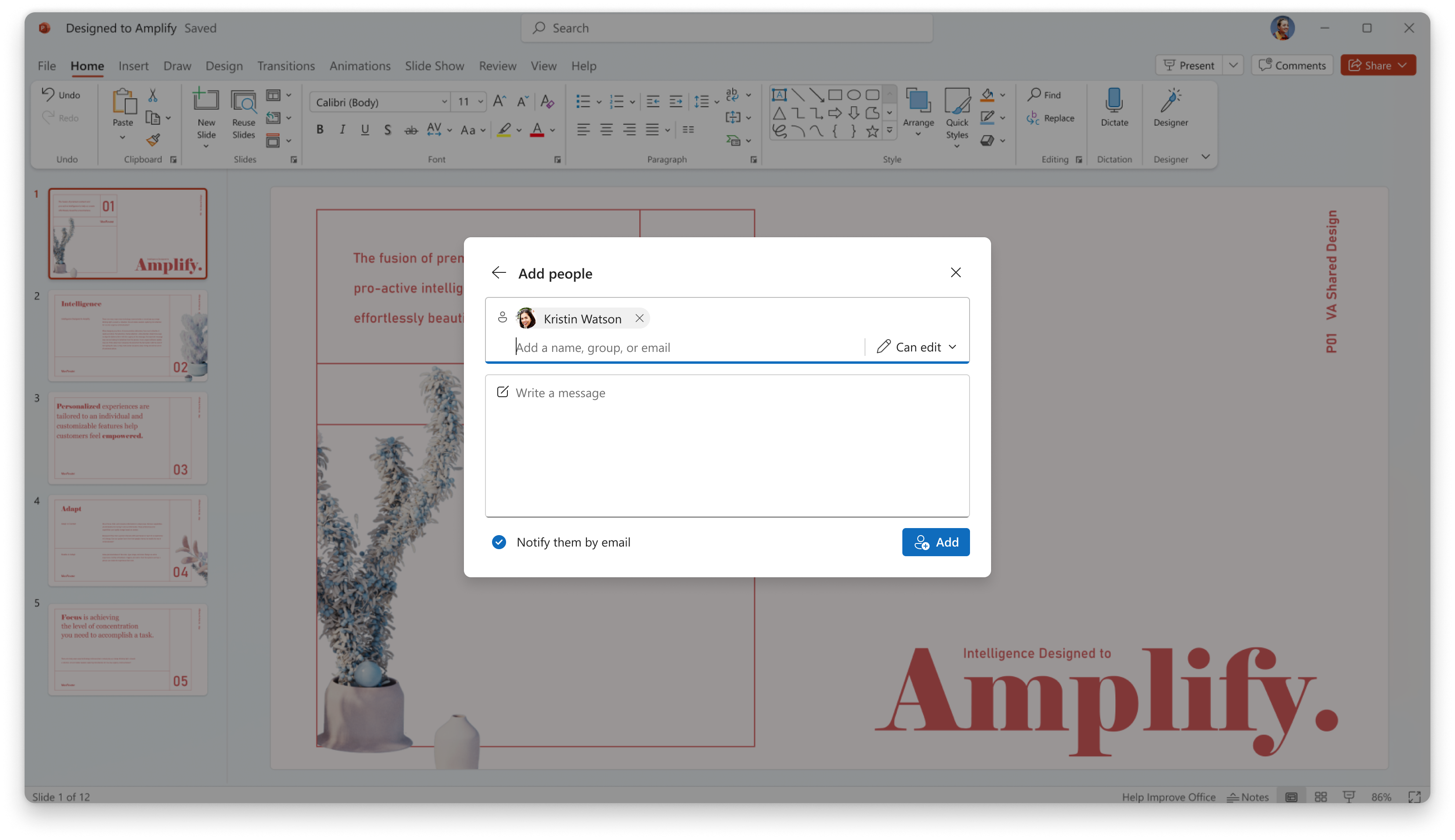 Adding people is still the simplest way to share: pick the people, set their permission, and choose whether to notify them by email. Source: Microsoft, MC1454378
Removing access works differently. According to Microsoft's walkthrough for admins, classic Stop sharing removed an item's unique permissions so it inherited from its parent again. The new Remove access option sets the hero link back to Only people added and removes everyone who was added, so only the file's owners keep access. Reset link replaces the URL with a new one set to Only people added.
Existing links keep working. They aren't converted into hero links. The new dialog lists them under Other sharing links, and your existing link policies still apply to them. Users can also still create extra links when they need something specific, such as a link that expires.
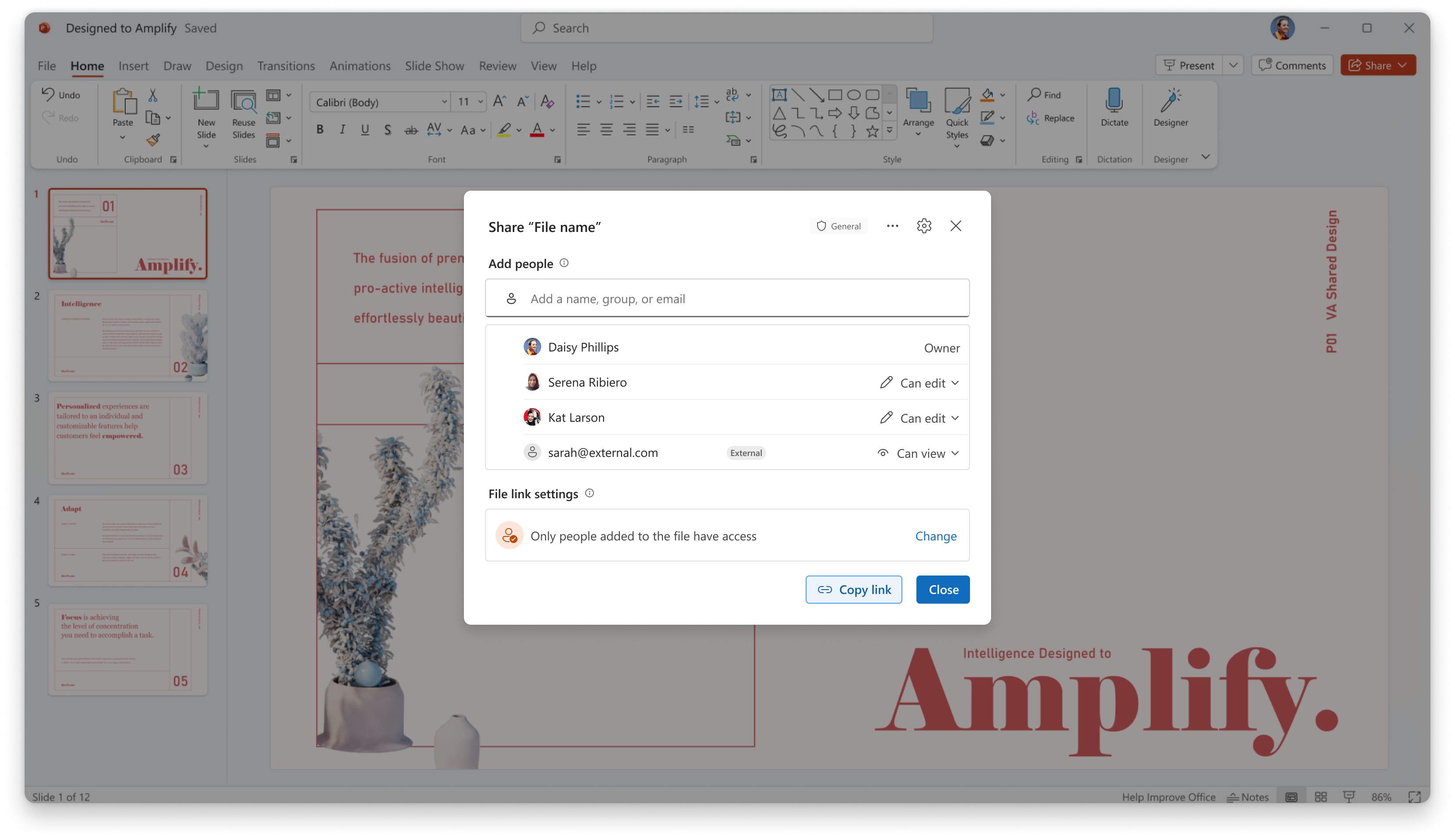
In the share dialog, the hero link shows up as the file's link settings, starting at Only people added to the file have access. Source: Microsoft, MC1454378
Your expiration policies don't follow the hero link
Microsoft states that existing default sharing link settings and link expiration policies keep applying to classic links and don't govern hero links. So if a user widens a hero link to Anyone, the expiration policy you set for Anyone links won't give it an end date. In testing by Microsoft MVP Reshmee Auckloo, hero links had no expiry date at all, so a widened link stays open until someone narrows it or resets it.
Your sharing settings still set the outer limits. In Reshmee's testing, a hero link couldn't reach external users on a site where external sharing was off, and Microsoft says users can only widen a link to anyone where your organization's policy allows it.
The hero link default audience is set site by site
Unlike the default sharing link type for classic links, which you set for the whole organization, hero links currently have no tenant-wide setting. As a SharePoint Administrator, you set their starting audience per site with the DefaultMainLinkScope parameter of Set-SPOSite, which calls hero links main links. Microsoft's announcement says it works for OneDrive too. It's the only admin control the announcement lists.
The Set-SPOSite reference lists 3 values: OnlyPeopleAdded (the effective default), Organization, and Anyone. Anyone only works if your tenant allows Anyone links, and if the site doesn't, SharePoint falls back to the next most restrictive value. The message center post lists only the first 2 as supported, so test Anyone before you rely on it. The reference also says the setting applies to items at the root of each document library, so check how files inside folders behave. Either way, it's a starting point, not a limit, because users can still widen a link as far as your policies allow.
Update the SharePoint Online Management Shell first, because older versions don't include the parameter:
Most sites can stay on the default, because a link set to Only people added already works for everyone who has access through the site, so an intranet that everyone can read doesn't need Organization. It's worth considering only for sites whose files regularly go to colleagues outside the site's membership, and only if you're comfortable with every new hero link there working for anyone in your organization who gets the URL.
How SharePoint hero links affect sharing reports
Until now, a sharing link in a report usually meant somebody shared something, on purpose or by accident. In Reshmee's PnP PowerShell export, hero links showed up even on items without unique permissions, so a hero link in your report doesn't by itself mean anyone shared that file.
Her export also reported hero links set to Only people added with the same Anonymous scope as Anyone links, so check how your own tools label them before you trust an anonymous-link count. And because people added through the share dialog get permissions on the item itself, the link's user list stays empty.
Where the classic default was People with existing access, Copy link returned a readable path to the file. Now it returns the hero link, a URL with a randomly generated ID, which, as Reshmee points out, makes pasted links harder to trace and to bulk-update during a migration.
Inventory SharePoint hero links with Reshmee Auckloo's script
Reshmee, who's also one of the PnP PowerShell maintainers, wrote up her findings in 2 posts. Her first post covers the behavior and how to set the default with PnP PowerShell, and her inventory post includes a script that lists the file and folder sharing links in a site.
The script exports each link's type, scope, roles, expiration, and password setting to a CSV. It labels each link as a hero link or a legacy link, based on a pattern she observed in the link IDs rather than a documented property, so treat that label as a strong hint, not a guarantee. Its unique permissions column helps separate real permission exceptions from hero-link noise.
To run it, add -ClientId and -Interactive to its connect line so it signs in with your own Microsoft Entra ID app registration, and give that app Microsoft Graph permission to read files, such as Files.Read.All. Run it as a site owner so it sees every link, and create a Logs folder next to the script first, because that's where it saves the CSV.
Track SharePoint hero links with Syskit Point
With Syskit Point, you don’t need scripts to find hero links across SharePoint and OneDrive. Point recognizes hero links and surfaces them throughout its sharing reports and relevant Workspace Review steps, clearly distinguishing them from classic sharing links.
The Sharing Links report gives you a centralized view of sharing links across your environment, including whether files and folders are accessible to People in your organization or Anyone, while distinguishing between classic sharing links and main (hero) links. The Permissions Matrix and Externally Shared Content reports also show the Main Link Setting for each item: Only People Added, People in your org, or Anyone.
Together, these reports make sharing investigations faster and easier. You can see who has access and how they got it, whether directly, through a main (hero) link, or through a classic sharing link.
Point reports hero links even if they haven’t been opened yet, so your reporting and governance remain accurate as Microsoft’s new sharing experience rolls out.
What to do before the new dialog reaches your users
- Try it yourself first. Open the new dialog on a test file and on an older file that already has links.
- Decide which sites need a different default. Set DefaultMainLinkScope there, and keep a list of what you changed and why.
- Spot-check hero links on sensitive sites. Look for hero links open to your whole organization or to anyone, because expiration policies won't close them. The PnP export above can't tell those apart from links set to Only people added, so confirm the audience in the share dialog or in a tool that reports it. In Syskit Point, the Sharing links report shows each hero link's type and URL.
- Update your sharing guidance and brief your helpdesk. Microsoft's walkthrough compares the classic and new dialogs if you need visuals. Prepare your helpdesk for "they can't open my link" (add them directly, and widen the link only if the file is meant for everyone it would reach), "Where did my old links go?" (Other sharing links), and "My team lost access after I removed sharing" (Remove access leaves only the owners). Word, Excel, and PowerPoint on Mac still use the older Share dialog for now.
- Keep an eye on the message center post. Microsoft announced the hero link in May 2025, and the rollout dates have moved more than once since, most recently in the October 7 update to MC1454378.
The hero link won't clean up the links your files already have, so the cleanup you're already doing still matters. From here on, though, every file on a site that keeps the default starts with a link that opens it for nobody new until someone decides it should, and that's a good place for governance to start.