ServiceNow integration with Syskit Point for seamless provisioning – Part 2
Table of contents
In this part of our series, we’ll guide you through the steps to set up ServiceNow integration with Syskit Point. This setup will allow you to automate the provisioning of Microsoft 365 workspaces directly from ServiceNow by making use of Syskit Point’s API.
In the previous article, we documented all the prerequisites you need for this to work. Make sure you have completed all those steps before proceeding.
Setting up ServiceNow integration
Step 1: Configure OAuth credentials in ServiceNow
In this step, you’ll add the OAuth credentials in ServiceNow to allow ServiceNow to authenticate against Syskit Point’s API securely.
Store OAuth credentials as System Properties:
In ServiceNow, navigate to System Properties and add the following custom properties for secure access:
- provisioning.client_id: Set this property to your Syskit Point Client ID.
- provisioning.client_secret: Set this property to your Syskit Point Client Secret.
- provisioning.tenant_id: Set this property to your Directory (Tenant) ID.
- provisioning.application_id: Set this property to your Syskit Point API Application (Client) ID.
Step 2: Create the ServiceNow request form
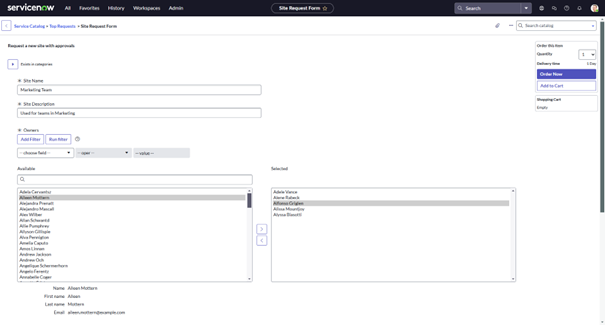
Now, create a custom request form in ServiceNow to capture the required details for provisioning Microsoft 365 workspaces. This form will gather the information that Syskit Point needs to complete the provisioning process.
Define the Form Fields:
- Go to Service Catalog > Maintain Items and create a new catalog item for “Workspace Provisioning.”
- Add the following fields:
- Site/Team Name (text): The name of the workspace to be provisioned. (Type: Single Line Text, Variable name: site_name, mandatory)
- Site/Team Description (text): A brief description of the workspace. (Type: Single Line Text, Variable: site_description, mandatory)
- Owners (multi-select dropdown): A field to select users who will have ownership rights. Configure this field to pull user data from the sys_user table. (Type: List Collector, Variable: owners, mandatory)
- Members (multi-select dropdown): A field to select users to add as members, also referencing sys_user. (Type: List Collector, Variable: members, mandatory)
Step 3: Set up approval workflow
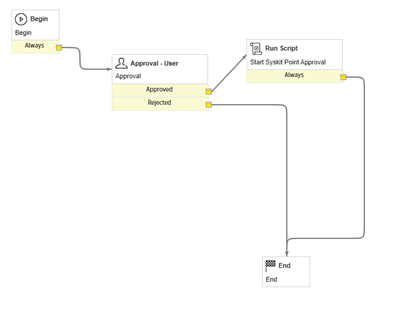
Configure the catalog item’s workflow to include an approval step. This step ensures that the request is reviewed before triggering the Syskit Point API call.
Step 4: Integration script
We have prepared a comprehensive script below this paragraph that you can use as part of your workflow.
By following these steps, you can integrate ServiceNow with Syskit Point, enabling seamless provisioning of Microsoft 365 resources directly from your service desk. This process streamlines approvals, enhances resource management, and provides your users with a unified experience.
Next in this series, we’ll cover Part 3: Integrating Syskit Point with Jira.
/*
This script integrates ServiceNow with Syskit Point's provisioning engine to create a new team based on a ServiceNow request item.
The script retrieves user emails and other request details from ServiceNow, formats the data, and sends it to Syskit Point's provisioning API.
Setup Instructions:
1. Replace `apiEndpoint` with the Syskit Point API URL for provisioning.
2. Store sensitive OAuth credentials (e.g., clientId, clientSecret, etc.) in ServiceNow properties for secure access.
3. Set `templateId` to 1 initially, as required by Syskit Point. This ID should be retrieved from Syskit Point based on your template setup.
Note: Ensure that each request variable (e.g., `site_name`, `owners`, `members`) is properly defined on the ServiceNow request item.
*/
(function executeAPIRequest(current) {
// **API Endpoint Configuration**
// The endpoint for Syskit Point's provisioning engine. Replace with your actual endpoint URL.
var apiEndpoint = "https://your-api-url.com/v1.0/provision/teams"; // Example endpoint
try {
// **OAuth Credentials Configuration**
// Retrieve OAuth credentials from ServiceNow properties for secure access.
// These credentials are required to authenticate with Syskit Point's API.
var clientId = gs.getProperty('provisioning.client_id', 'YOUR_CLIENT_ID'); // Replace with property name or actual ID
var clientSecret = gs.getProperty('provisioning.client_secret', 'YOUR_CLIENT_SECRET'); // Replace with property name or actual secret
var tenantId = gs.getProperty('provisioning.tenant_id', 'YOUR_TENANT_ID'); // Replace with property name or actual tenant ID
var applicationId = gs.getProperty('provisioning.application_id', 'YOUR_APPLICATION_ID'); // Replace with property name or actual app ID
// **Template ID for Provisioning**
// Syskit Point uses template IDs to specify the type of resource to provision.
// Set `templateId` to 1 or another ID based on your Syskit Point setup.
var templateId = 1;
// **Retrieve ServiceNow Request Variables**
// Get site name, description, and other details from the current ServiceNow request item.
var siteName = current.variables.site_name ? String(current.variables.site_name) : "Default Site Name";
var siteDescription = current.variables.site_description ? String(current.variables.site_description) : "Default Description";
// **Retrieve Owners and Members**
// Owners and members should be provided as comma-separated sys_id values.
// This function retrieves their email addresses based on these sys_ids.
var owners = getEmailsFromSysIds(current.variables.owners);
var members = getEmailsFromSysIds(current.variables.members);
// **Prepare the API Request Payload**
// Format the request body to meet Syskit Point's provisioning API requirements.
var requestBody = {
"templateId": templateId,
"displayName": siteName,
"desiredUrl": createSlug(siteName), // Generate a URL-friendly slug from the site name
"owners": owners,
"members": members,
"description": siteDescription,
"comment": "Auto-generated by ServiceNow " + current.number,
"metadata": {},
"isPrivate": true // Default to private; adjust as needed for your use case
};
// **Log the request payload for debugging and verification**
gs.log("Prepared request body: " + JSON.stringify(requestBody), "SiteRequest");
// **Execute the Provisioning API Call**
// Retrieve the OAuth bearer token and call Syskit Point's API with the formatted request payload
var response = callProvisioningAPI(getBearerToken(clientId, clientSecret, tenantId, applicationId), requestBody);
gs.log("API Response: " + response, "SiteRequest");
} catch (e) {
// **Error Handling**
// Log any unexpected errors for troubleshooting purposes
gs.error("Unexpected error in executeAPIRequest: " + e.message, "SiteRequest");
}
// **Helper Function: Create a URL-friendly Slug**
// This function converts a string (e.g., site name) into a URL-friendly slug by removing spaces and special characters
function createSlug(text) {
return text
.toString()
.toLowerCase()
.trim()
.replace(/[^\w\s-]/g, '') // Remove non-word characters
.replace(/\s+/g, '-') // Replace spaces with hyphens
.replace(/-+/g, '-'); // Collapse multiple hyphens
}
// **Helper Function: Get Emails from sys_id List**
// This function accepts a comma-separated list of sys_ids and returns an array of corresponding email addresses.
function getEmailsFromSysIds(sysIds) {
sysIds = String(sysIds); // Ensure sysIds is treated as a string
var emails = [];
if (!sysIds) return emails;
// Split and retrieve each email for corresponding user sys_ids
var idList = sysIds.split(',');
idList.forEach(function(userSysId) {
var userGR = new GlideRecord('sys_user');
if (userGR.get(userSysId)) {
emails.push(userGR.getValue("email"));
}
});
return emails;
}
// **Helper Function: Get OAuth Bearer Token**
// This function retrieves an OAuth token needed to authenticate with Syskit Point's provisioning API.
function getBearerToken(clientId, clientSecret, tenantId, applicationId) {
try {
var authUrl = "https://login.microsoftonline.com/" + tenantId + "/oauth2/v2.0/token";
var authRequest = new sn_ws.RESTMessageV2();
authRequest.setEndpoint(authUrl);
authRequest.setHttpMethod("POST");
authRequest.setRequestHeader("Content-Type", "application/x-www-form-urlencoded");
var requestBody = "client_id=" + clientId + "&client_secret=" + clientSecret +
"&grant_type=client_credentials&scope=" + applicationId + "/.default";
authRequest.setRequestBody(requestBody);
var authResponse = authRequest.execute();
var authResponseBody = JSON.parse(authResponse.getBody());
return authResponseBody.access_token;
} catch (e) {
gs.error("Error retrieving bearer token: " + e.message, "SiteRequest");
return null;
}
}
// **Helper Function: Call the Provisioning API**
// This function sends a POST request to Syskit Point's provisioning API with the bearer token and formatted request payload.
function callProvisioningAPI(token, requestBody) {
try {
var request = new sn_ws.RESTMessageV2();
request.setEndpoint(apiEndpoint);
request.setHttpMethod("POST");
request.setRequestHeader("Content-Type", "application/json");
request.setRequestHeader("Authorization", "Bearer " + token);
request.setRequestBody(JSON.stringify(requestBody));
var response = request.execute();
return response.getBody();
} catch (e) {
gs.error("Error calling provisioning API: " + e.message, "SiteRequest");
return null;
}
}
})(current);
Simplifying M365 is a few clicks away
Taking control of your M365 has never been easier. Try it out for yourself or talk to our friendly staff.