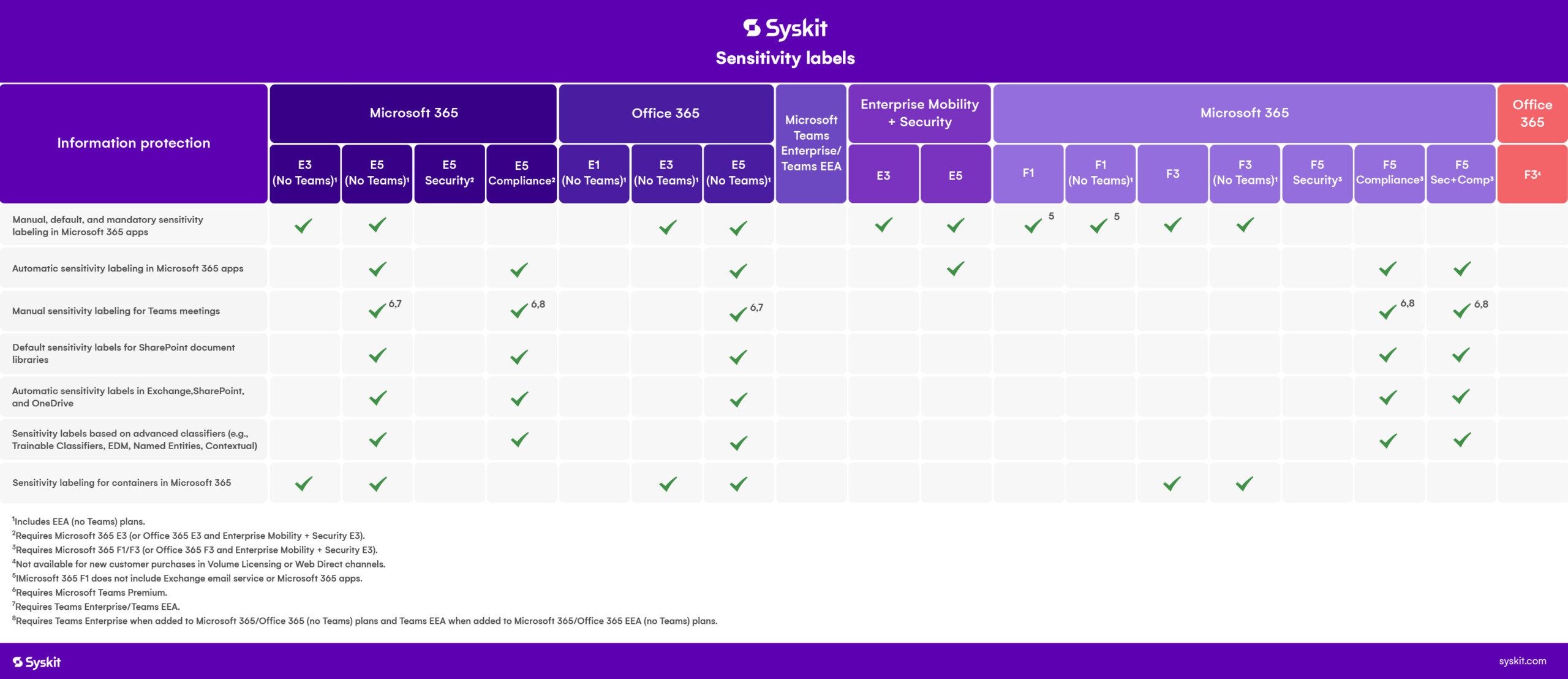
Sensitivity labels help you protect and classify your Microsoft 365 groups, SharePoint sites, Teams, and other workspaces in your Microsoft 365 tenant. They play a very important role in data security by preventing unauthorized access and reducing the risk of data leaks. At the same time, they help organizations stay compliant with legal and regulatory requirements by consistently enforcing protection policies.
Think of them as digital security tags you can stick on workspaces and M365 assets, such as files and emails. These tags tell the system, “Hey, this is top secret!” or “This is just internal info.” Based on the label, Microsoft 365 automatically applies protections, like encryption, restricting who can see the file, or even blocking it from being shared outside your company.
They can also go deeper and help you protect data and information not only in the mentioned containers but also in other assets in M365, Microsoft Fabric, and Microsoft Azure, such as meetings, Power BI reports, Loop, and more.
In this blog, we will cover the basics of sensitivity labels, how to apply them, which Microsoft license you need, and how to automate the policies.
When you apply a sensitivity label, you classify data and enable proactive protection settings and actions. There are multiple levels of protection available when we apply sensitivity labels, but today, we’ll discuss two basic levels: workspace (container) level and files level.
Think of your M365 workspaces like different rooms in a giant office building. Some rooms are open for everyone, like a breakroom, while others, like HR or Finance, should only be accessible to certain people. If you don’t label these spaces properly, you risk accidental data exposure, where sensitive files end up in places they shouldn’t be.
For example, imagine you create a Microsoft Team to discuss an upcoming company acquisition. If that Team isn’t labeled and restricted properly, an intern or someone from another department could accidentally stumble upon confidential discussions. Worse, external guests could be added without anyone realizing the risk.
Sensitivity labels can help you to:
Sensitivity labels are part of the Microsoft Purview Information Protection solution. For manual sensitivity labeling, the following licenses provide user permissions:
Please note that Microsoft 365 Apps require user-based subscription licensing for users to use sensitivity labels with Office clients. Device-based licensing isn't supported.
Yes, labels can be manually applied by users or automatically applied based on content (keywords, sensitive info types, AI-based classifiers).
To do so, you will need a Microsoft E5 license, Office 365 E5 license, or Enterprise Mobility and Security E5 offering.
Before diving deep into the Purview admin center and starting to create and publish sensitivity labels, here are the most important best practices to get you started:
Keep in mind that there is no one-size-fits-all strategy when it comes to data classification and sensitivity labels. You need to consider your organization’s specifics, the standards and regulations associated with data management in your industry, your business-critical data, whether you are using multiple solutions to label your data, etc.
It can get overwhelming, but the most important thing is to start. Start small, but start. Microsoft MVP Drew Madelung suggests using a crawl-walk-run method for sensitivity and retention labels. He advises spending more time defining and understanding what these labels need to be rather than hurrying and correcting mistakes.
Here is an example of how you can define your labels following these guidelines:
|
Label
|
Description (Usage)
|
Private Team
|
Sharing to Non-Members
|
Sharing to External Users
|
Access Review Cadence
|
|---|---|---|---|---|---|
|
Highly Confidential
|
Content is visible only to members of the container/team; files cannot be shared externally or beyond members.
|
Yes
|
No
|
No
|
30 days
|
|
\ Confidential (Internal)
|
Internal Sharing: Content visible to members of the container/team, with the ability to invite other company employees and share files internally.
|
Yes
|
Yes
|
No
|
90 days
|
|
\ Confidential (External)
|
Internal and External Sharing: Marked sensitive, but files can be shared with both internal and external users.
|
Yes
|
Yes
|
Yes
|
90 days
|
|
General Access
|
No restrictions on content sharing.
|
No
|
Yes
|
Yes
|
180 days
|
Once you’ve decided on the number of labels and taxonomy, follow this step-by-step guide from Microsoft to create and configure labels.
Using a centralized dashboard, track the number of your workspaces that have been labeled. Drill deeper to get complete visibility into which sensitivity label has been applied to what workspace and which M365 workspaces are still unprotected.
For all workspaces that have not been assigned a sensitivity label, send a task to the workspace owner to add the appropriate label. The same task can be sent to workspace owners to review whether the applied label is still valid or should be changed to reflect the latest workspace requirements.
Syskit Point comes with a powerful rules engine that allows you to automate your governance policies based on sensitivity labels, along with other custom properties.
Using sensitivity label as a condition, you can define which governance policies apply to which workspace, regardless of when and how a particular workspace has been created. This includes:
Syskit Point will continuously crawl for all sites, teams, and groups in your M365 with a particular sensitivity label applied to ensure that the specific governance policies you chose are applied throughout the workspace lifecycle.
For example, you can define that all workspaces classified as Highly confidential should have a minimum of 3 owners and regular access reviews every 3 months. Syskit Point will enforce the policies and ask owners to comply with defined procedures.
You’re probably already using generative AI in your company. AI tools, like chatbots or automation systems, can accidentally access or share confidential information if they’re not properly restricted. For example, imagine an employee pastes confidential customer data into an AI-powered chatbot for help with an email response. If that chatbot isn’t secure, the data could be stored, used to train future AI models, or even exposed to unauthorized users. That’s a huge privacy and compliance risk.
Another risk is AI-driven automation gone wrong. Let’s say your AI system generates reports based on company data. If it accidentally pulls sensitive financial details into a public report, that could lead to a data breach or even legal trouble.
Sensitivity labels offer a simple way to proactively protect data by applying security measures such as content encryption and access restrictions, preventing external sharing, applying watermarks, and preventing copying or downloading of most sensitive files.
In conclusion, sensitivity labels play a crucial role in protecting and managing data within Microsoft 365. They help classify and secure information based on its sensitivity, ensuring that sensitive data is properly labeled and protected throughout its lifecycle. By implementing sensitivity labels, organizations can enhance their data governance, comply with regulatory requirements, and mitigate risks associated with data breaches and unauthorized access.
The integration of sensitivity labels with tools like Microsoft Purview and the ability to automate labeling processes further streamline data protection efforts. Adopting a comprehensive labeling strategy is essential for maintaining data hygiene, supporting AI initiatives, and ensuring overall data security and compliance.
If you want to learn more about data classification, retention, and sensitivity labels, make sure to watch our webinar, which dives deep into Microsoft Purview and labeling strategies.